How Subadmins Can Add a JHA to a Project
Option 1: Upload As-Is (Not Instant)
1. Select the Project Name
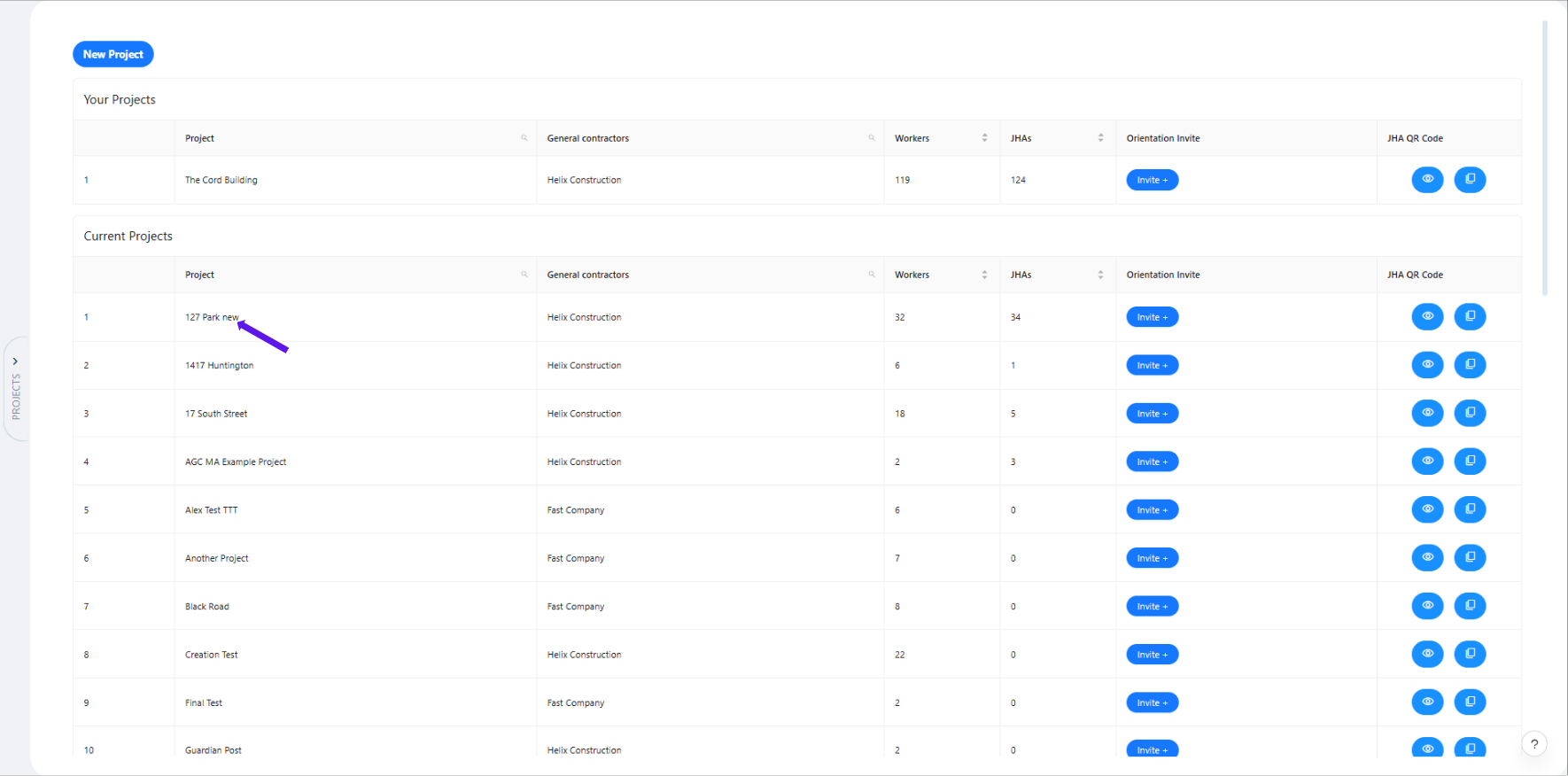
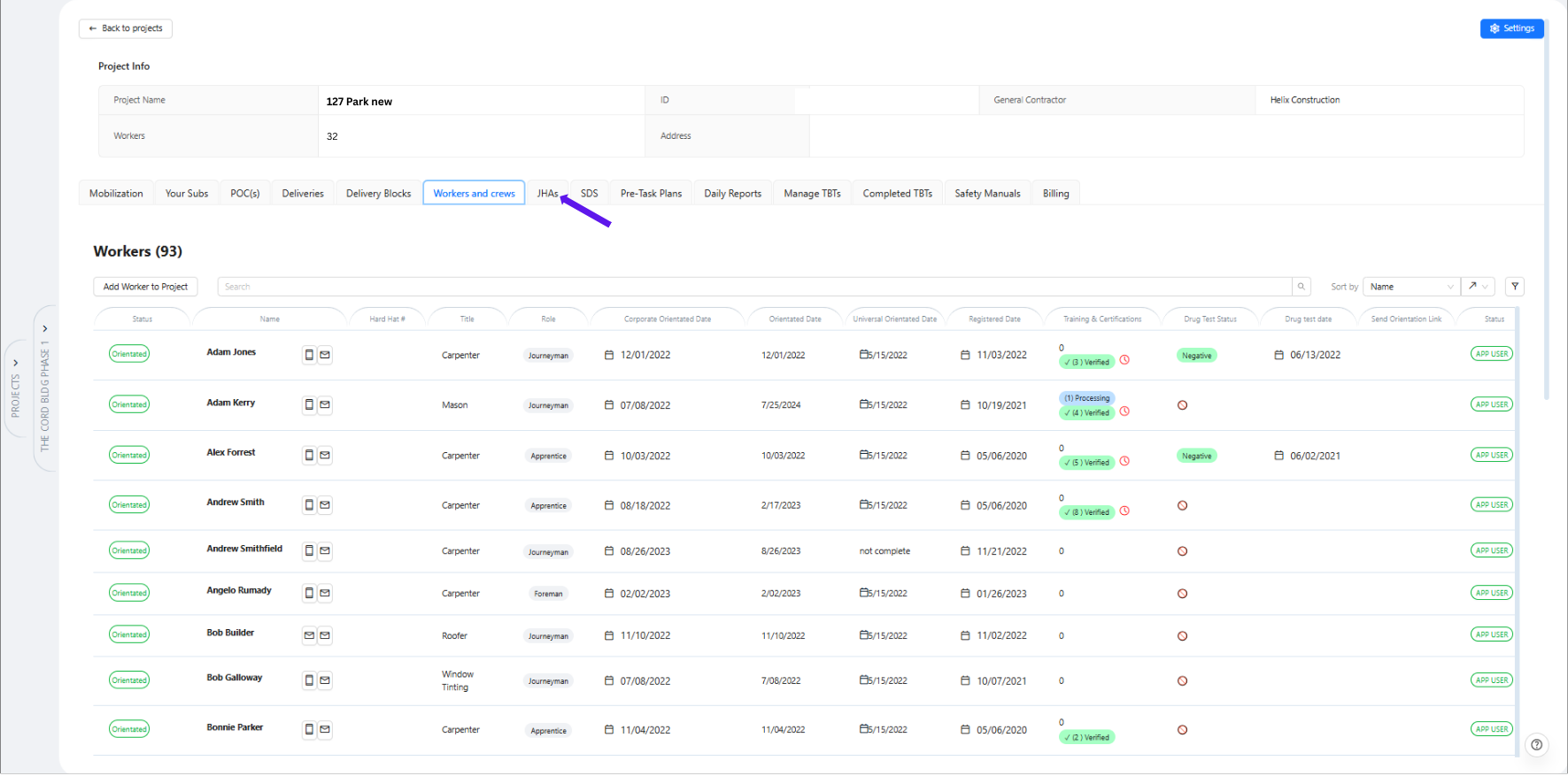
2. Click “JHA”
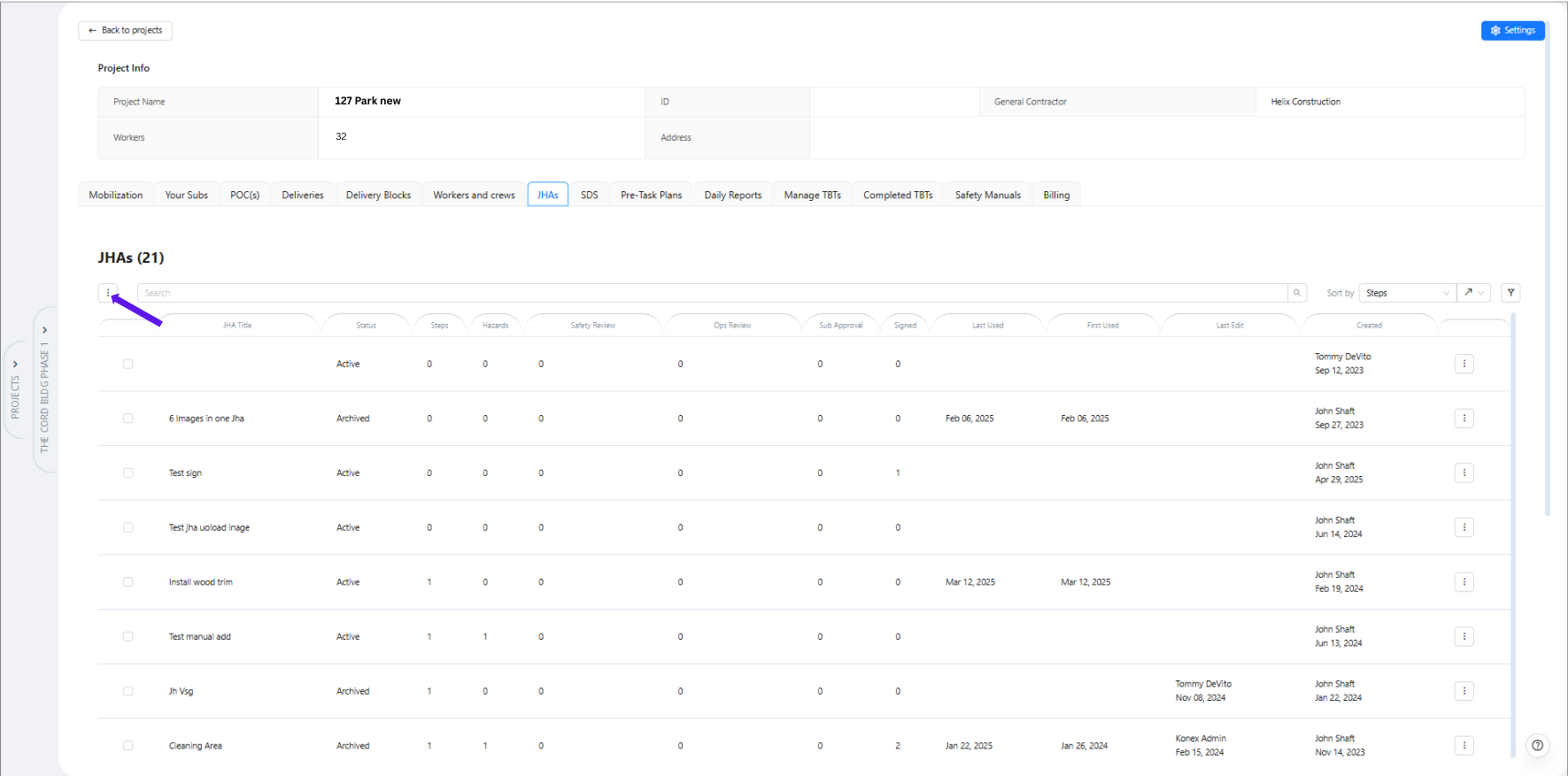
3. Click the Three Dots.
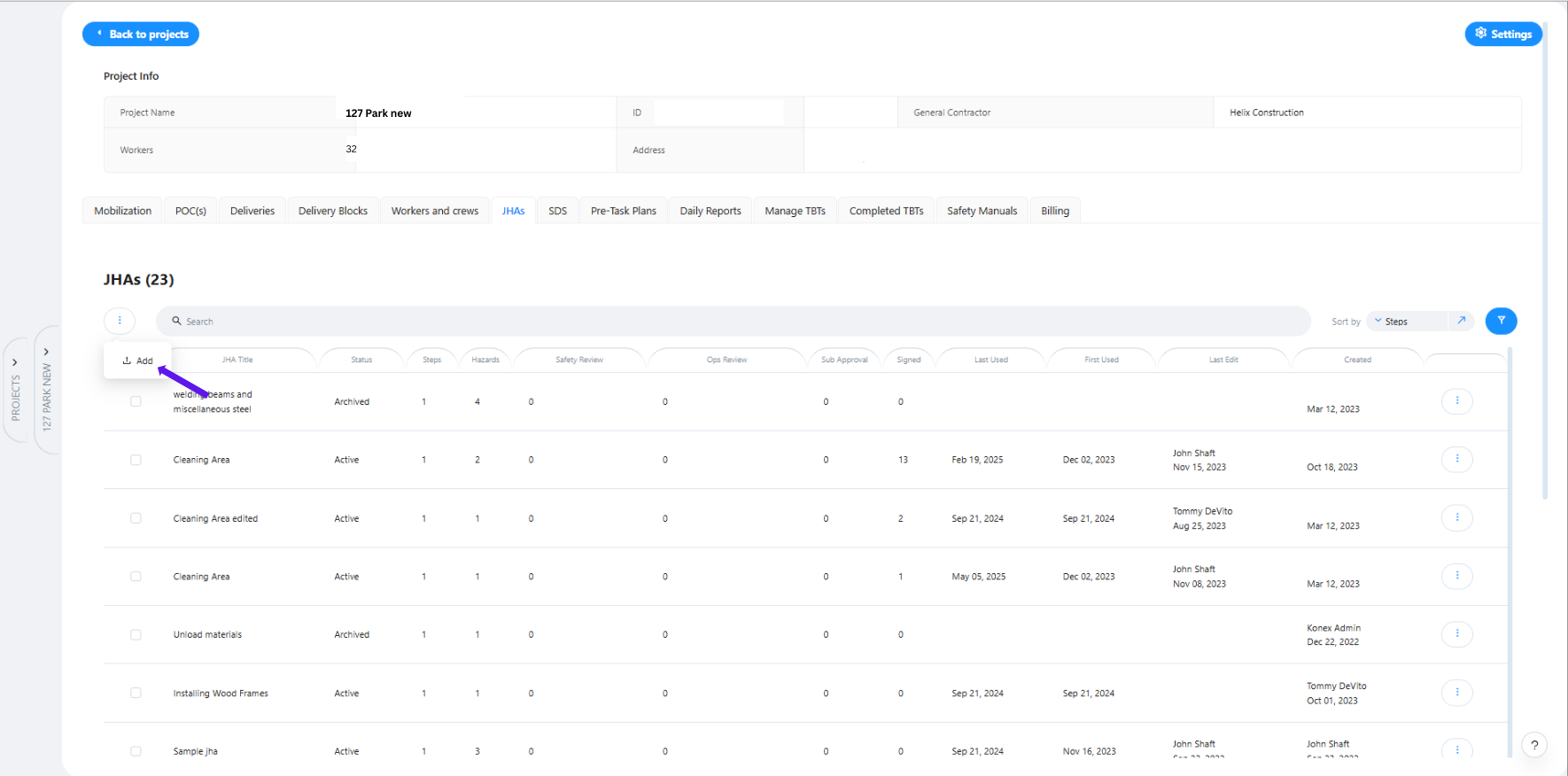
4. Select “Add”
5. Choose “Upload As-Is (Not Instant)”
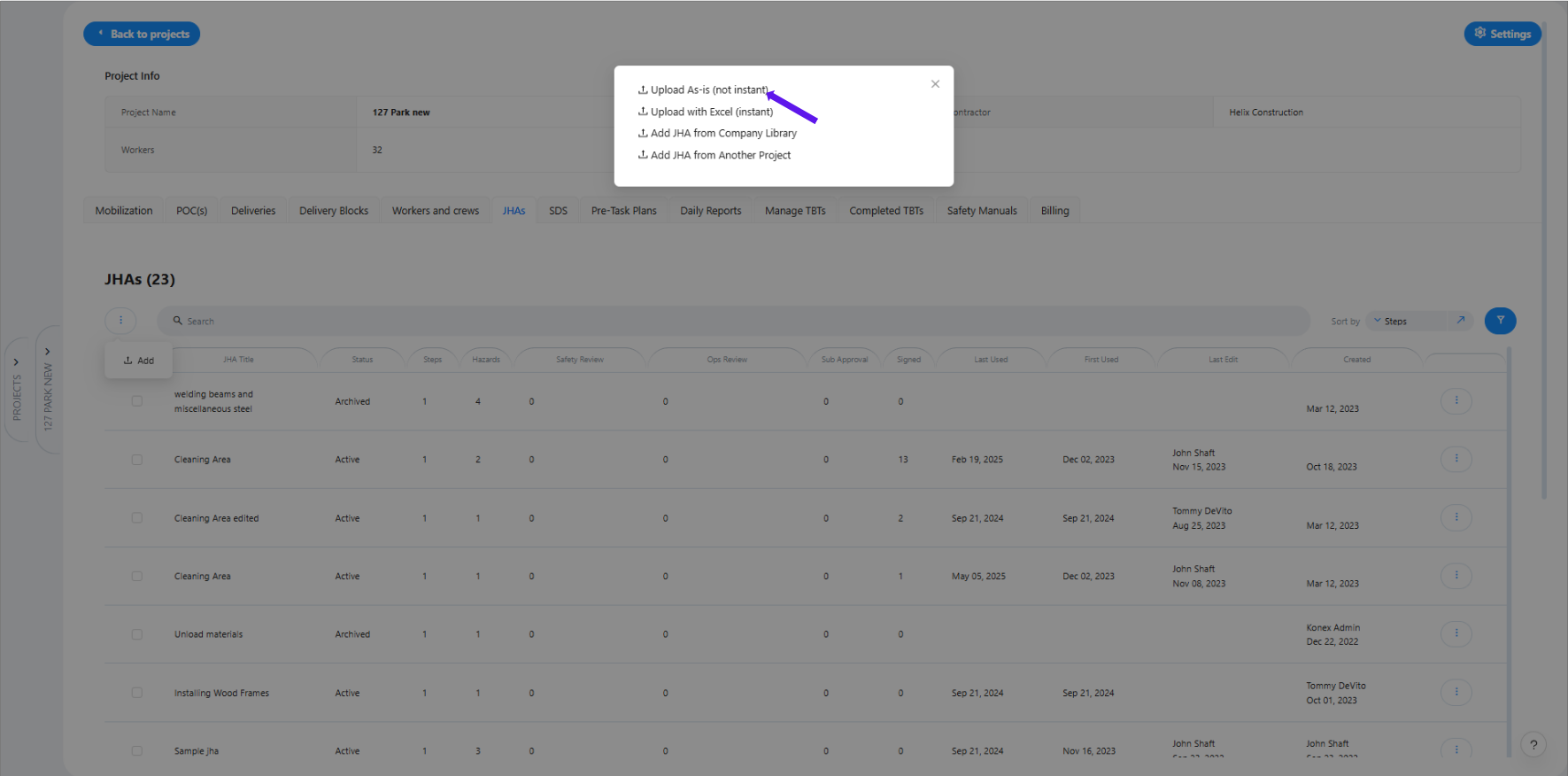
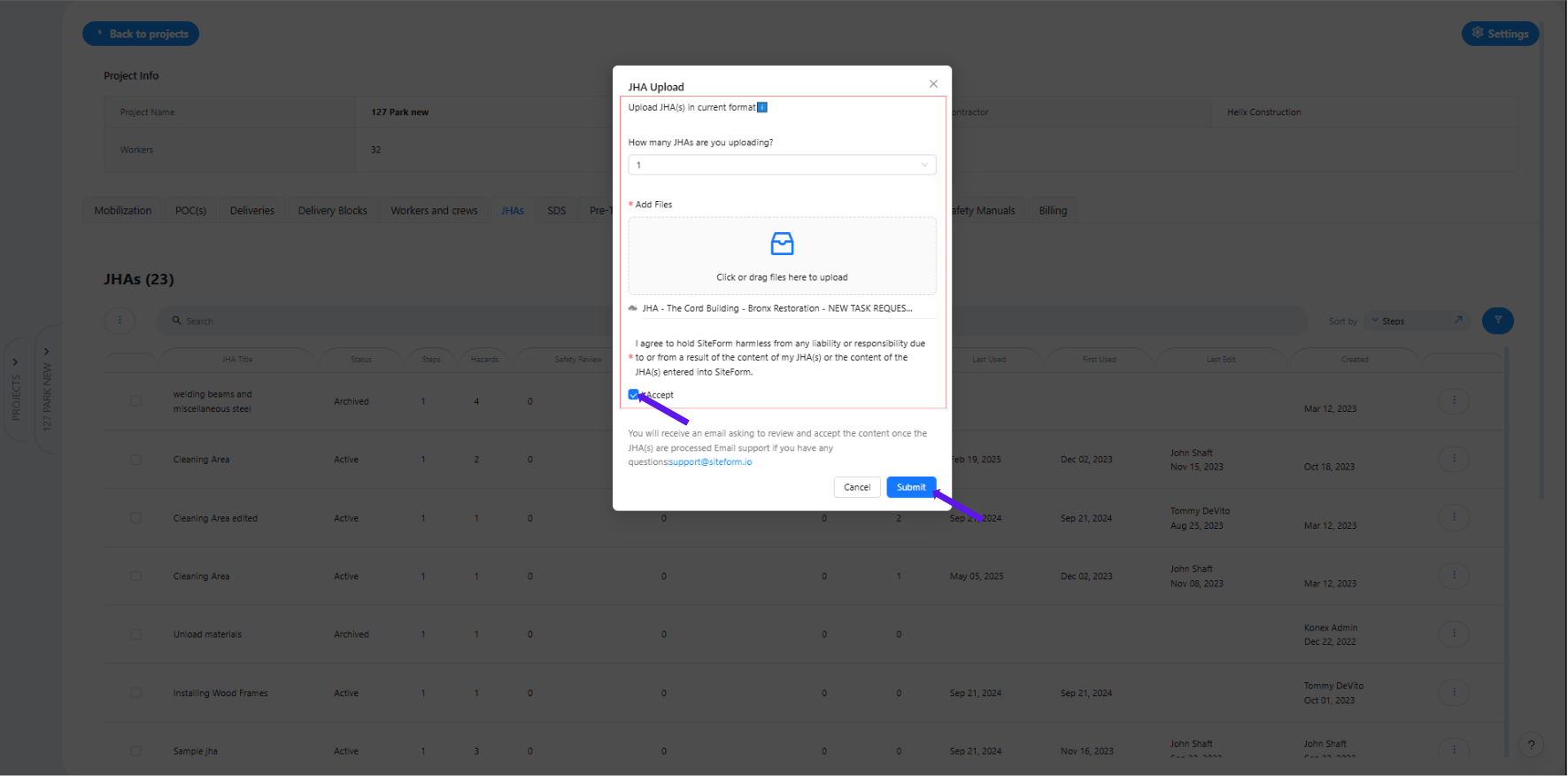
6. Complete All Required Fields
– Enter the number of JHAs being uploaded.
– Upload the JHA files.
– Select the subcontractor admins or workers for approval.
– Check the box to agree and click Submit.
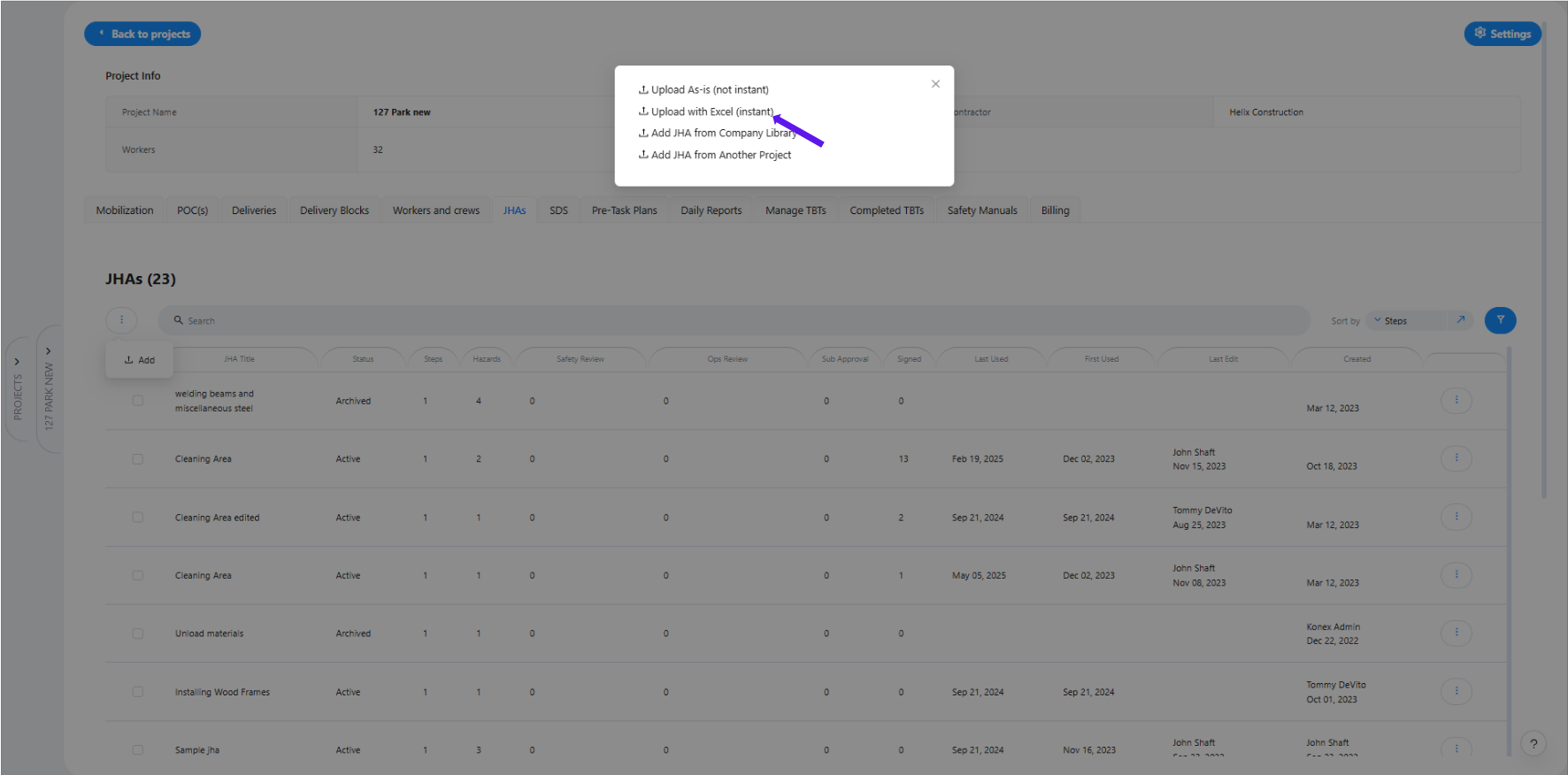
Option 2: Upload with Excel (Instant)
1. Click “Upload with Excel (Instant)”
2. Download the Template
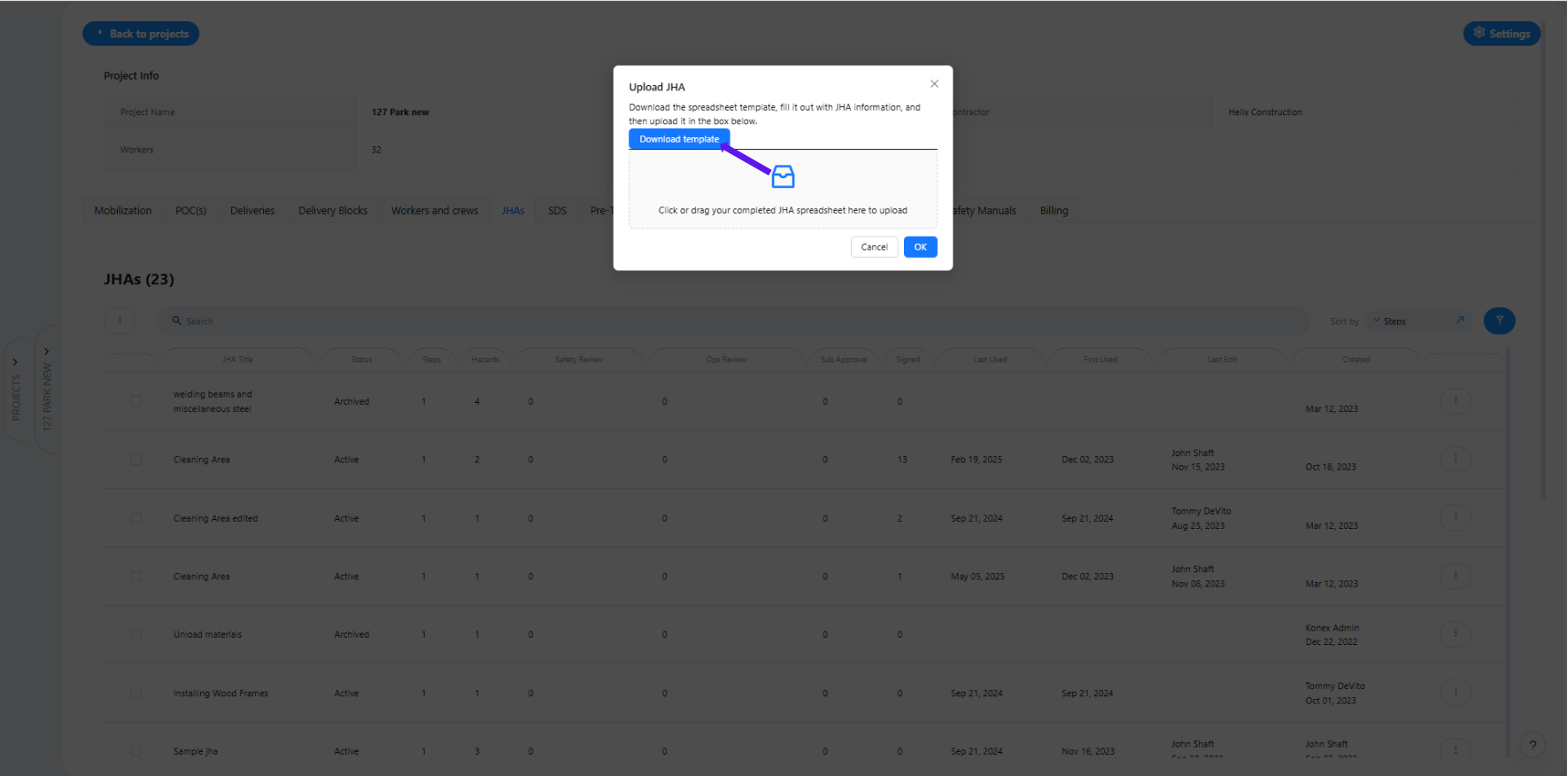
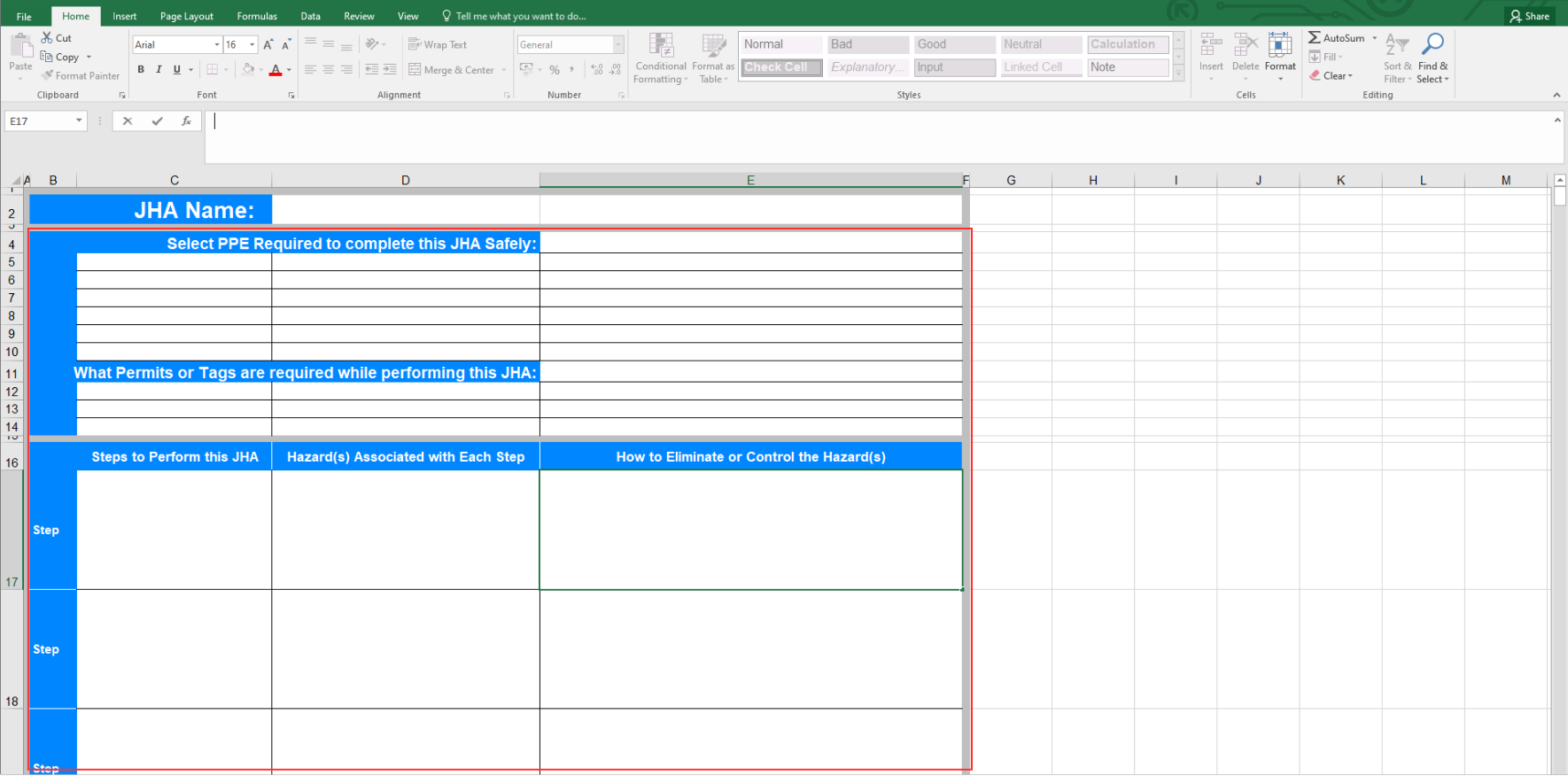
3. Fill Out the Template
-Open the file and complete all required fields (e.g., task description, hazards, controls, etc.).
4. Upload and Submit
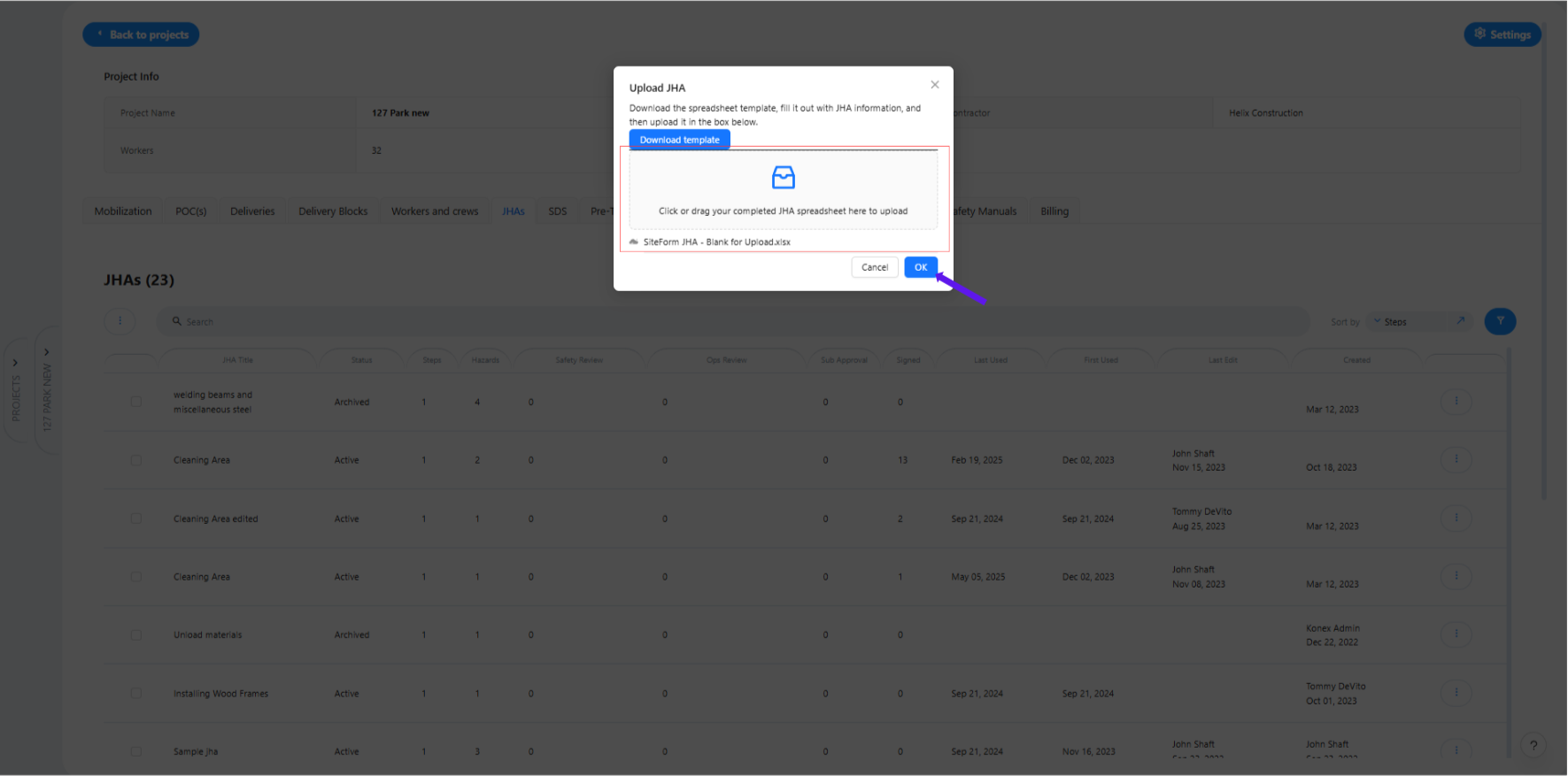
– Drag or select the completed file to upload.
– Click OK to instantly add the JHA to the system.
Option 3: Add JHA from the Company Library
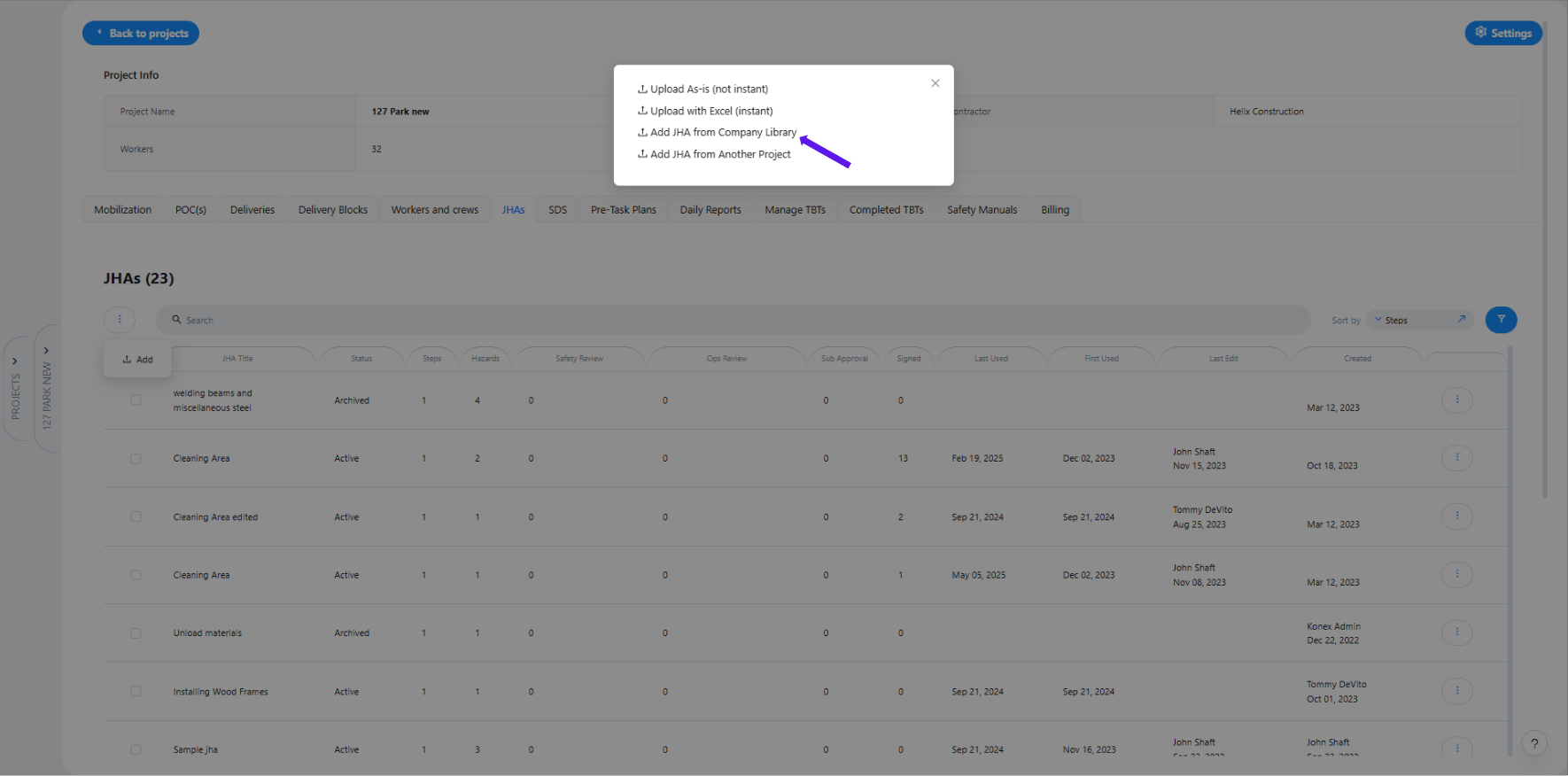
1. Select “Add JHA from the Company Library.
2. Browse and Select JHAs
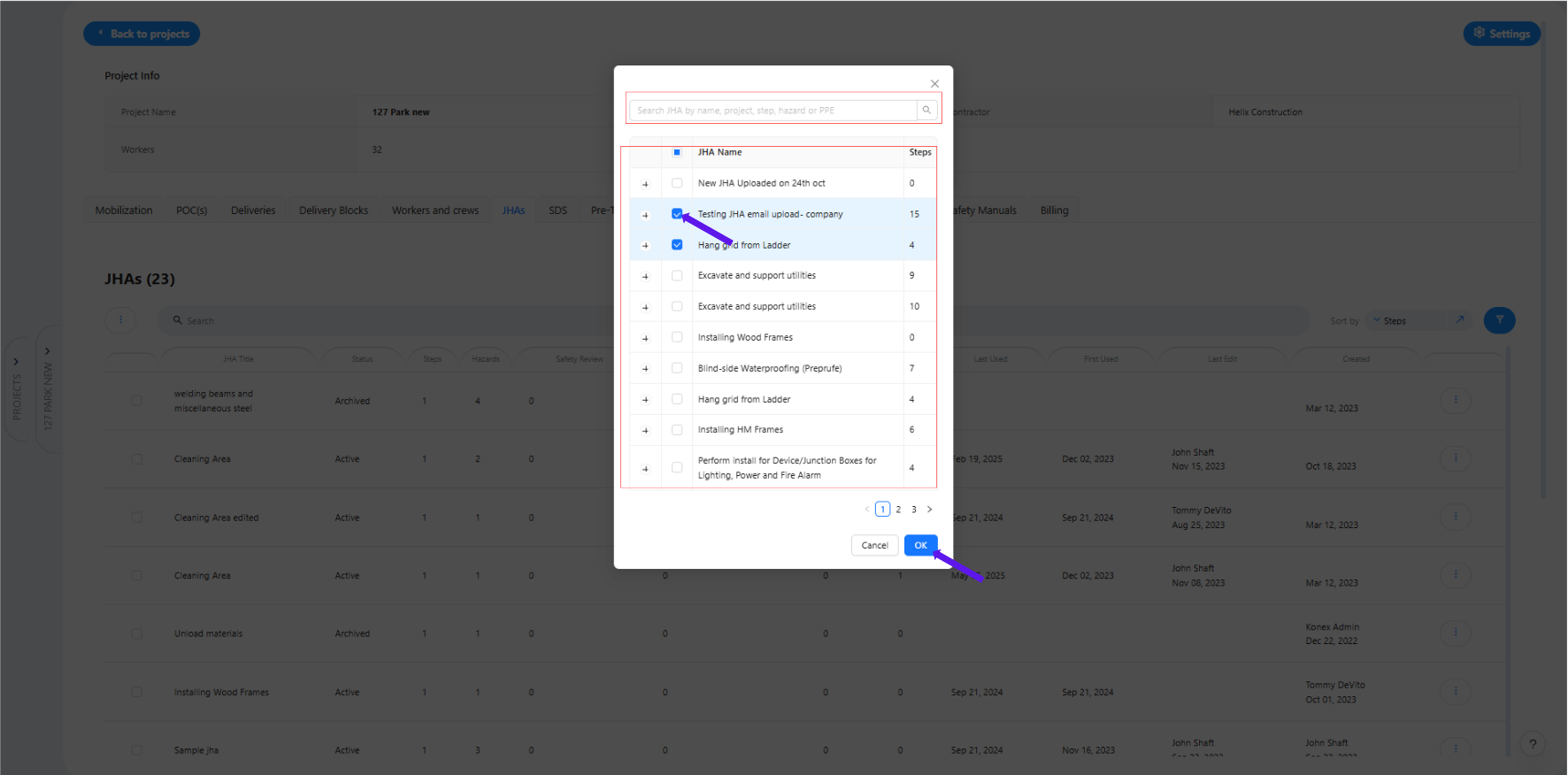
-Check the boxes next to all JHAs you wish to add to the project.
-Click “OK,” and the selected JHAs will be added directly to the project’s JHA log.
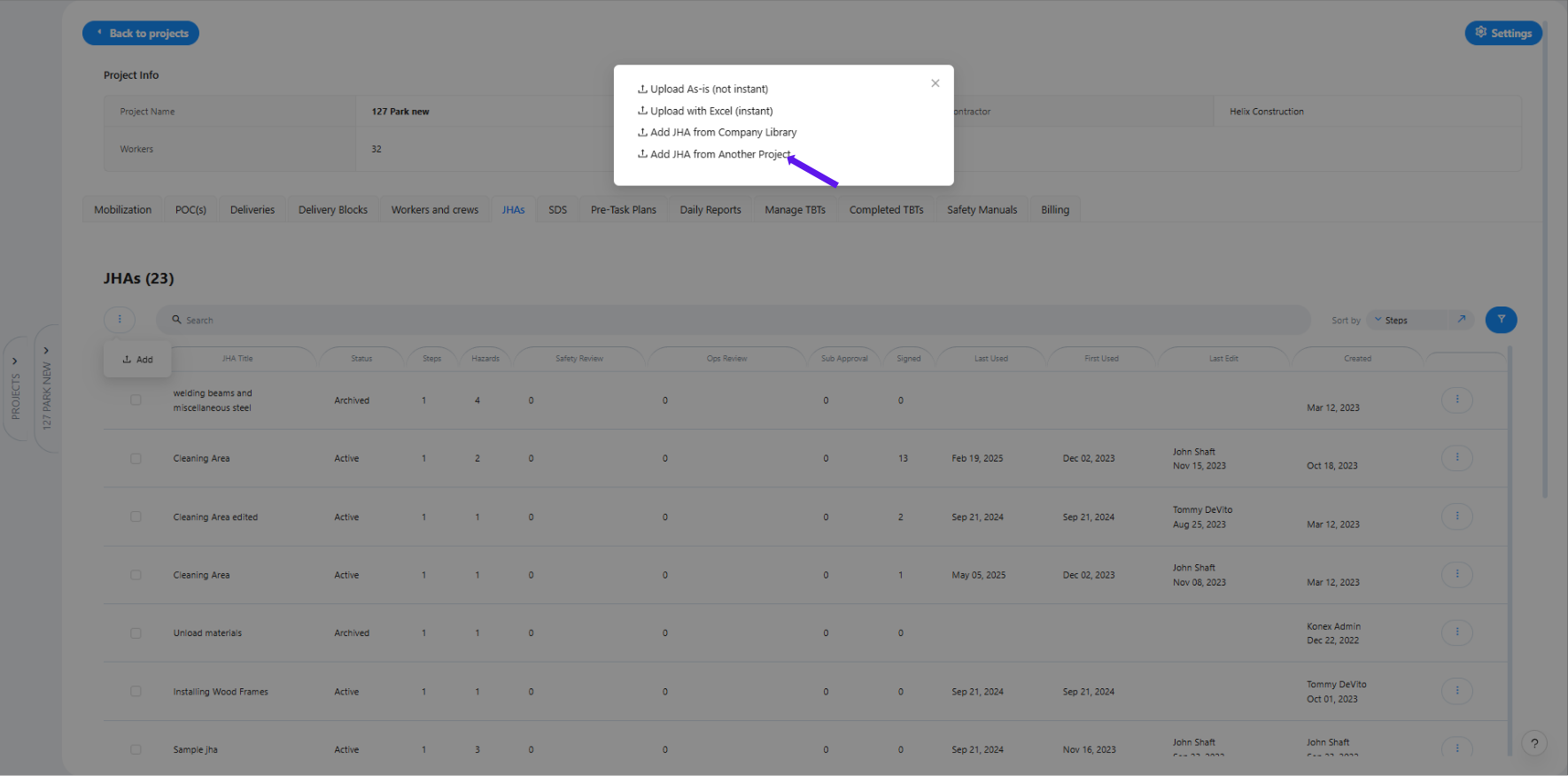
Option 4: Add JHA from Another Project
1. Select “Add JHA from Another Project.”
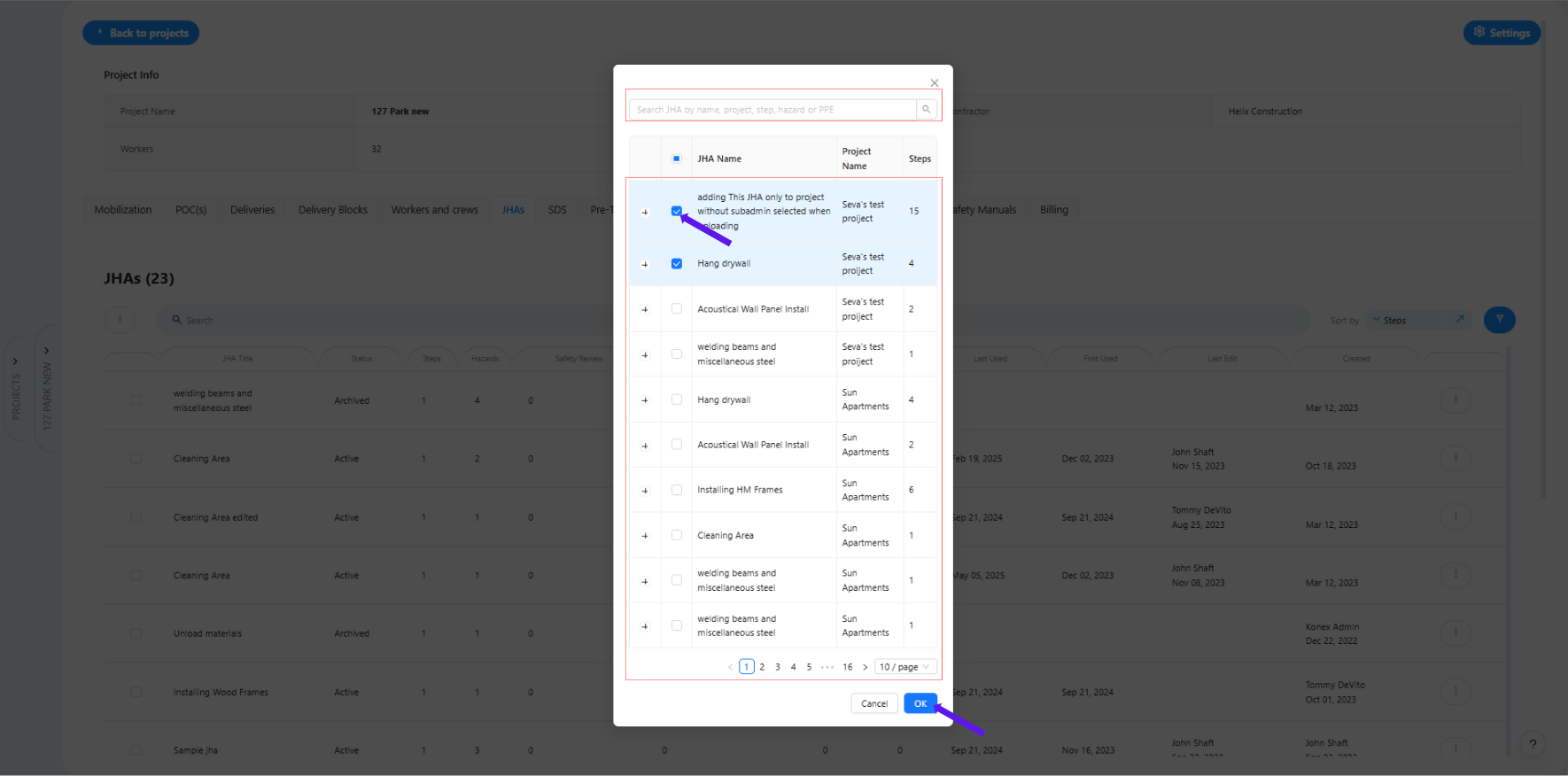
2. Browse and Select JHAs
– A list of available JHAs from other projects will appear.
– Check the boxes next to the JHAs you wish to add.
– Click “OK," and the selected JHAs will be imported into the current project’s JHA log.
Was this article helpful?
That’s Great!
Thank you for your feedback
Sorry! We couldn't be helpful
Thank you for your feedback
Feedback sent
We appreciate your effort and will try to fix the article