Job Hazard Analysis (JHA) management is a critical component of construction safety protocols and serves as the foundation for effective Pre-Task Planning (PTP). JHAs are absolutely essential before conducting any first PTP session - without approved JHAs in place, workers cannot properly identify hazards, implement controls, or complete the required safety planning that makes PTPs effective. Modern construction management platforms have streamlined the process of creating, uploading, and managing JHAs across multiple subcontractors and projects, ensuring this critical safety documentation is ready when PTP activities begin. This comprehensive guide walks through the complete JHA management workflow, from initial upload to final approval.
The Critical Role of JHAs in Pre-Task Planning
Before diving into the technical aspects of JHA management, it's essential to understand why this process is so critical: JHAs form the backbone of all Pre-Task Planning (PTP) activities. Without properly completed and approved JHAs, first PTP sessions cannot be conducted effectively.
The JHA provides the foundational safety information that PTP facilitators and work crews need to:
- Identify specific hazards for the planned work
- Understand required control measures and protective equipment
- Develop step-by-step safety protocols
- Establish emergency procedures and communication plans
- Create accountability for safety compliance
This means JHA completion and approval must always precede PTP scheduling. Project managers should ensure JHAs are submitted, processed, and approved well in advance of planned work to avoid delays in PTP sessions and subsequent work activities.
Understanding the JHA Management Structure
The JHA management system operates on two primary levels: a centralized JHA log that houses all job hazard analyses across the project, and individual subcontractor-specific JHA sections. This dual approach ensures both comprehensive project oversight and granular subcontractor management.
All subcontractors have dedicated sections where their JHAs are organized and accessible through top-level tabs. This structure allows project managers to quickly navigate between different trade contractors while maintaining visibility into all safety documentation across the entire project.
Multiple Methods for Adding JHAs
The platform offers several flexible approaches for JHA creation and upload, accommodating different contractor preferences and existing documentation formats.
Option 1: How to Upload JHAs (As-Is Format)
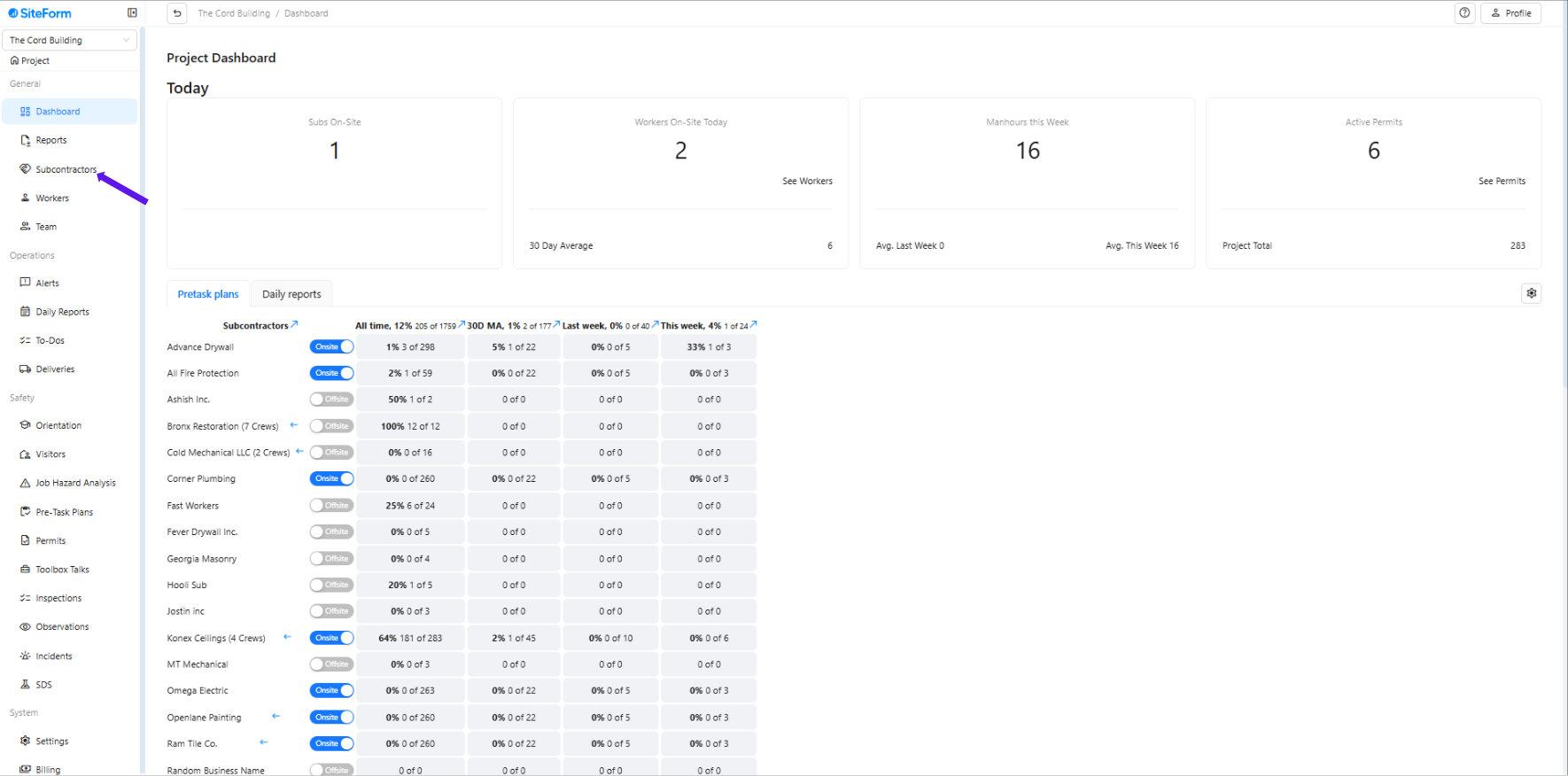
1. Click “Subcontractors” from the main menu.
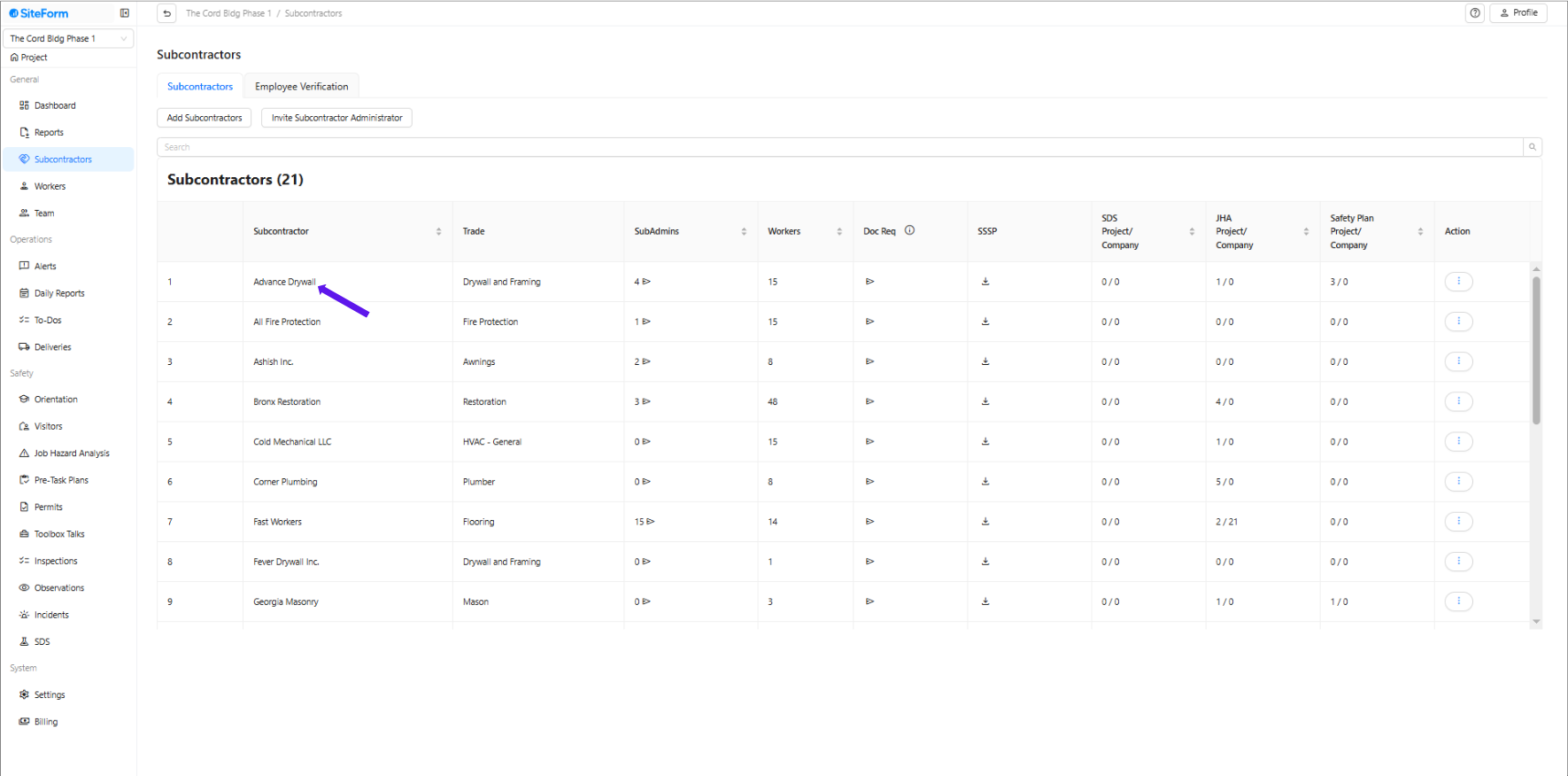
2. Select the subcontractor company for which you want to upload the JHA(s).
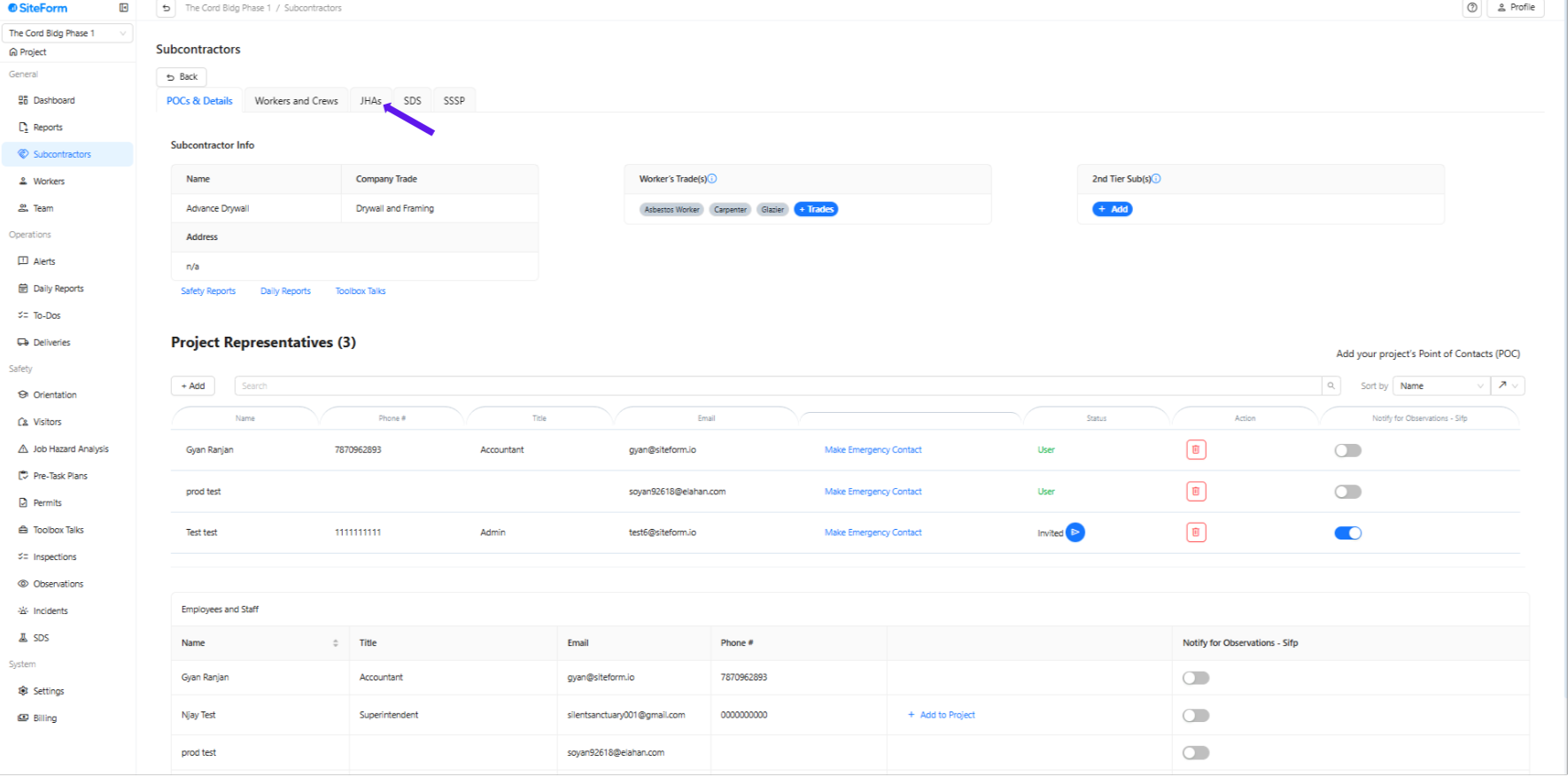
3. Once inside the subcontractor’s profile, click the “JHAs” tab at the top.
4. Click the three dots and select “Add”.
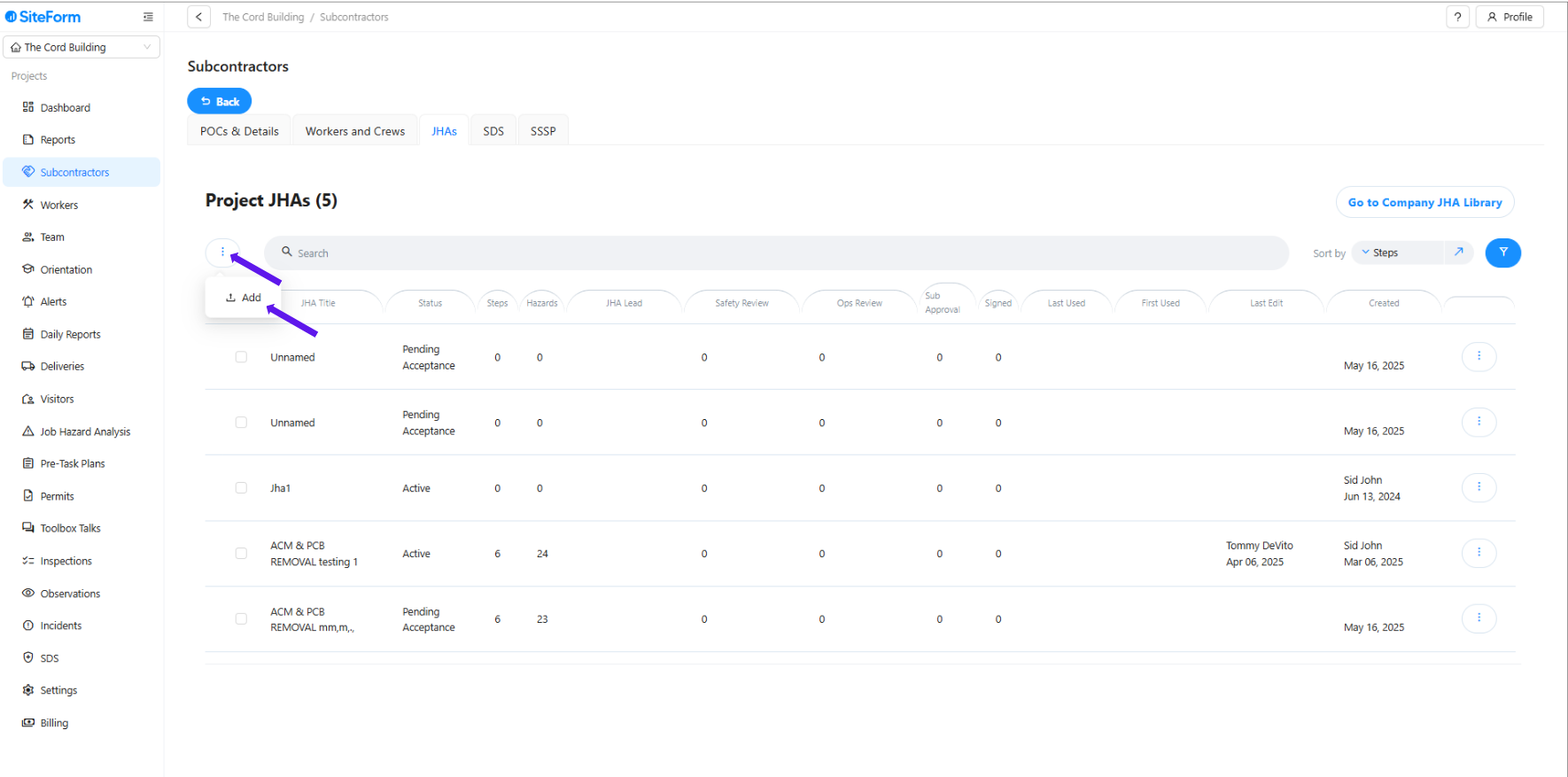
5. Select “Upload As-Is” (Note: This is not instant—the system will process and reformat the file for you.)
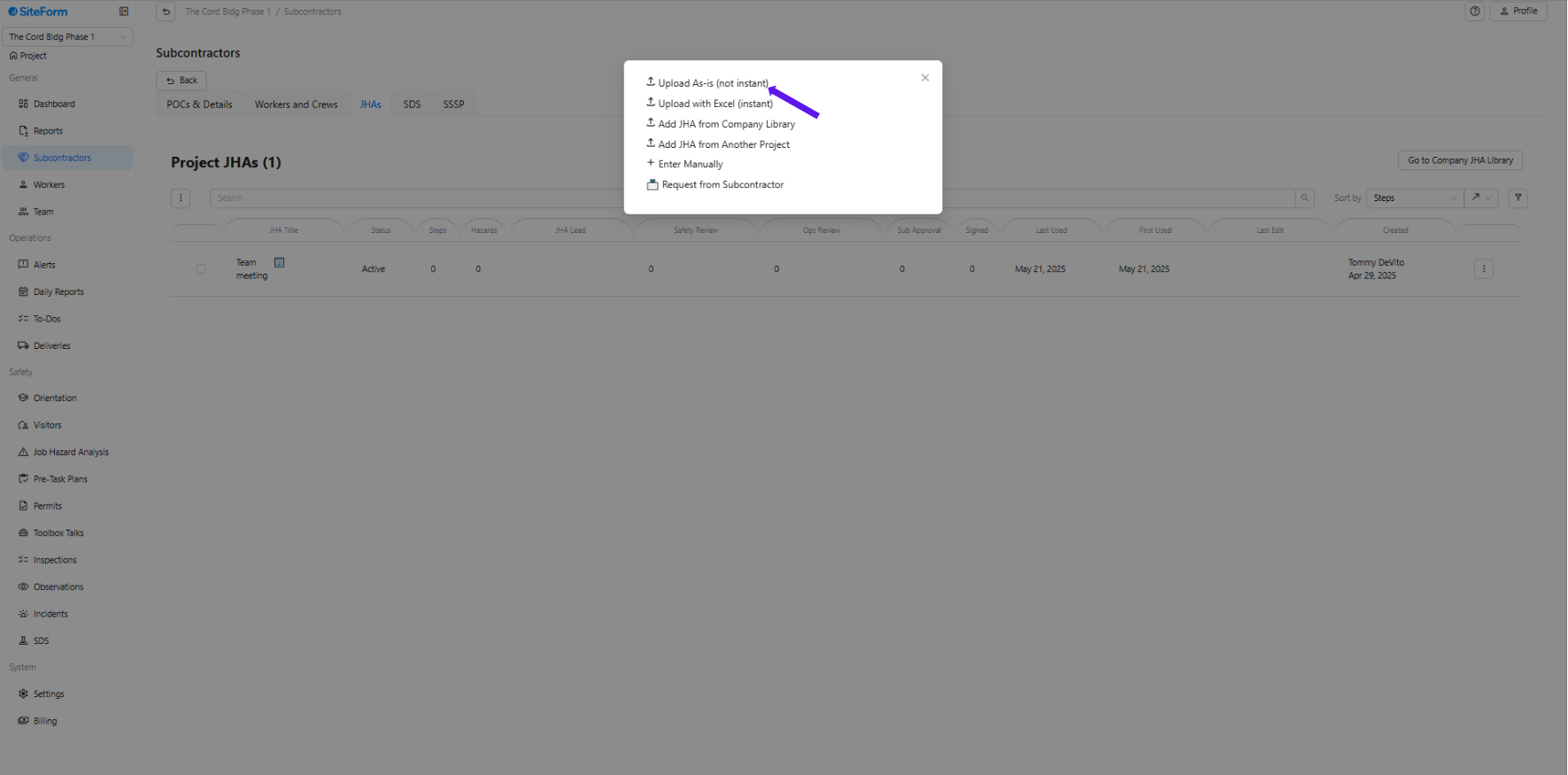
6. Fill Out Upload Details:
How many JHAs are you uploading?
Upload the JHA files
Select Subcontractor Approvers
Check the “I agree” box.
Click “Submit” to complete the upload process.
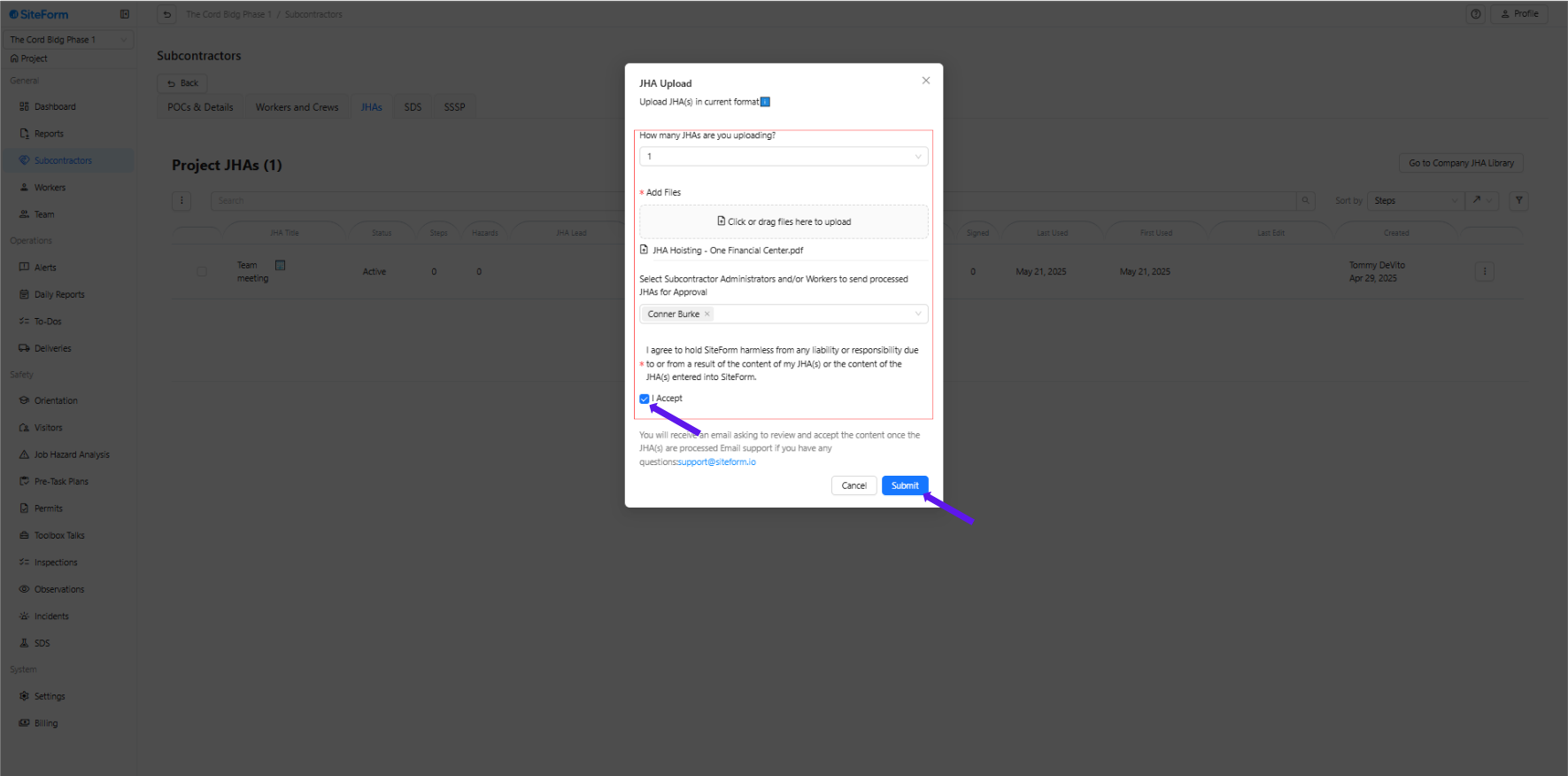
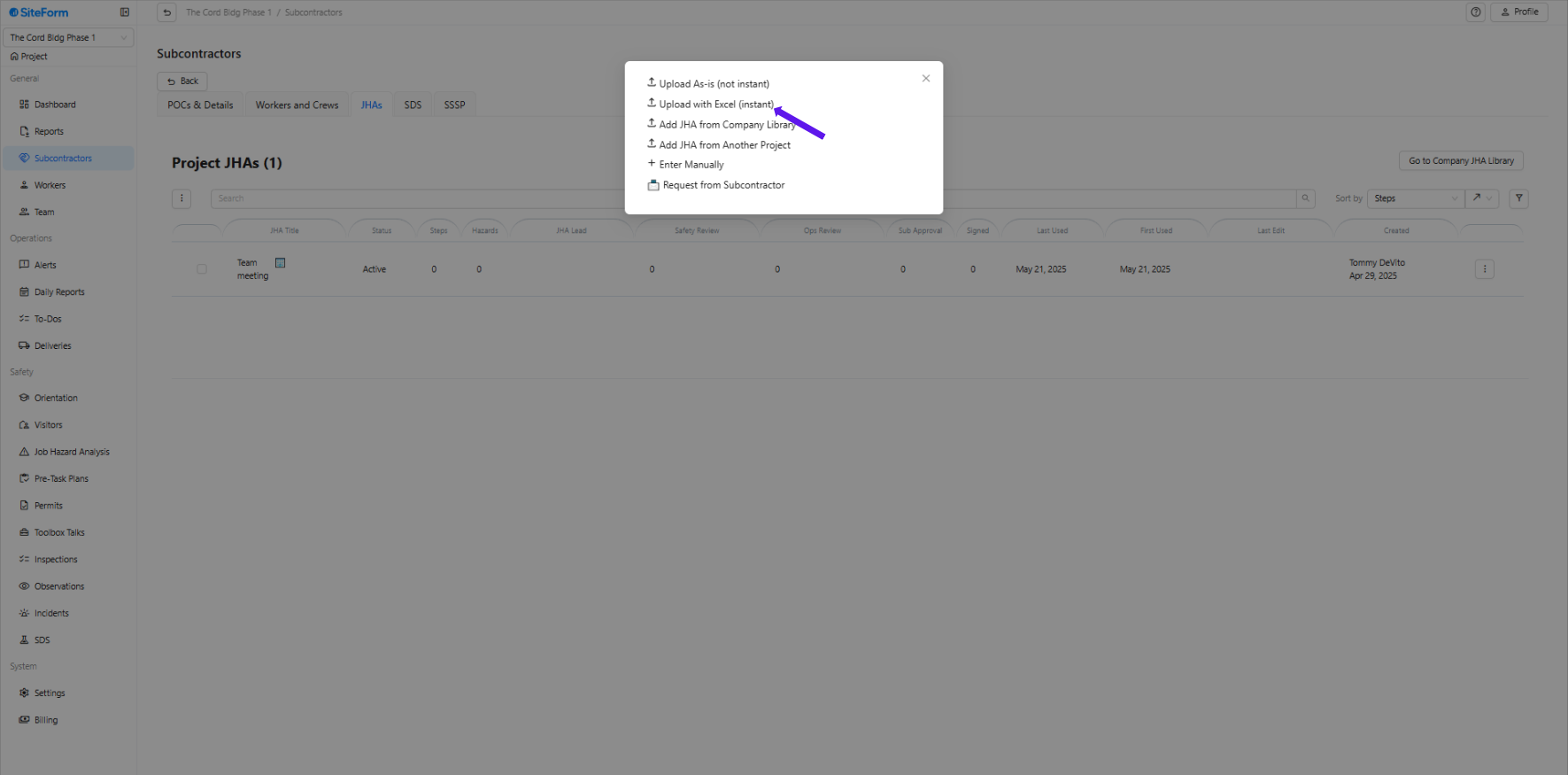
Option 2: How to Upload JHAs Using Excel Template (Instant Upload)
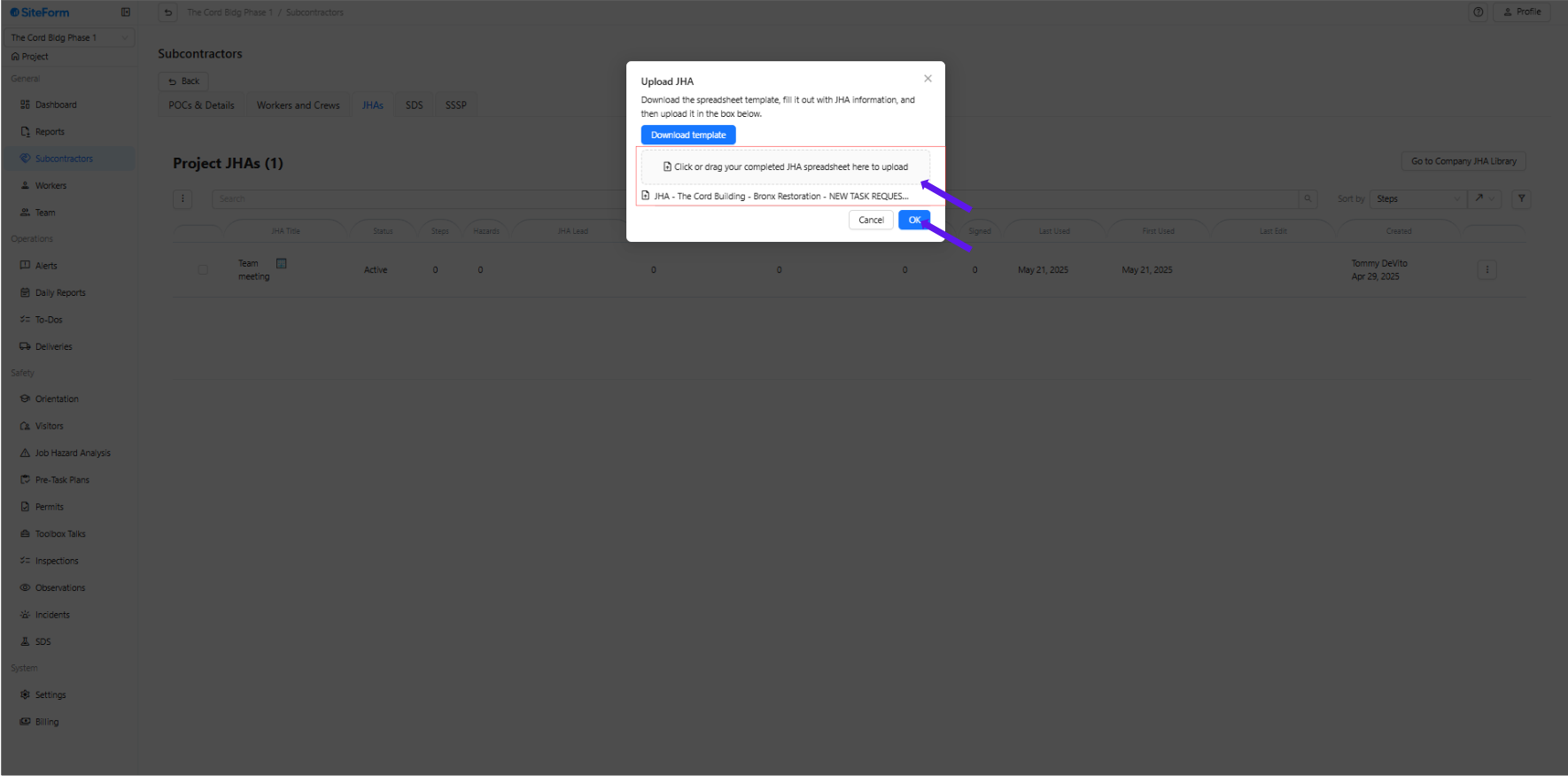
1. Choose “Upload with Excel (instant)
2. Click “Download Template” to get the official Excel file format.
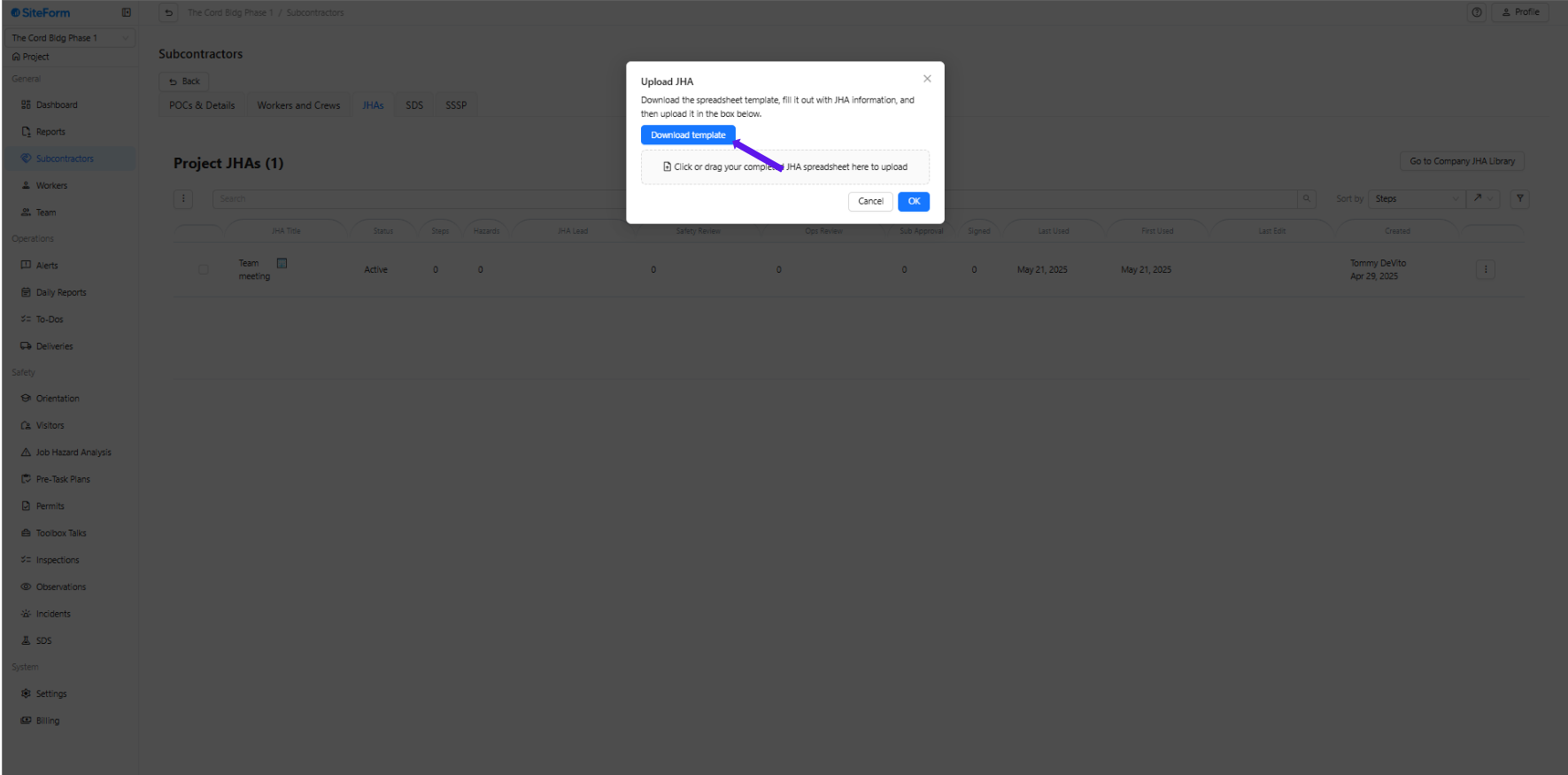
3. Open the downloaded Excel file and complete all required fields in the template.
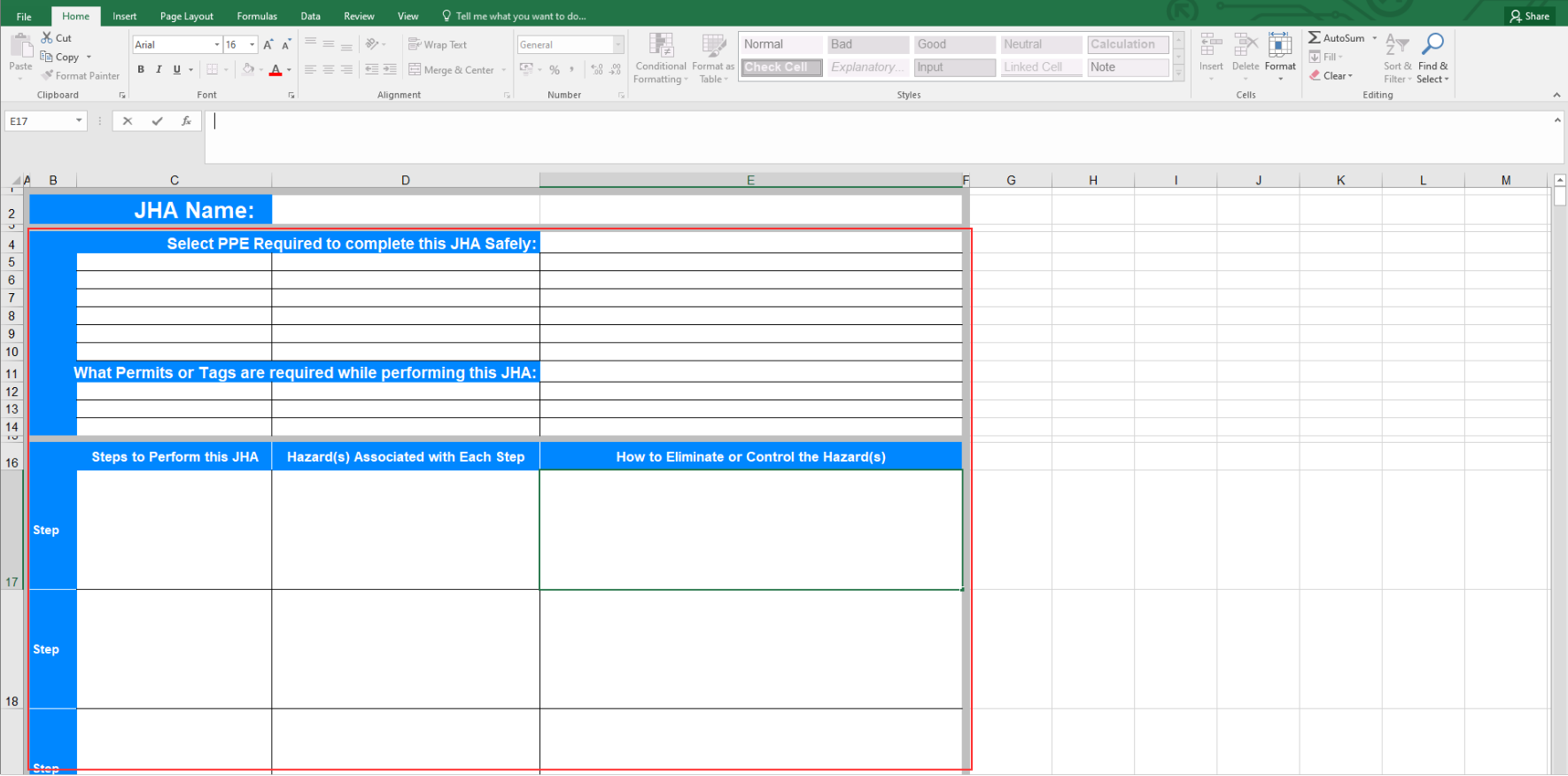
4. Drag and drop the completed Excel file into the upload area and click “OK” to submit.
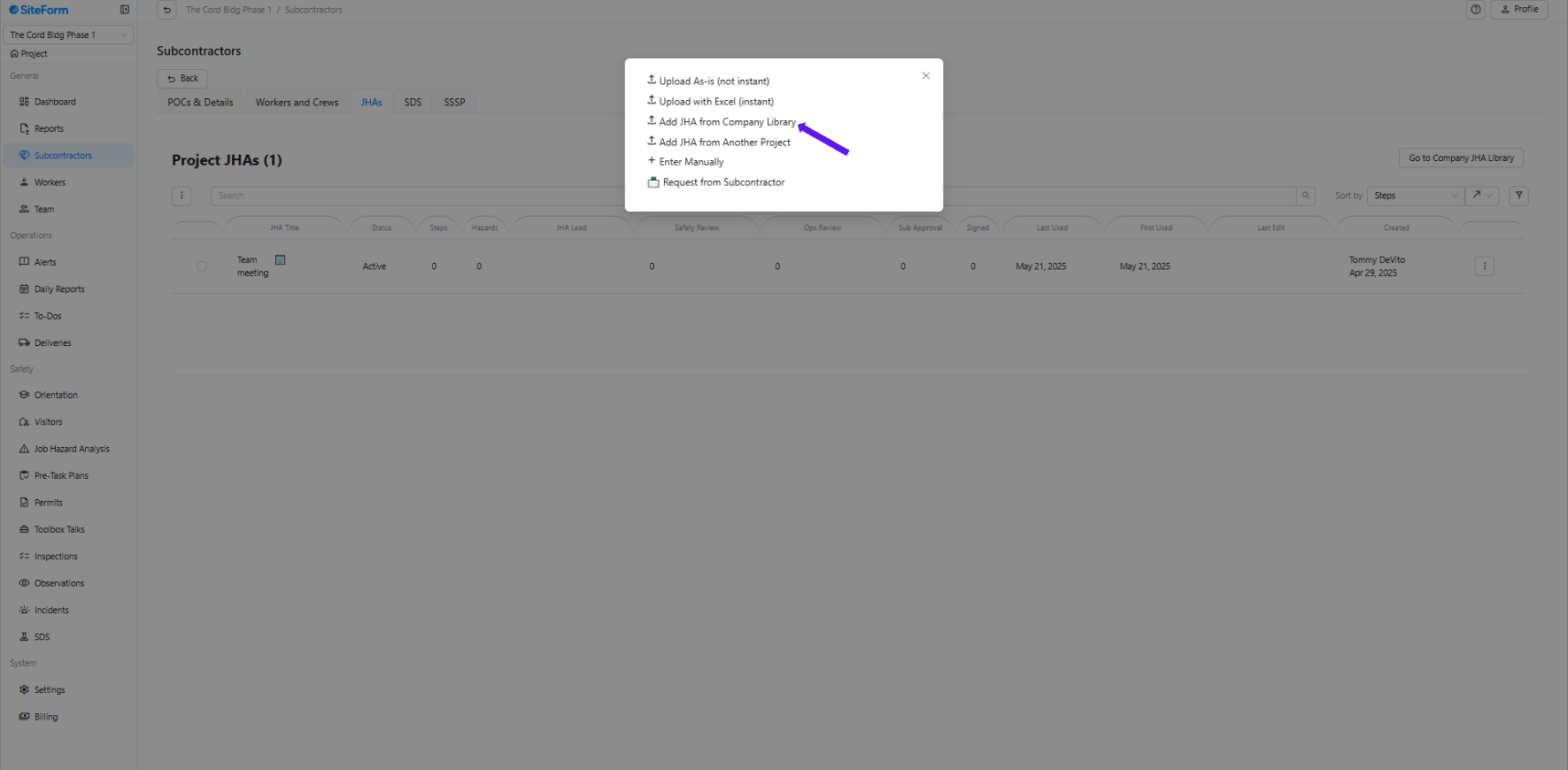
Option 3: How to Add JHAs from the Company Library
1. Choose “Add JHA from Company Library.”
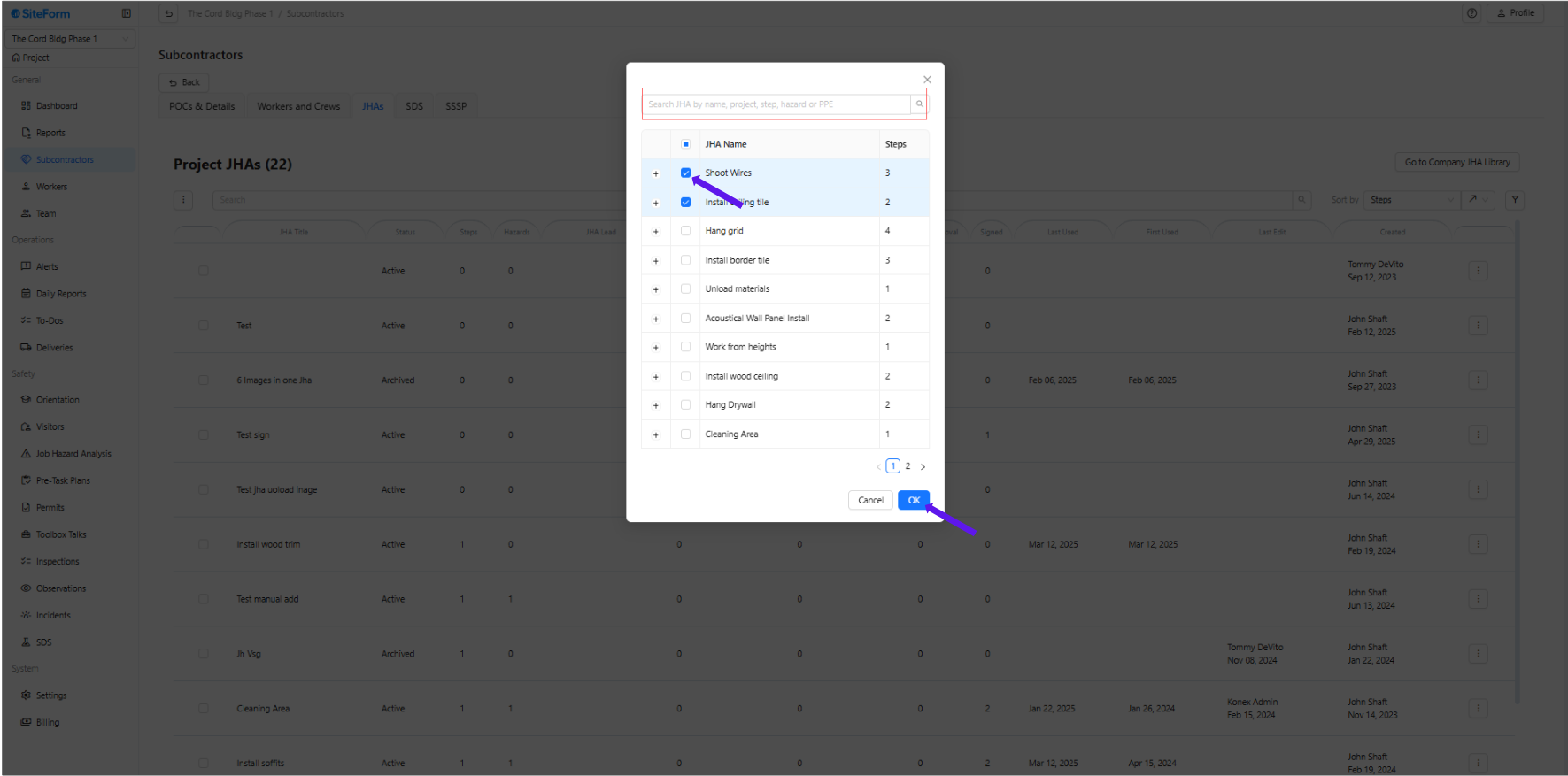
2. Browse the list of available JHAs in the company library, check the boxes next to the ones you wish to add, and then click “OK” to confirm your selection.
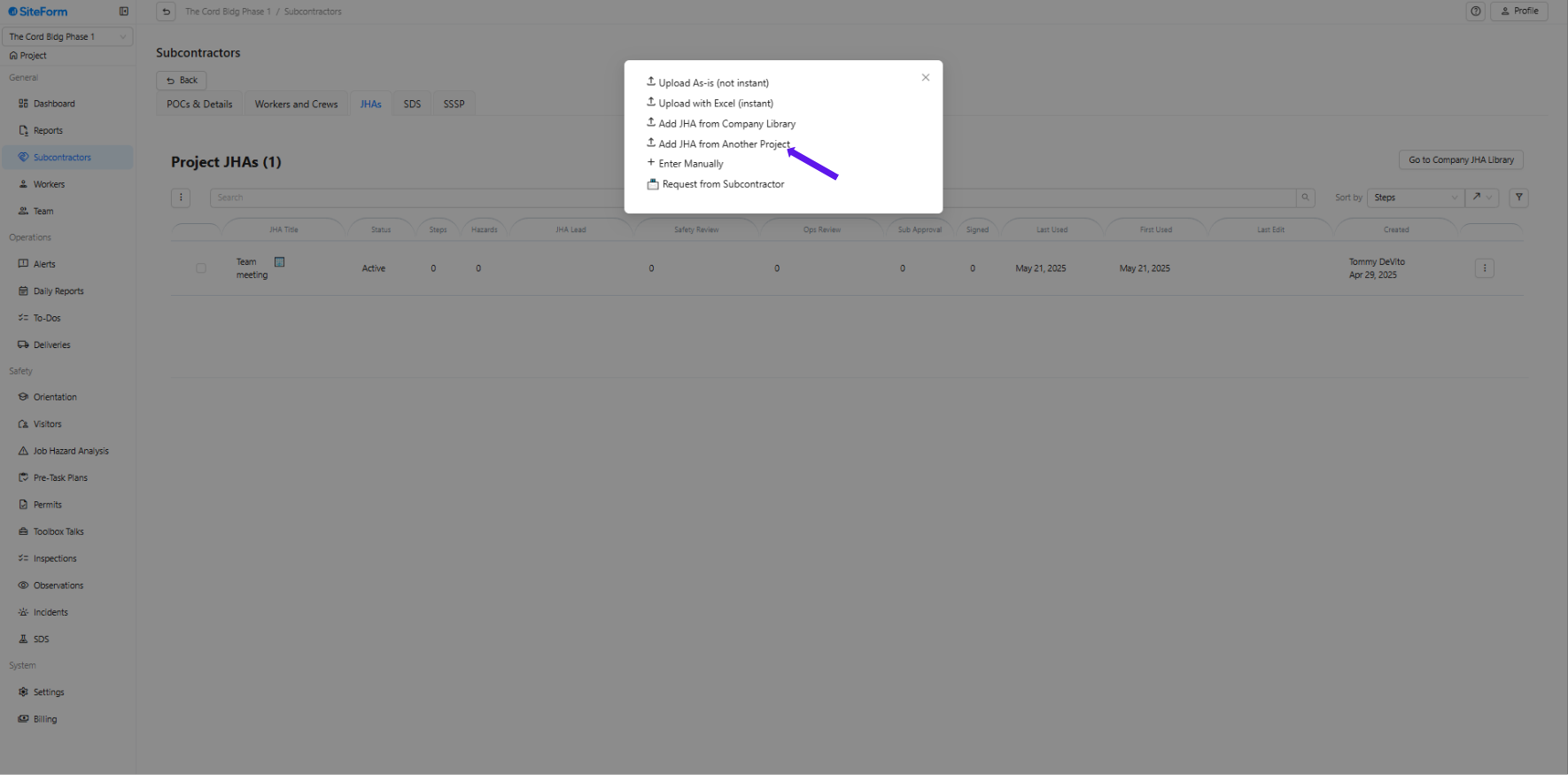
Option 4: How to Add JHAs from Another Project
1. Choose “Add JHA from Another Project.”
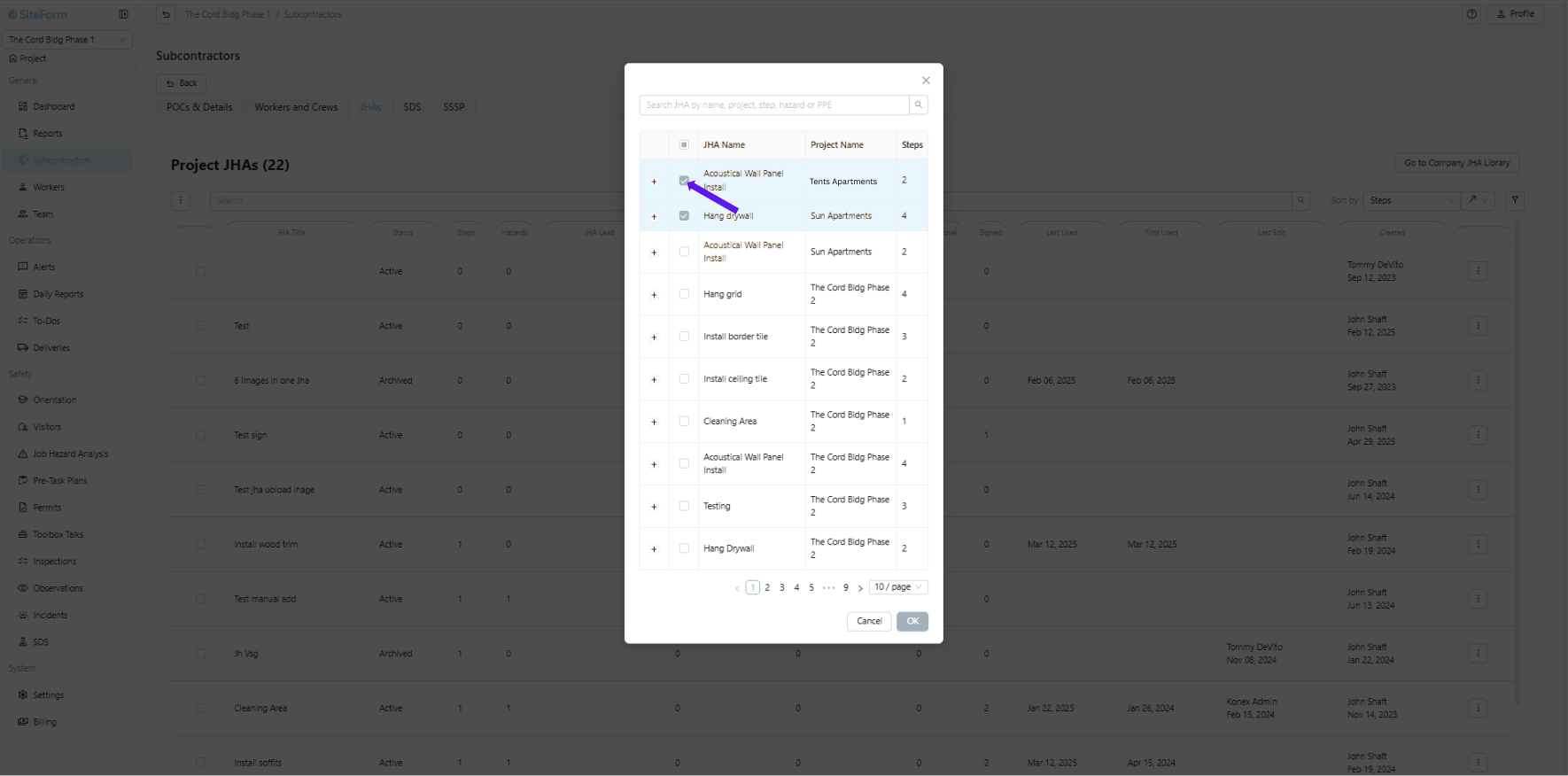
2. Browse the list of available JHAs in the company library, check the boxes next to the ones you wish to add, and then click “OK” to confirm your selection.
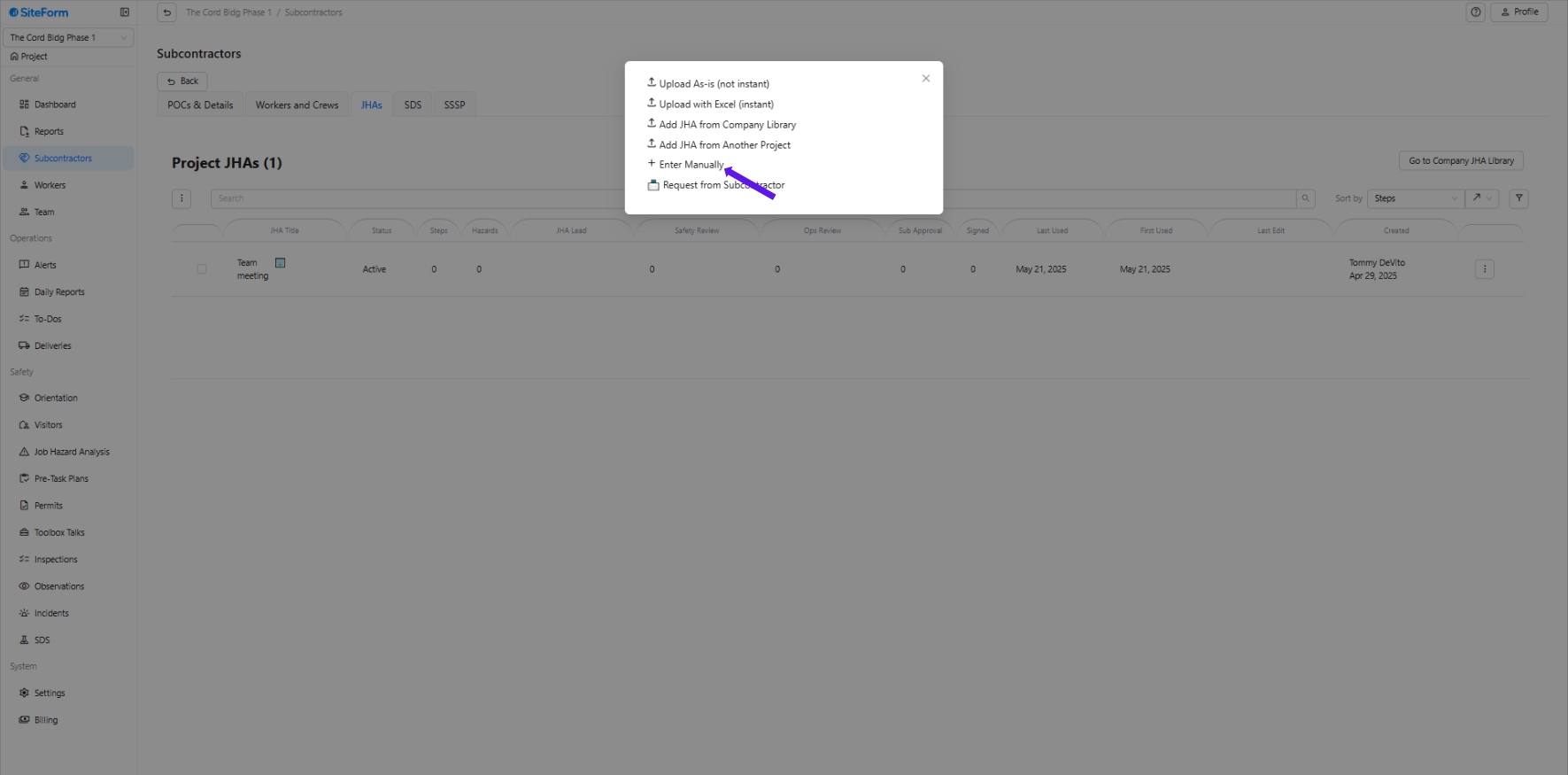
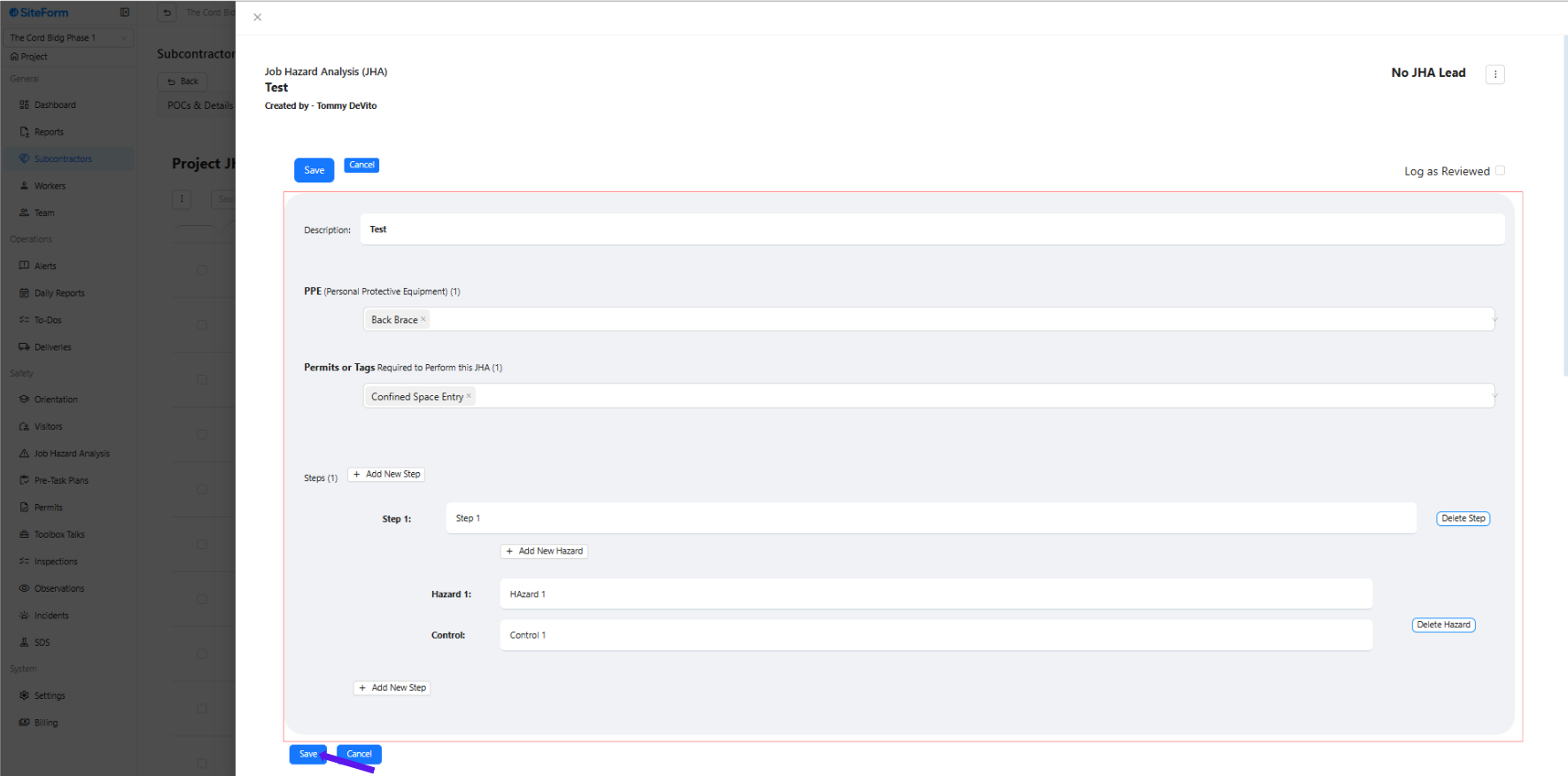
Option 5: How to Manually Enter a JHA
1. Choose “Enter Manually.”
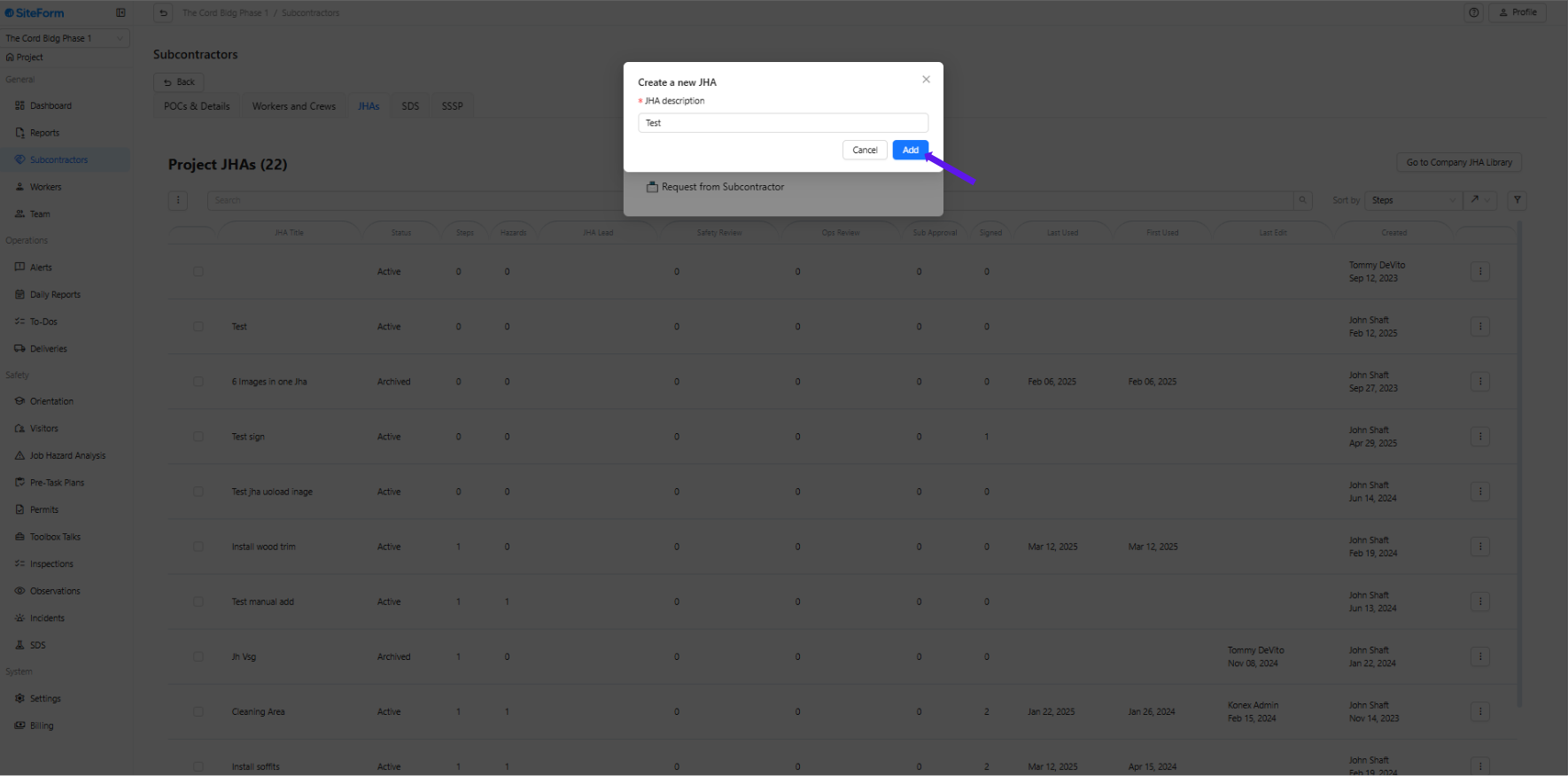
2. Enter a brief JHA description and click Add to create the entry.
3. Click “Edit,” complete all required fields, and then click “Save” to finalize the JHA entry.
Option 6: How to Request a JHA from a Subcontractor
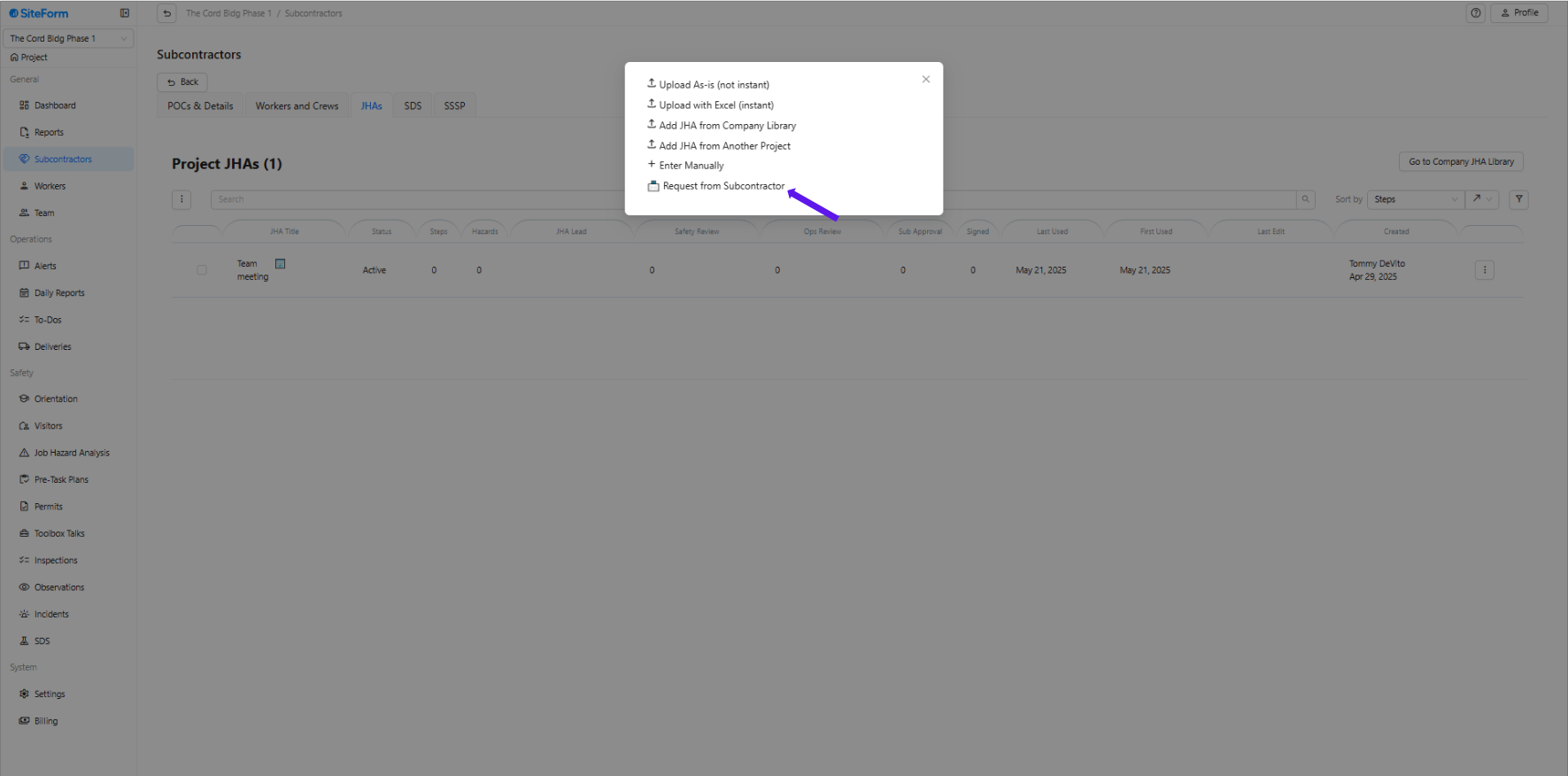
1. Choose “Request from Subcontractor.”
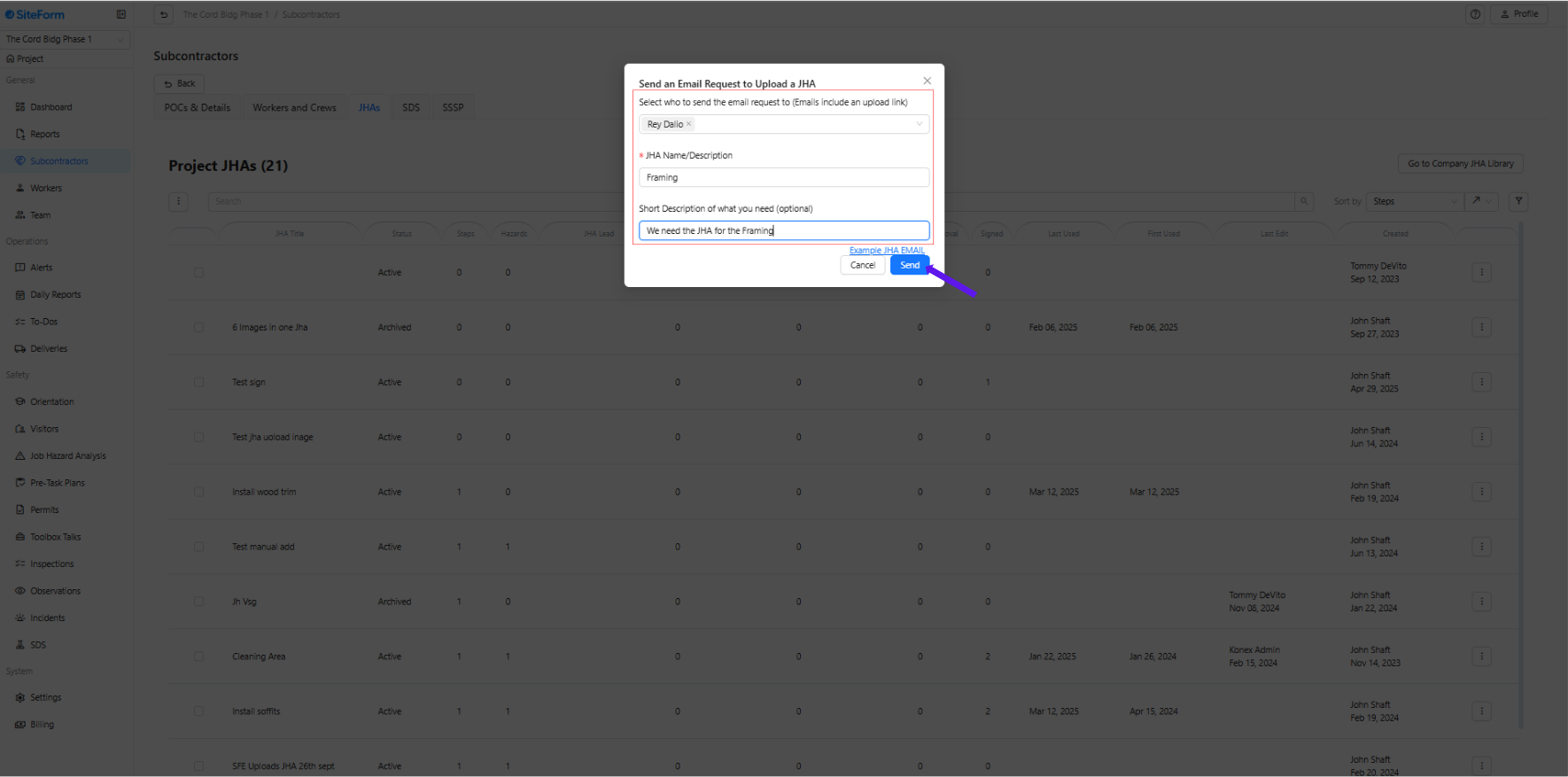
2. Fill Out the Request Details:
Select the recipient (Subcontractor contact to receive the email).
Enter the JHA name or task description (e.g., “Curtain wall installation”).
Add a short note explaining what you need (e.g., “Please upload a JHA for your upcoming scope of work.”).
Click “Send” to deliver the request via email.
Was this article helpful?
That’s Great!
Thank you for your feedback
Sorry! We couldn't be helpful
Thank you for your feedback
Feedback sent
We appreciate your effort and will try to fix the article