1. Click “Subcontractors” from the main menu.
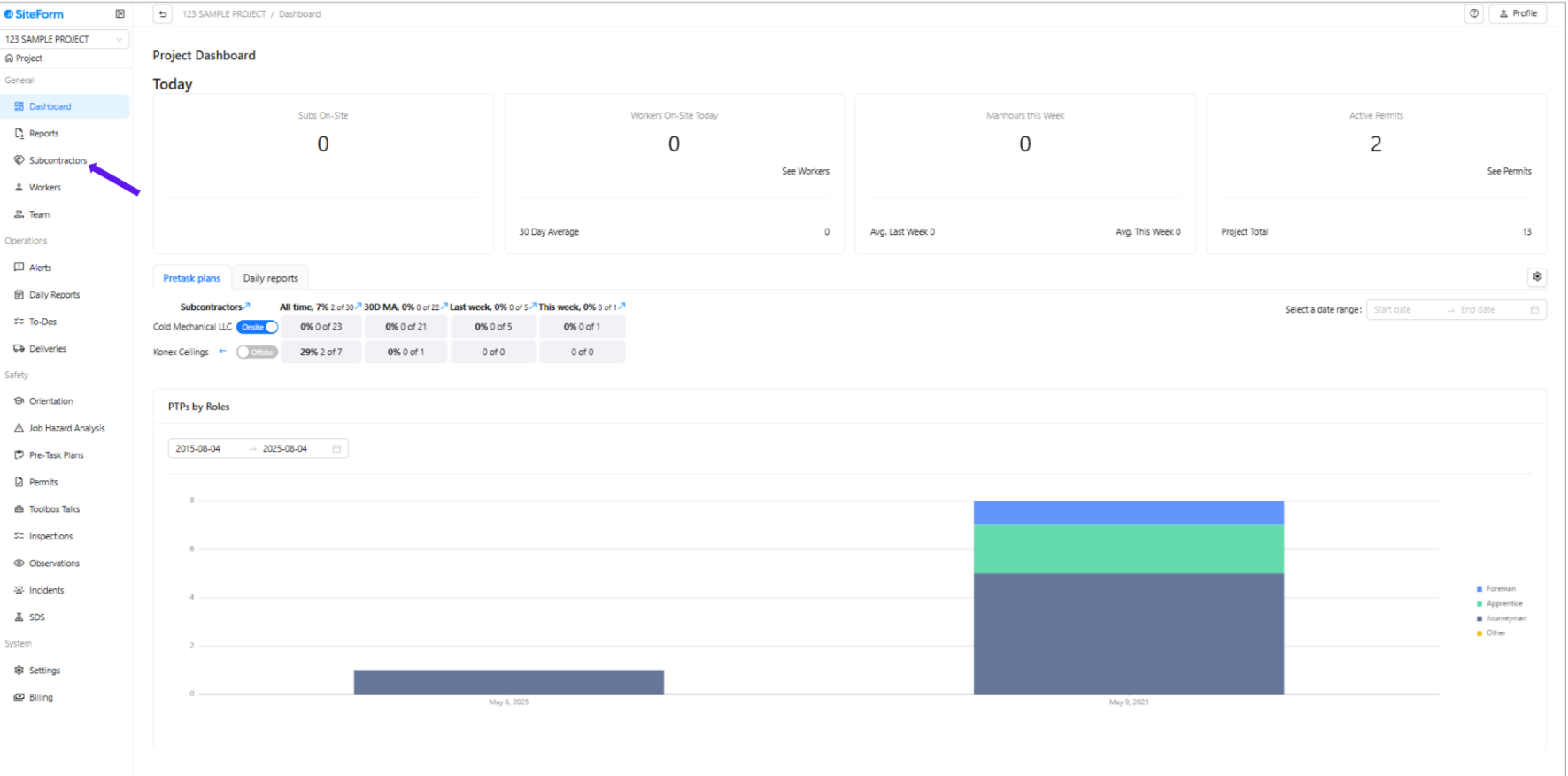
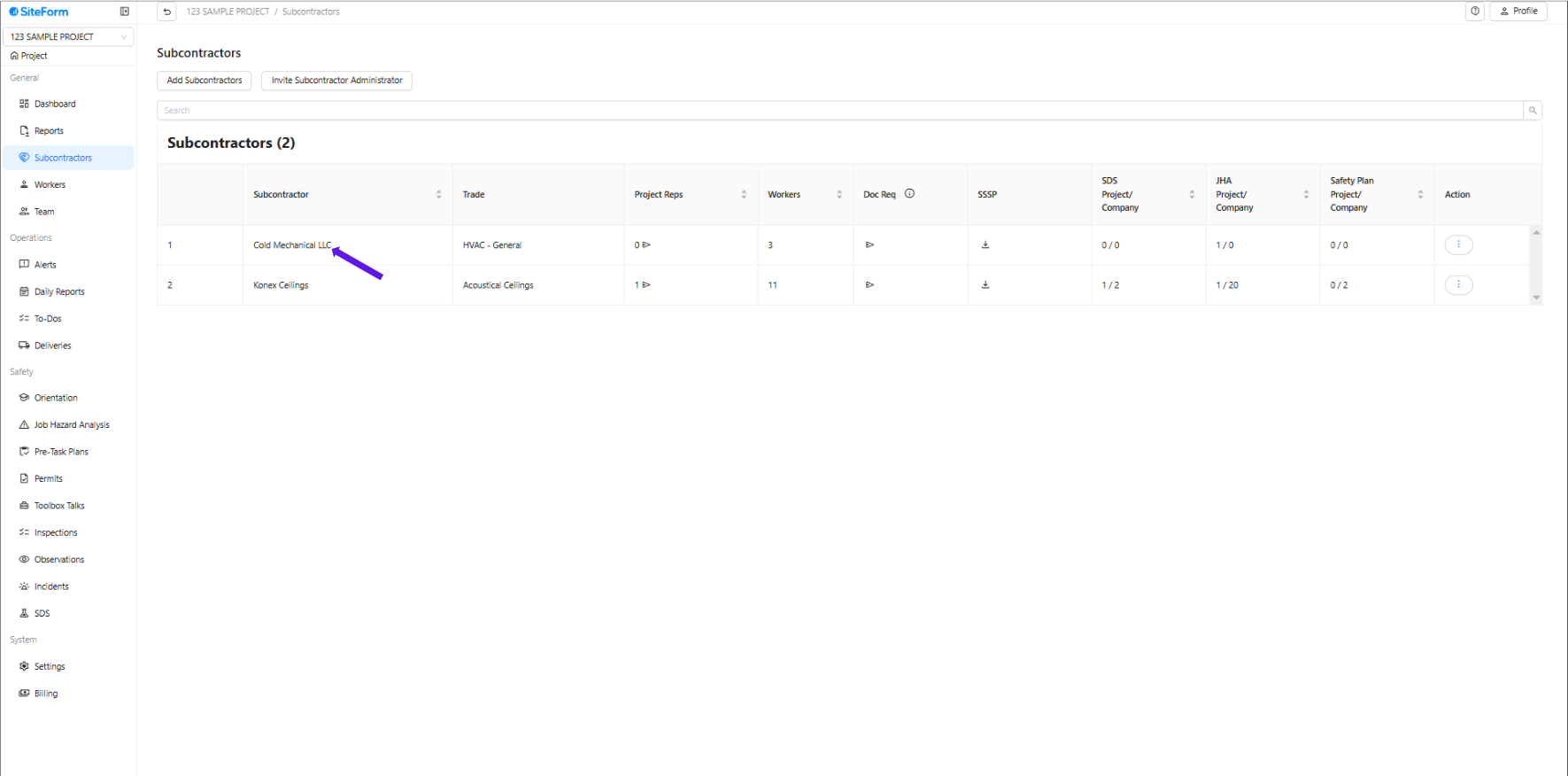
2. Select the subcontractor company for which you want to upload the JHA(s).
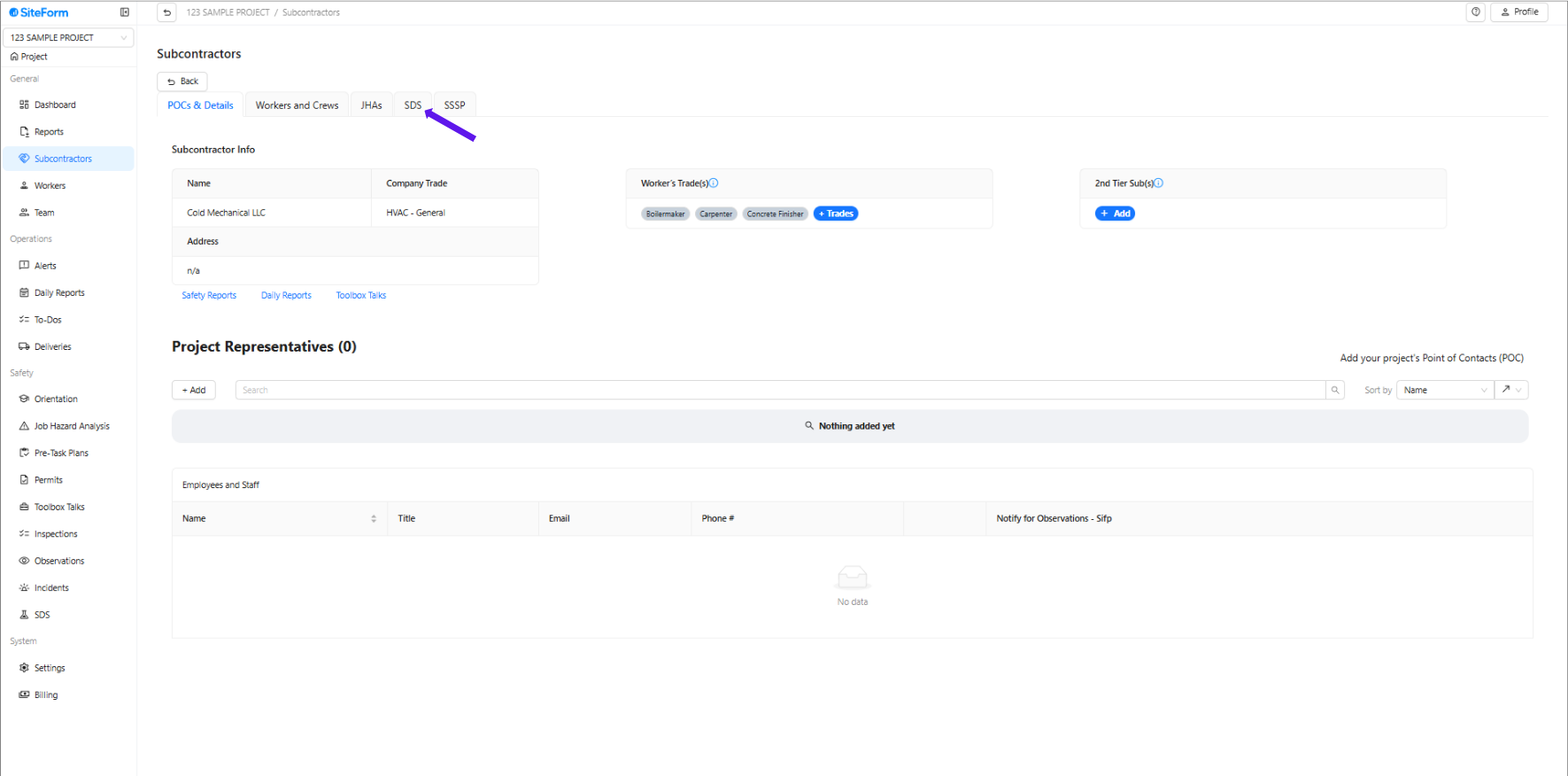
3. Once inside the subcontractor’s profile, click the “SDS” tab at the top.
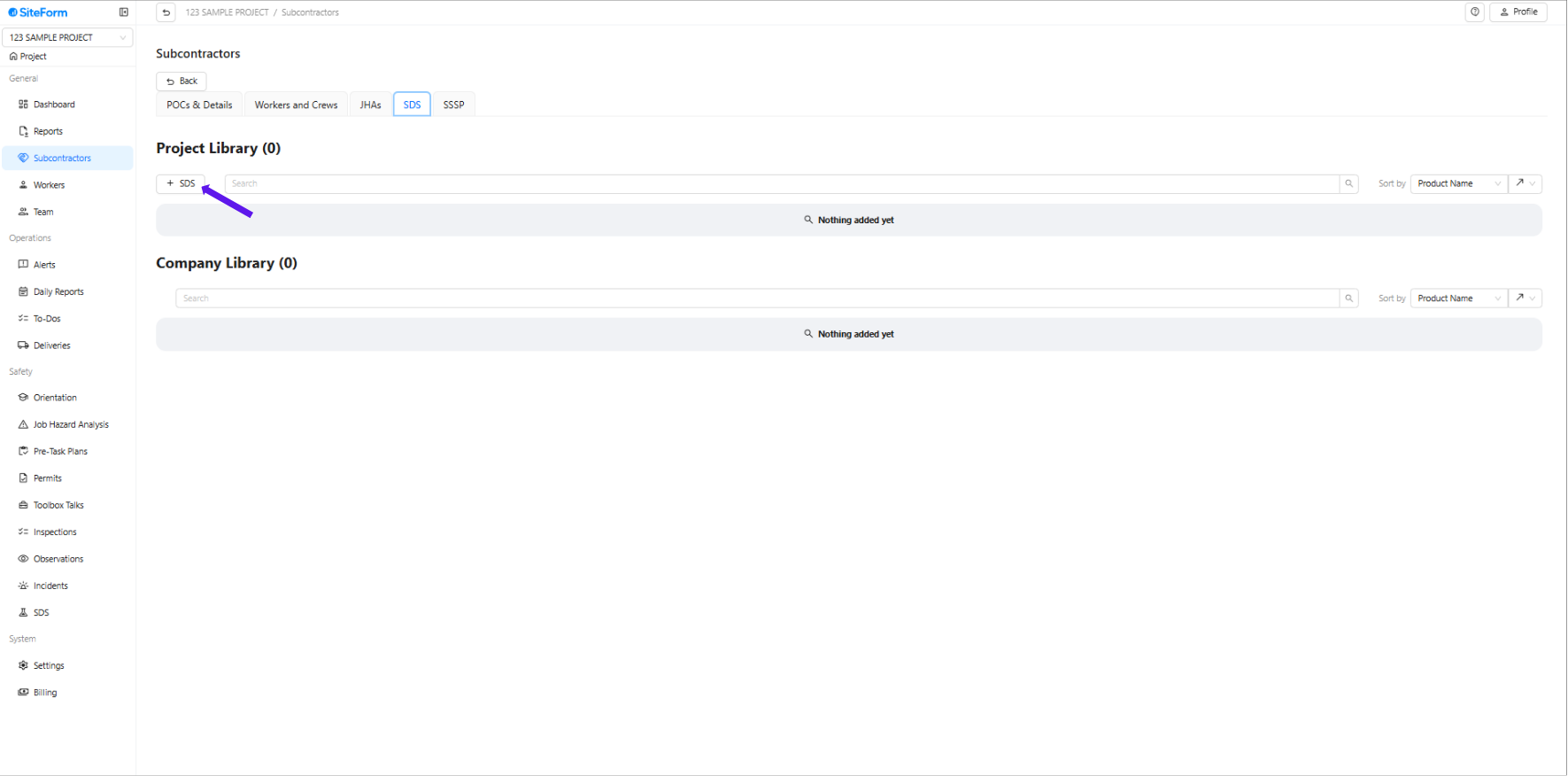
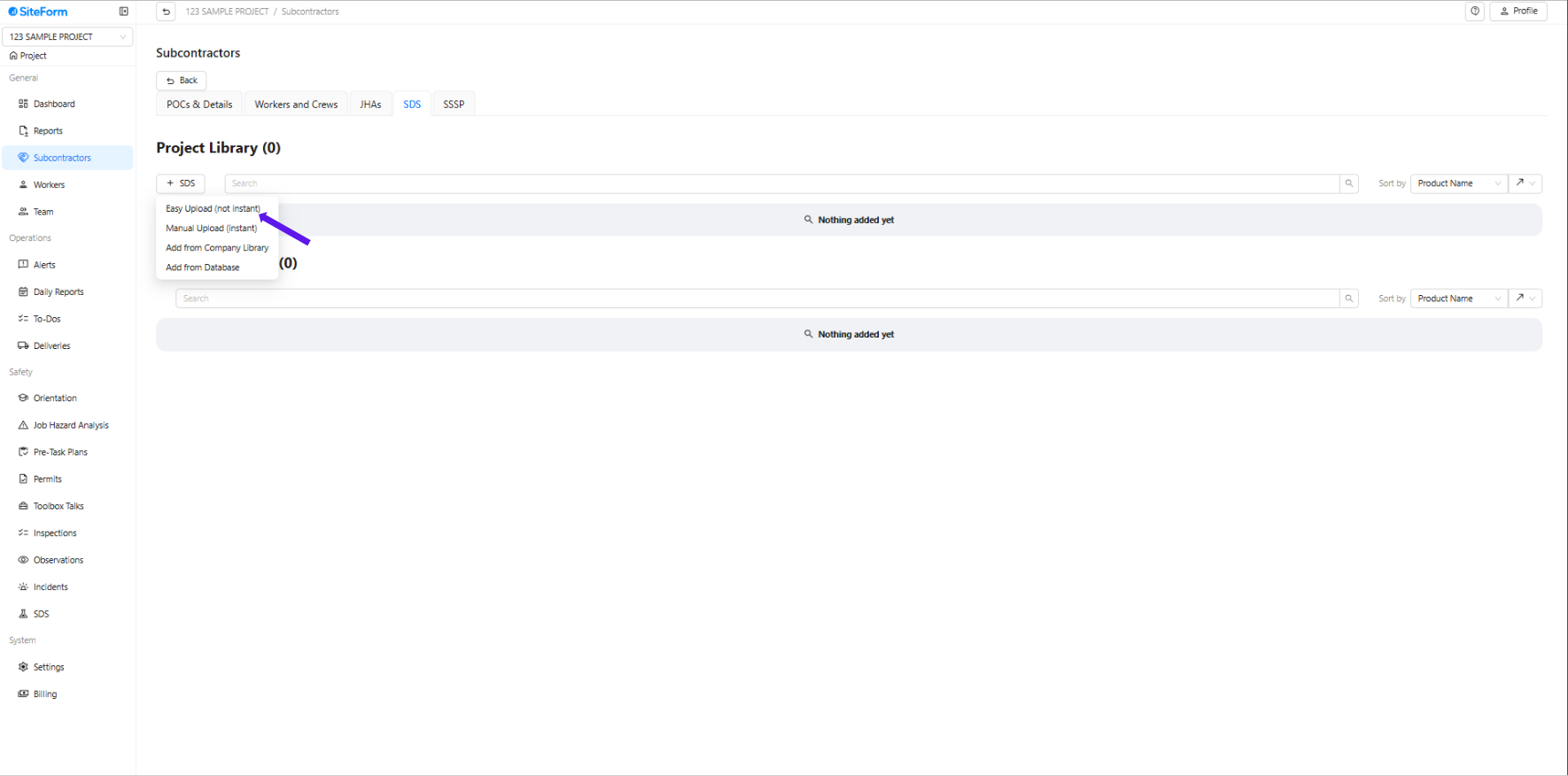
4. Click the three dots and select “+SDS”.
5. Select “Upload As-Is” (Note: This is not instant—the system will process and reformat the file for you.)
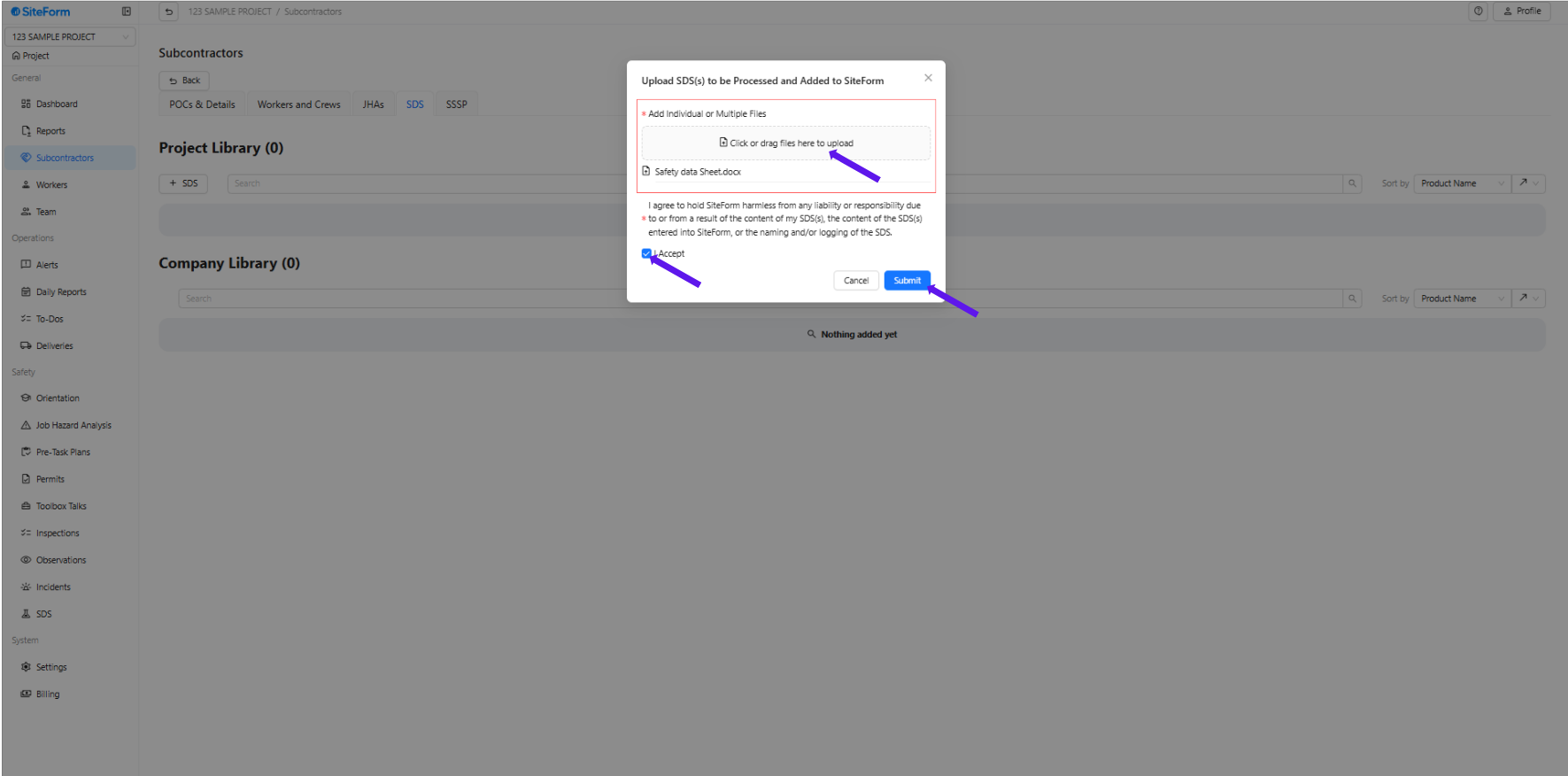
6. Upload the SDS File and Toggle the "I Accept"
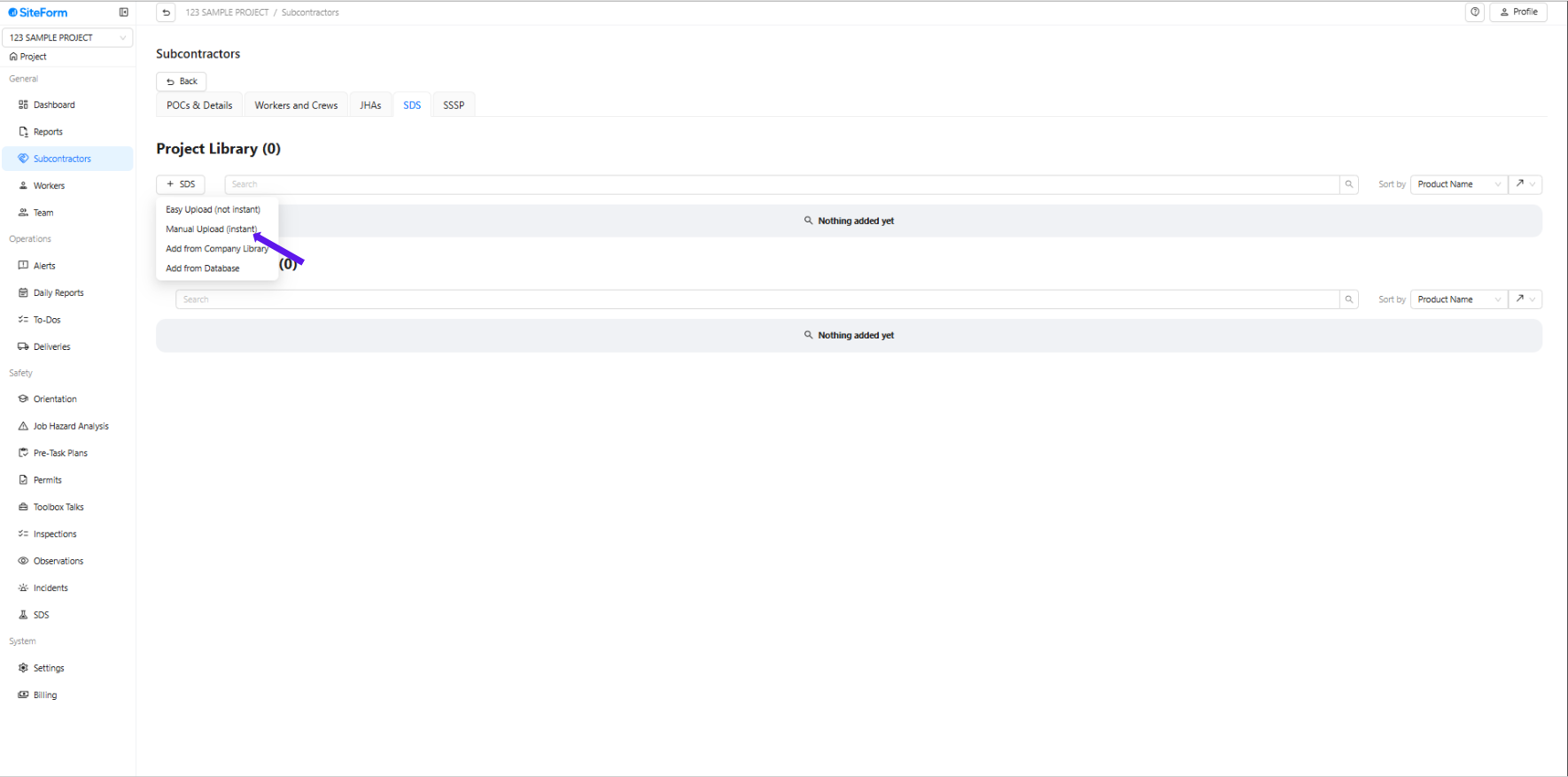
Option 2: How to Manual Upload (Instant) SDS.
1. Choose “Manual Upload(Instant)"
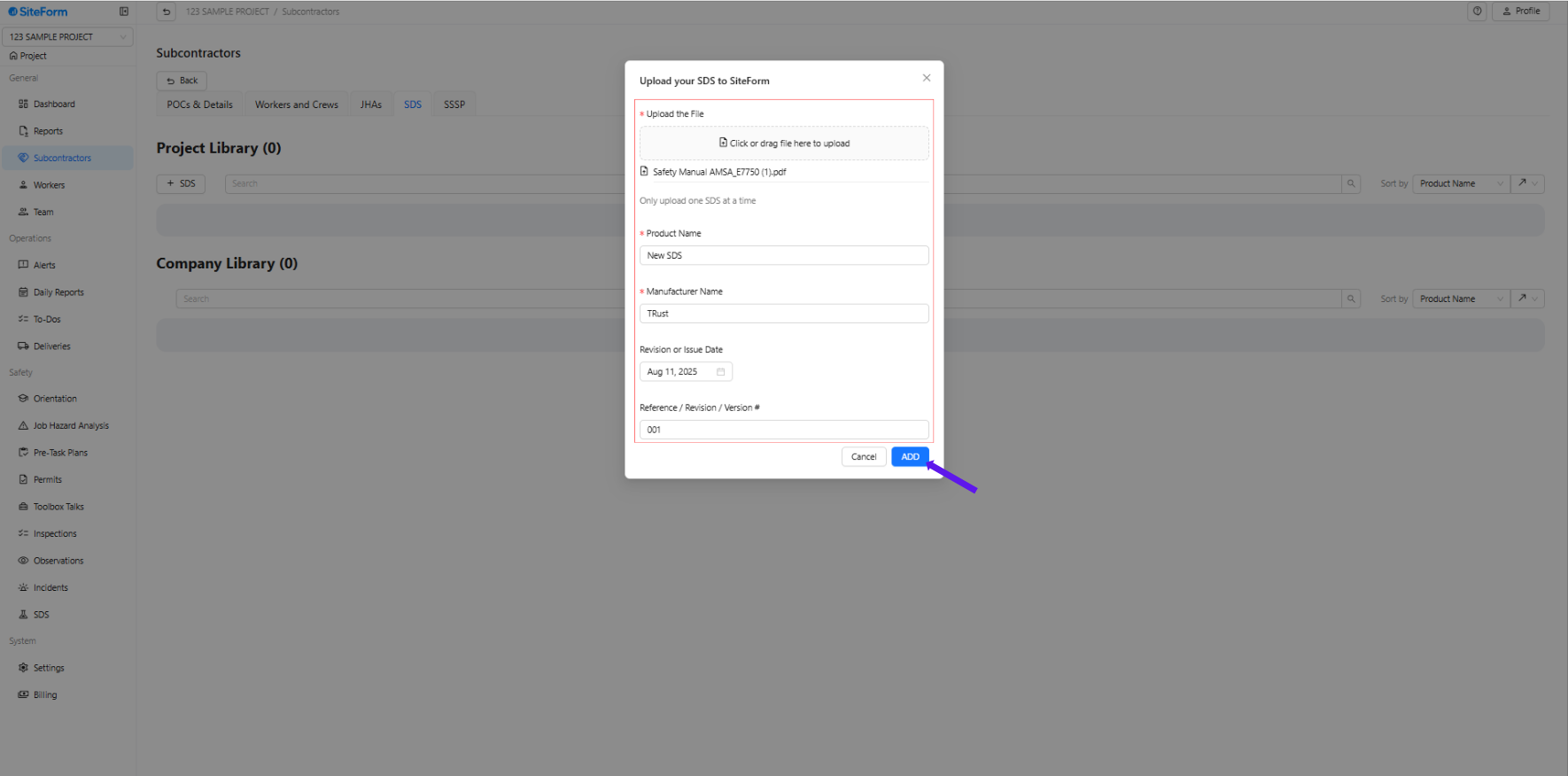
6. Fill Out Upload Details:
Upload the File
Product Name
Manufacturer Name
Revision or Issue Date
Click “Add” to complete the upload process.
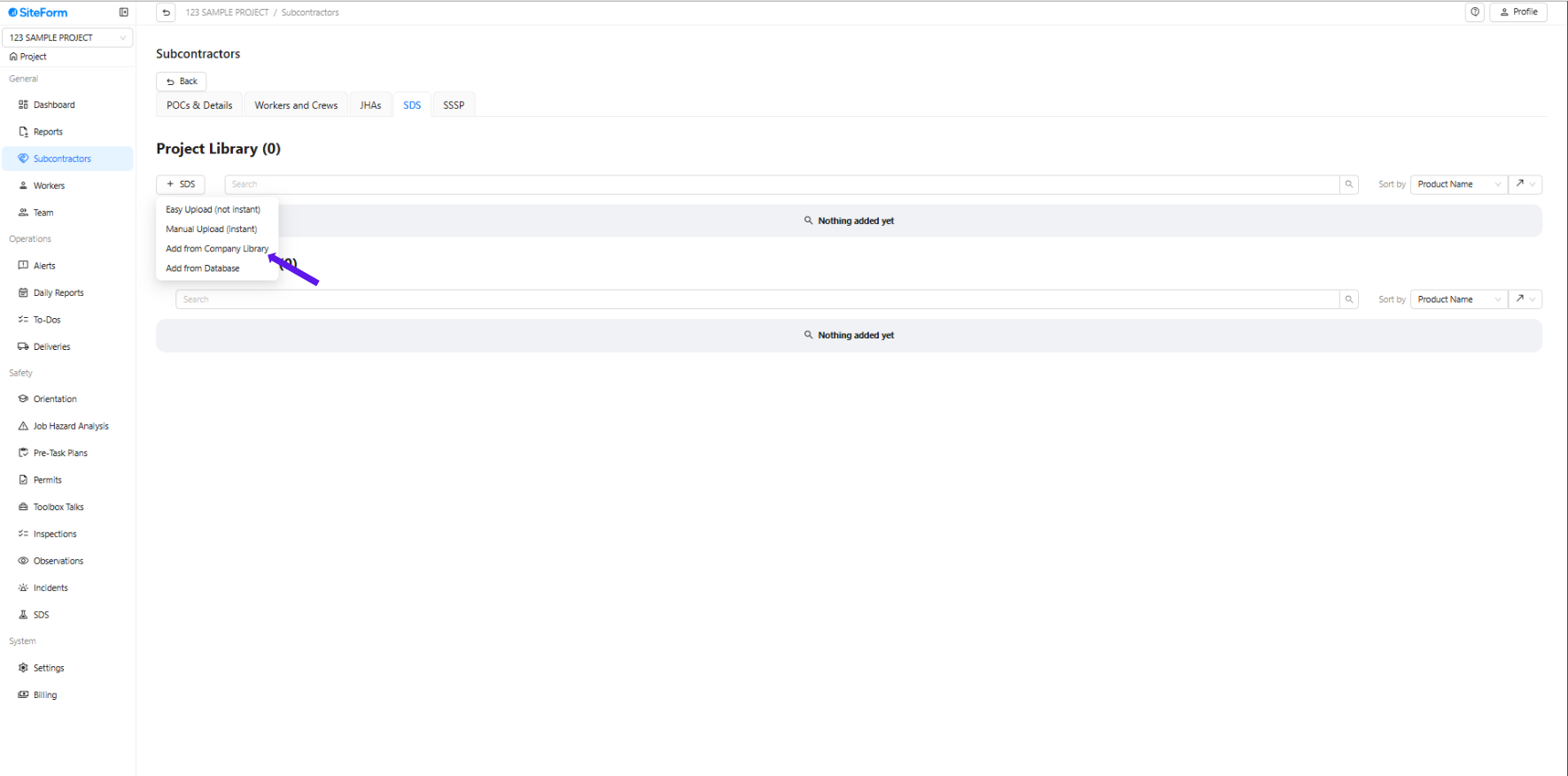
Option 3: How to Add SDS from the Company Library
1. Choose “Add from Company Library.
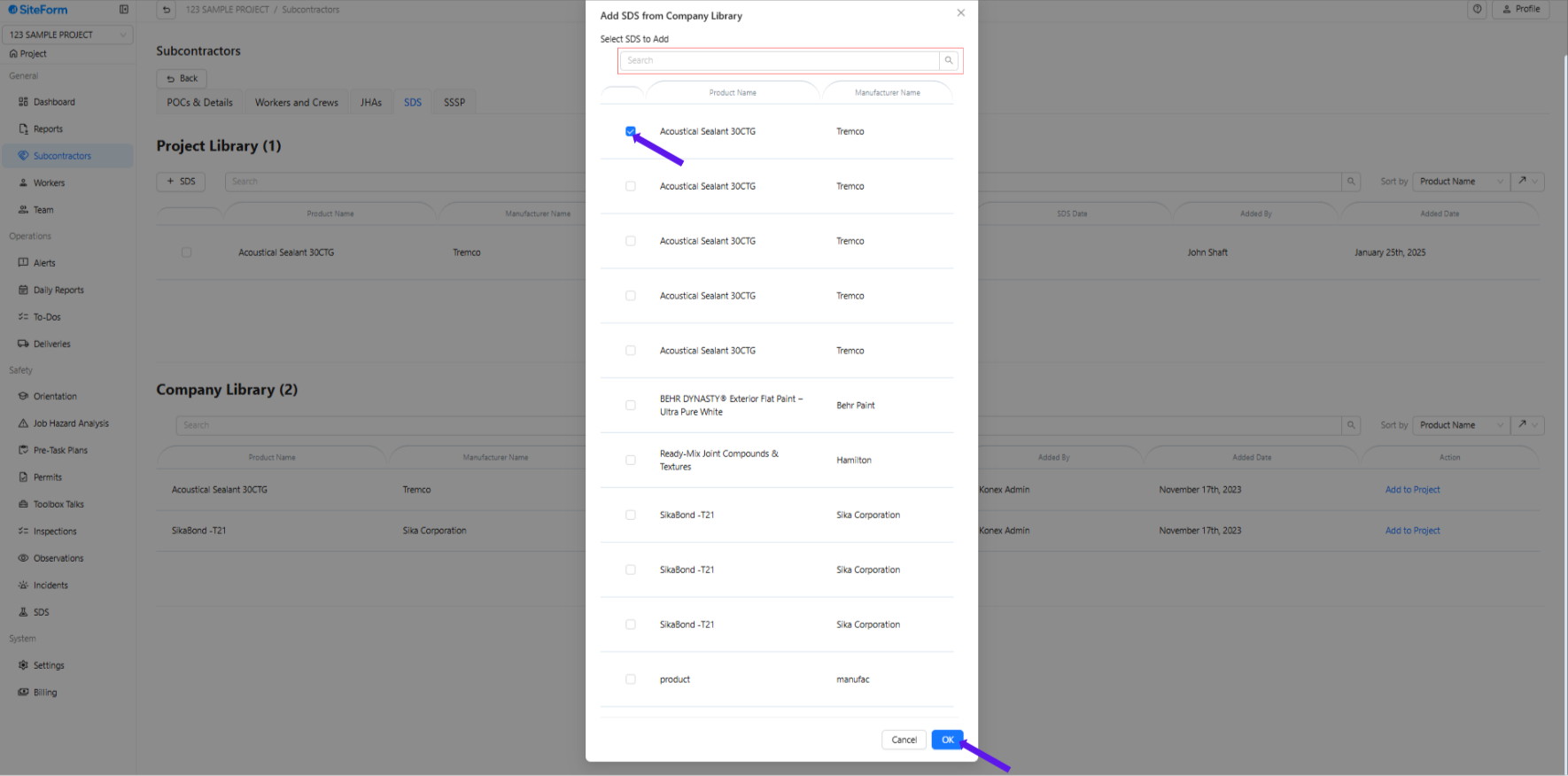
2. Browse the list of available SDS in the company library, check the boxes next to the ones you wish to add, and then click “OK” to confirm your selection.
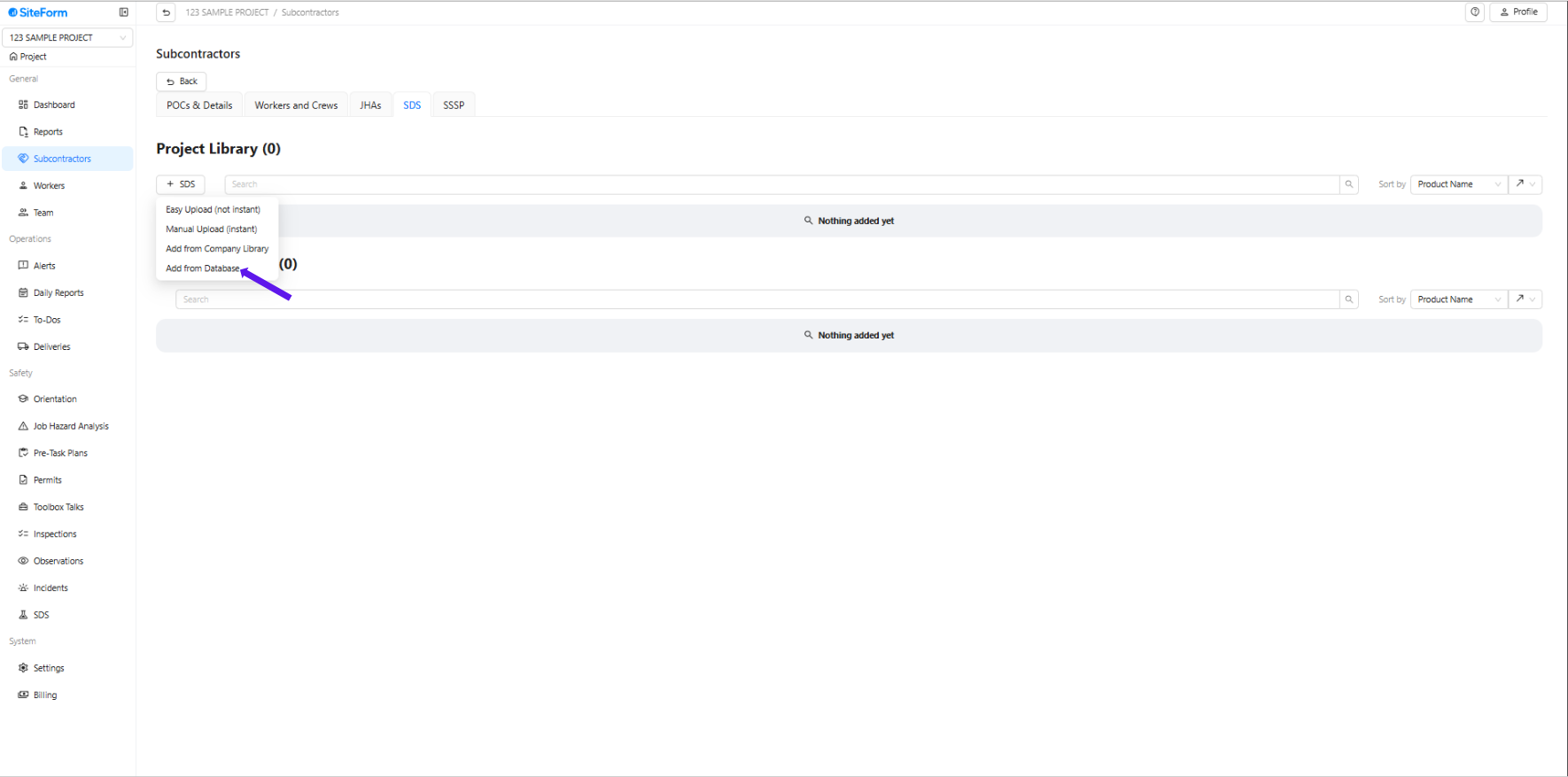
Option 4: How to Add SDS from Database
1. Add from Database
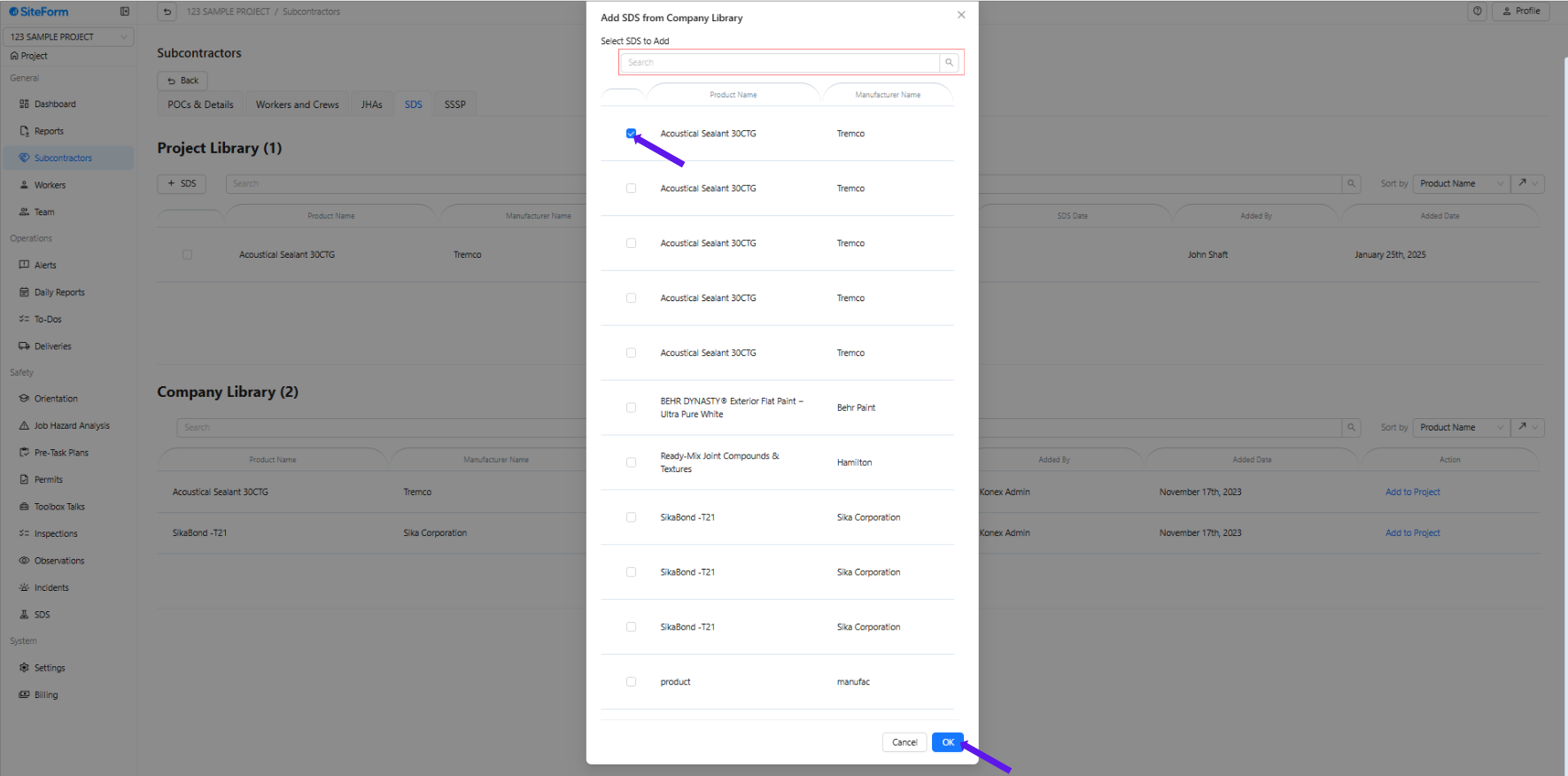
2. . Browse the list of available SDS in the Database, check the boxes next to the ones you wish to add, and then click “OK” to confirm your selection.
Was this article helpful?
That’s Great!
Thank you for your feedback
Sorry! We couldn't be helpful
Thank you for your feedback
Feedback sent
We appreciate your effort and will try to fix the article