Instructions
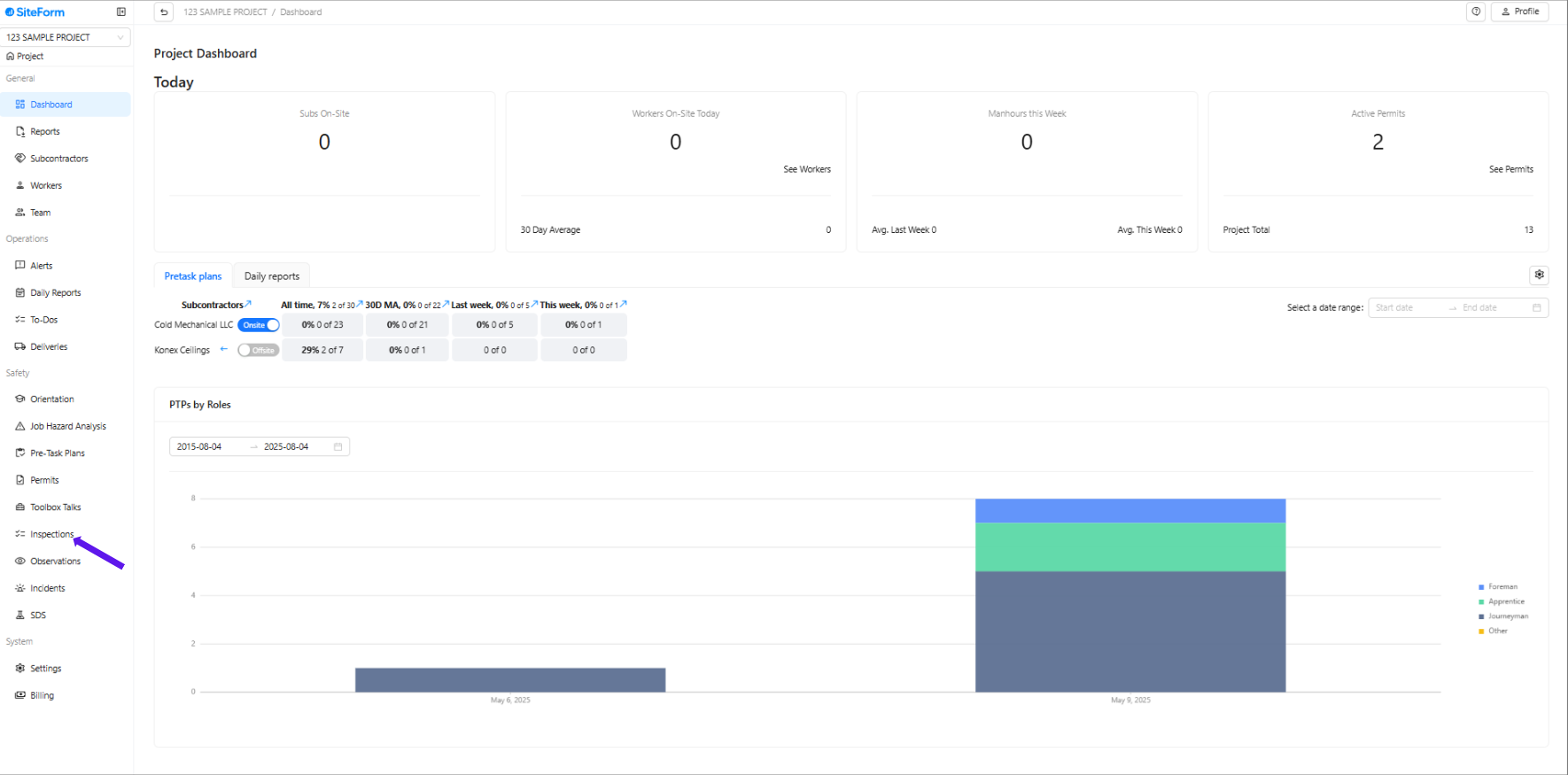
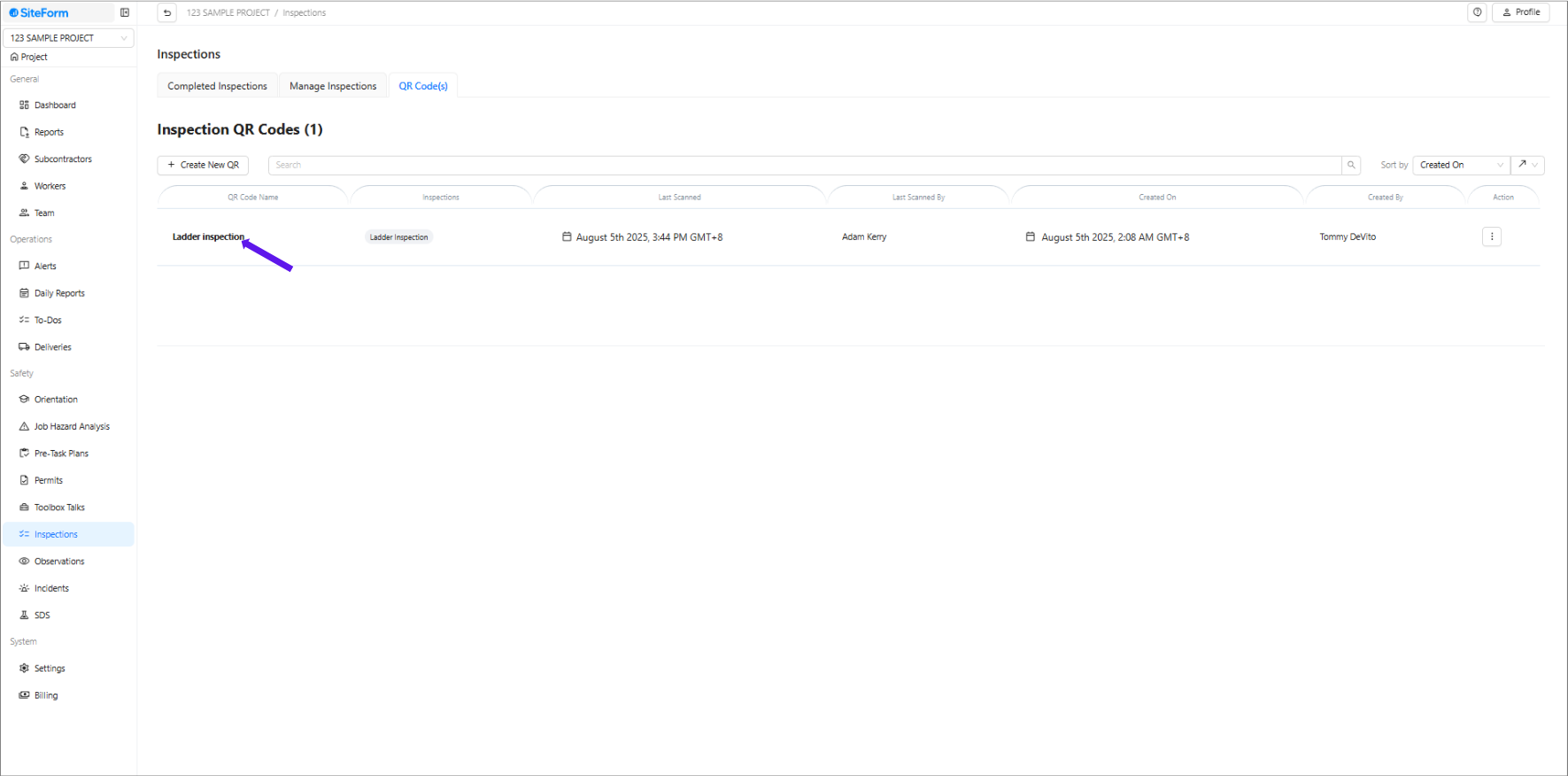
1. Select the project name, then click Inspection in the left-hand corner.
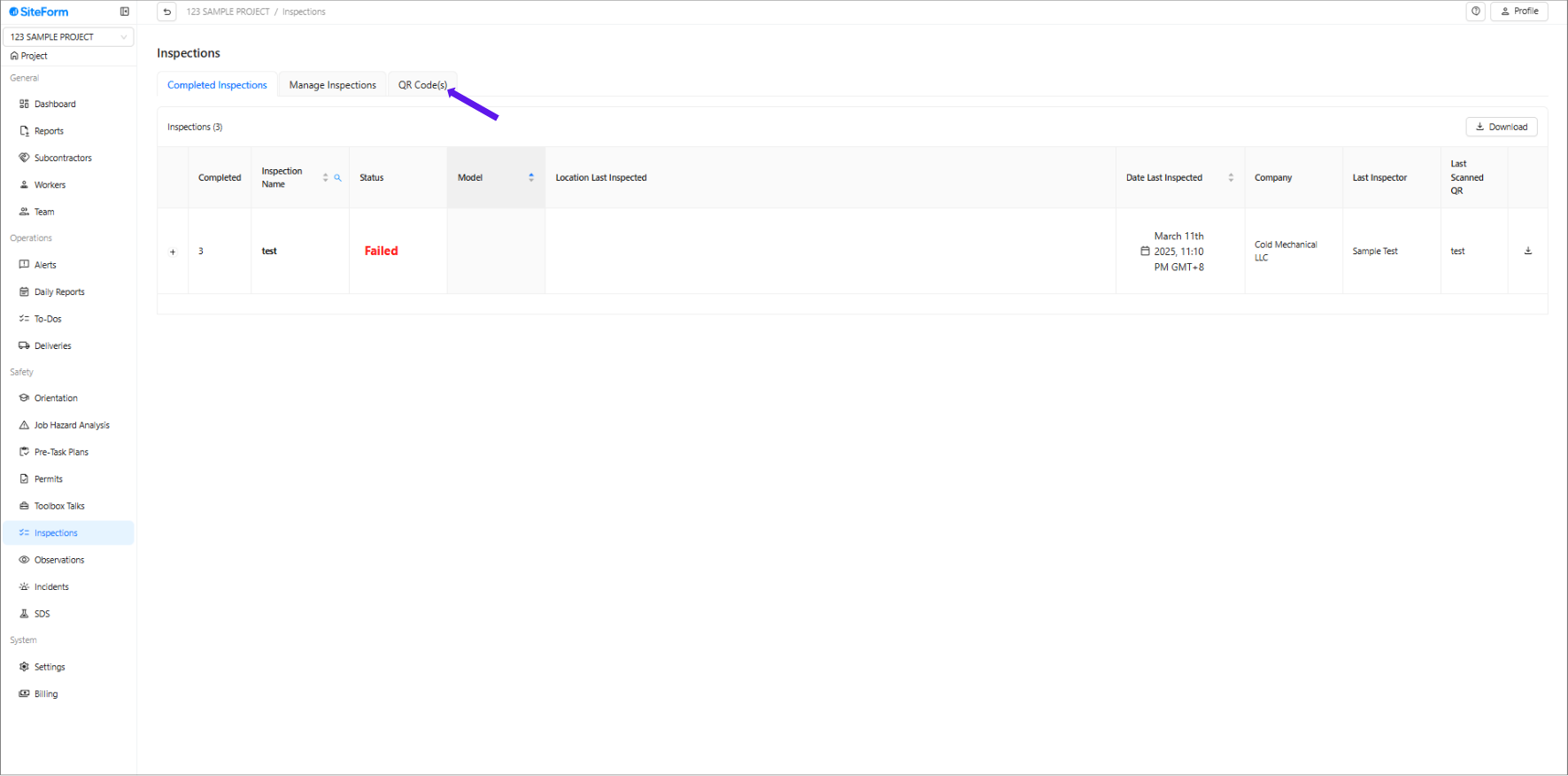
2. Click QR Codes
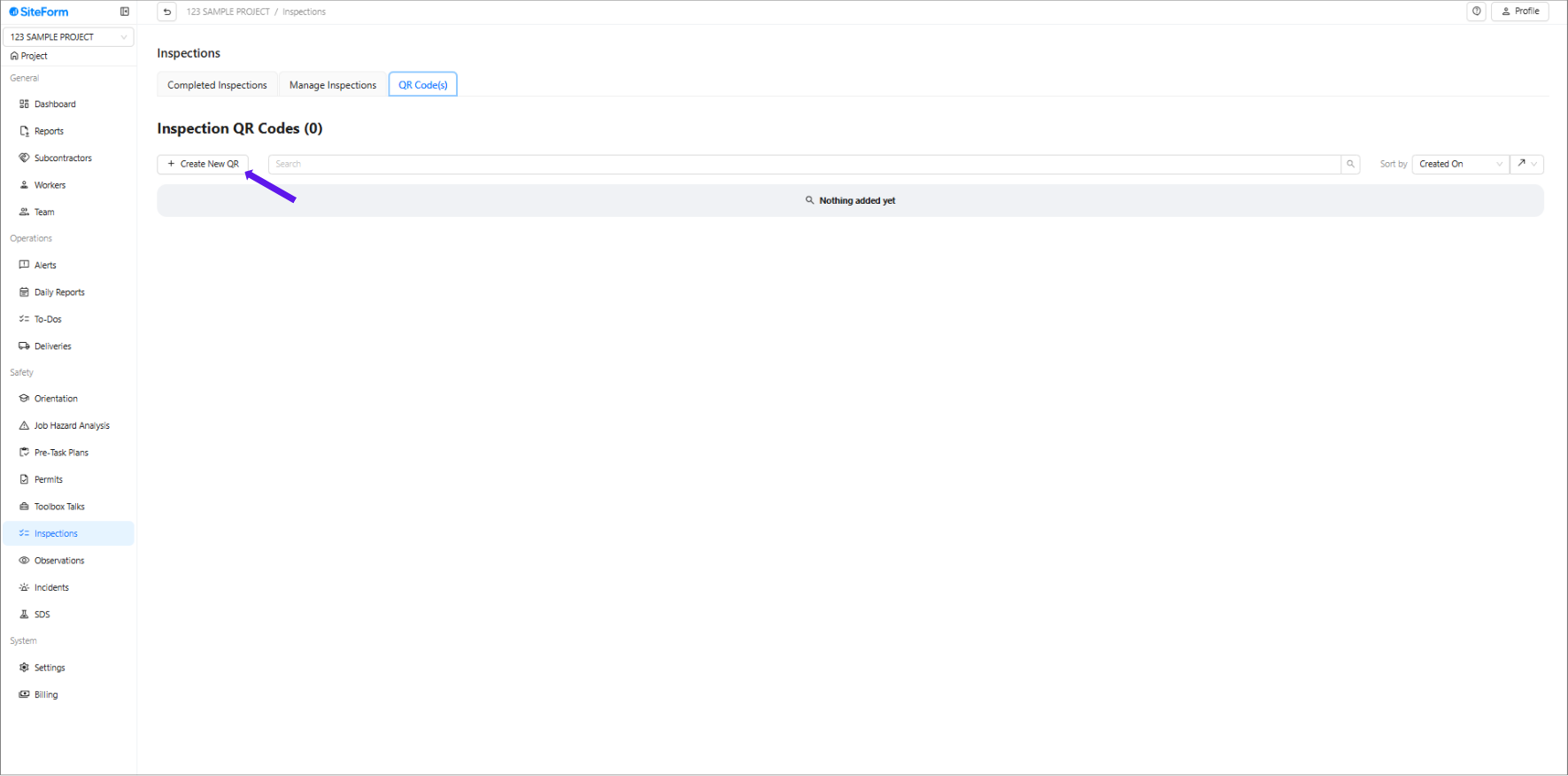
3. Click Create New QR
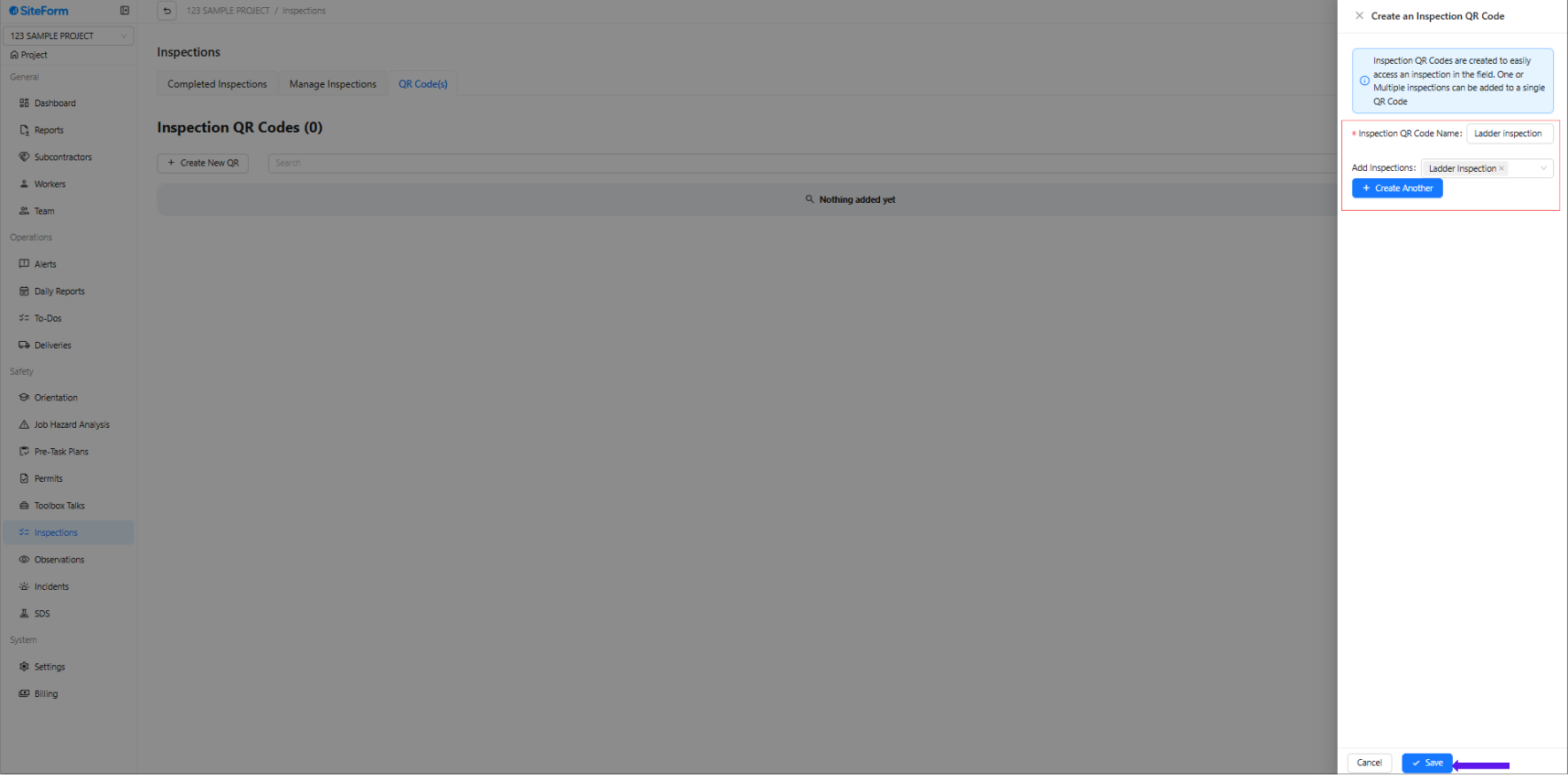
4. Complete all the required information and Click 'Save''.
To Check the QR Click the QR Code name
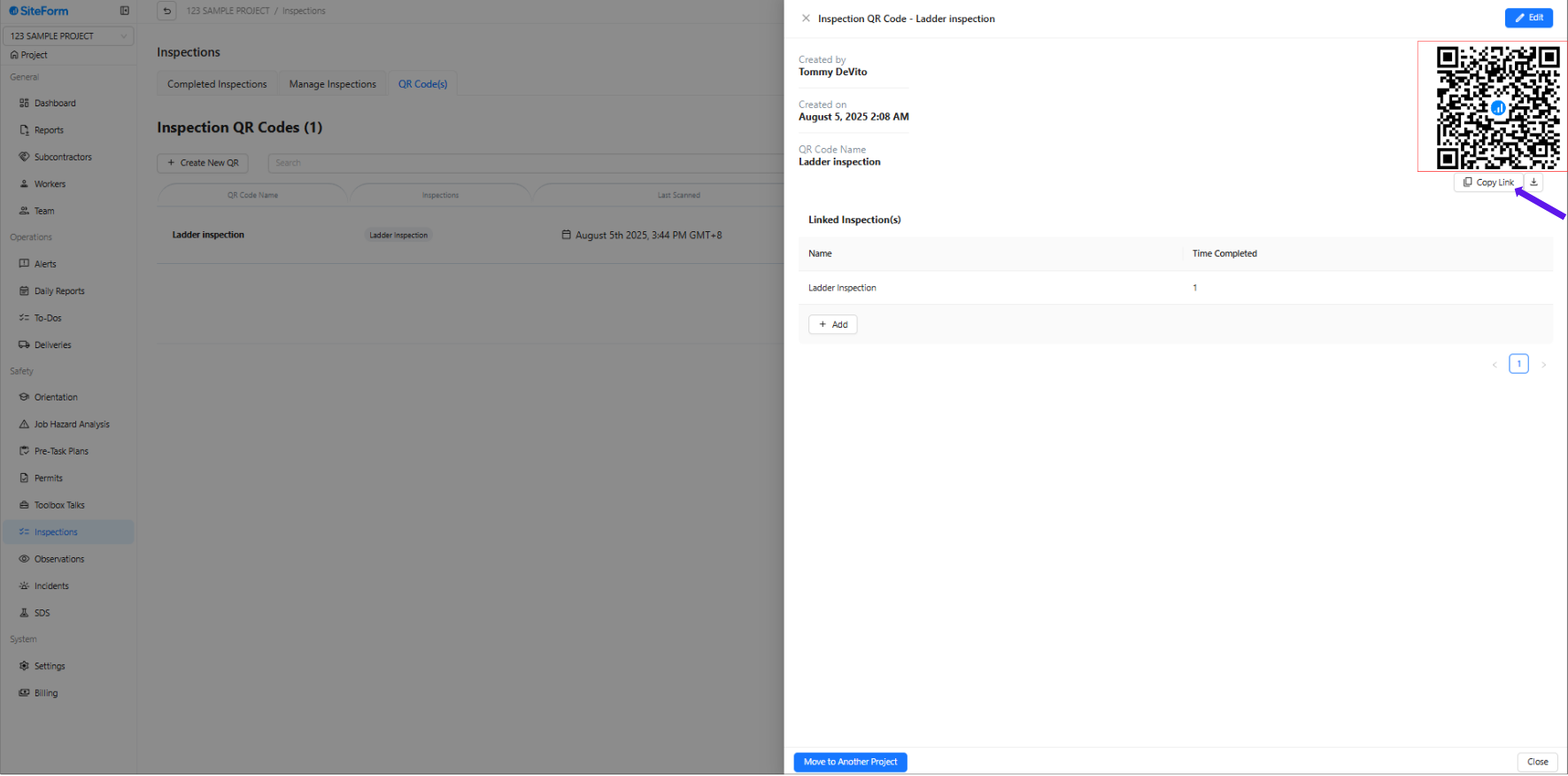
Accessing the inspection is simple and can be done in two convenient ways:
1. Scan the QR Code
Each inspection form is assigned a unique QR code. Simply open your mobile device’s camera or a QR code scanning app and scan the code. This will automatically direct you to the inspection page.
2. Copy the Link
Alternatively, you can copy the direct link to the inspection and open it in any web browser. This method is especially useful if you're accessing the form from a computer or sharing it via email or messaging platforms.
Was this article helpful?
That’s Great!
Thank you for your feedback
Sorry! We couldn't be helpful
Thank you for your feedback
Feedback sent
We appreciate your effort and will try to fix the article