Creating a project is a critical first step because it sets the foundation for everything that follows. Here’s why it matters:
- Establishes Clear Objectives: Inputting key details like the project name, ID, address, and timelines ensures everyone understands the project's scope and goals from the start.
- Streamlines Resource Allocation: Detailed project information allows for efficient planning of manpower, materials, and budgets, reducing the risk of delays or cost overruns.
- Enhances Communication: With a well-documented project, all stakeholders have access to the same information, which minimizes miscommunication and ensures smooth coordination throughout the project.
- Facilitates Monitoring and Accountability: Clear project details provide a roadmap for tracking progress and making adjustments as needed, ensuring the project stays on track.
- Ensures Compliance: Having all necessary details from the outset helps meet regulatory and safety requirements, preventing future complications.
In short, taking the time to set up a project correctly is essential for building a successful construction process.
How to Create a Project
1. Click on “Corporate Office” from the main menu.
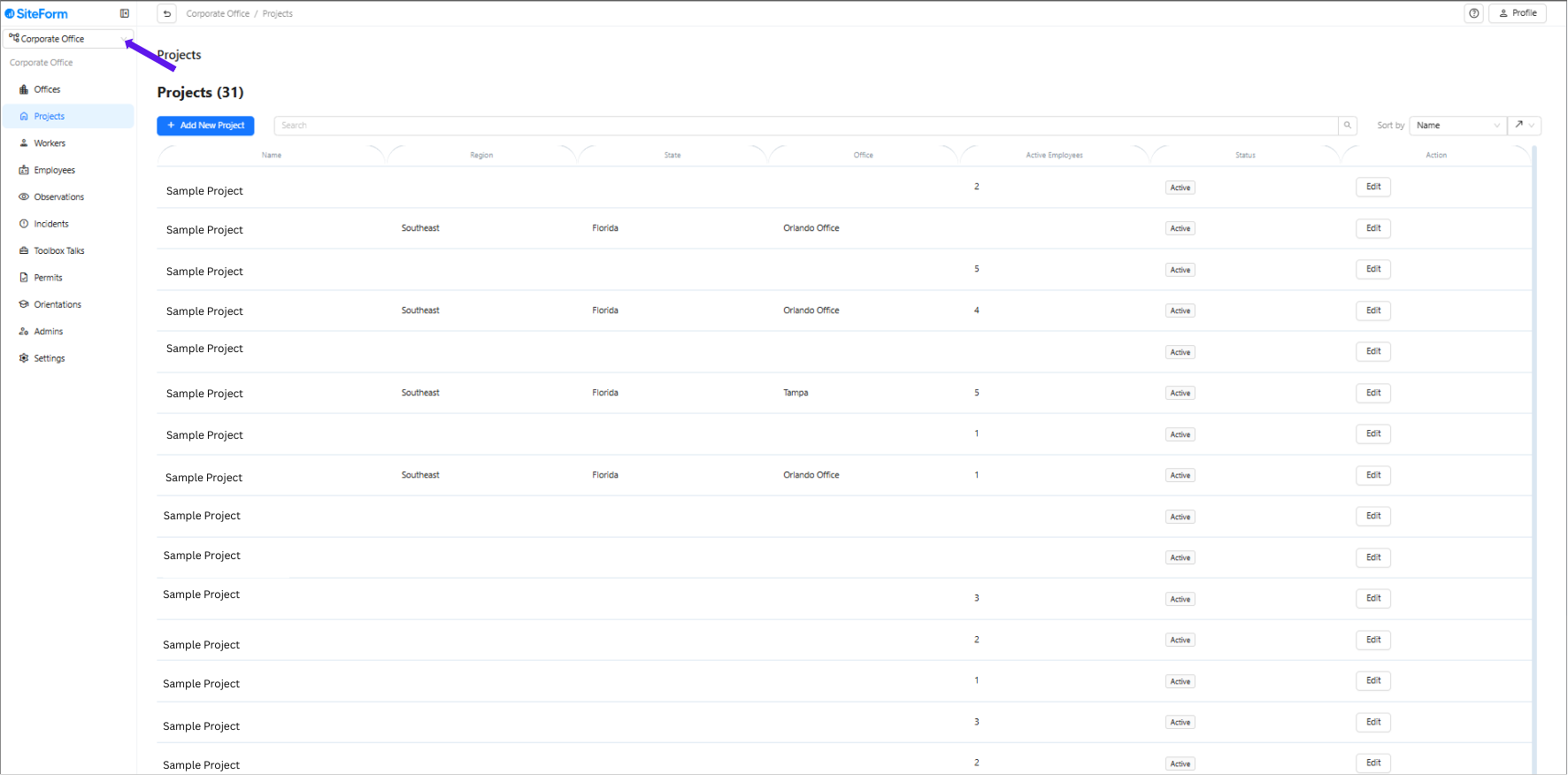
2. Click the house icon with a “+” to start creating a new project.

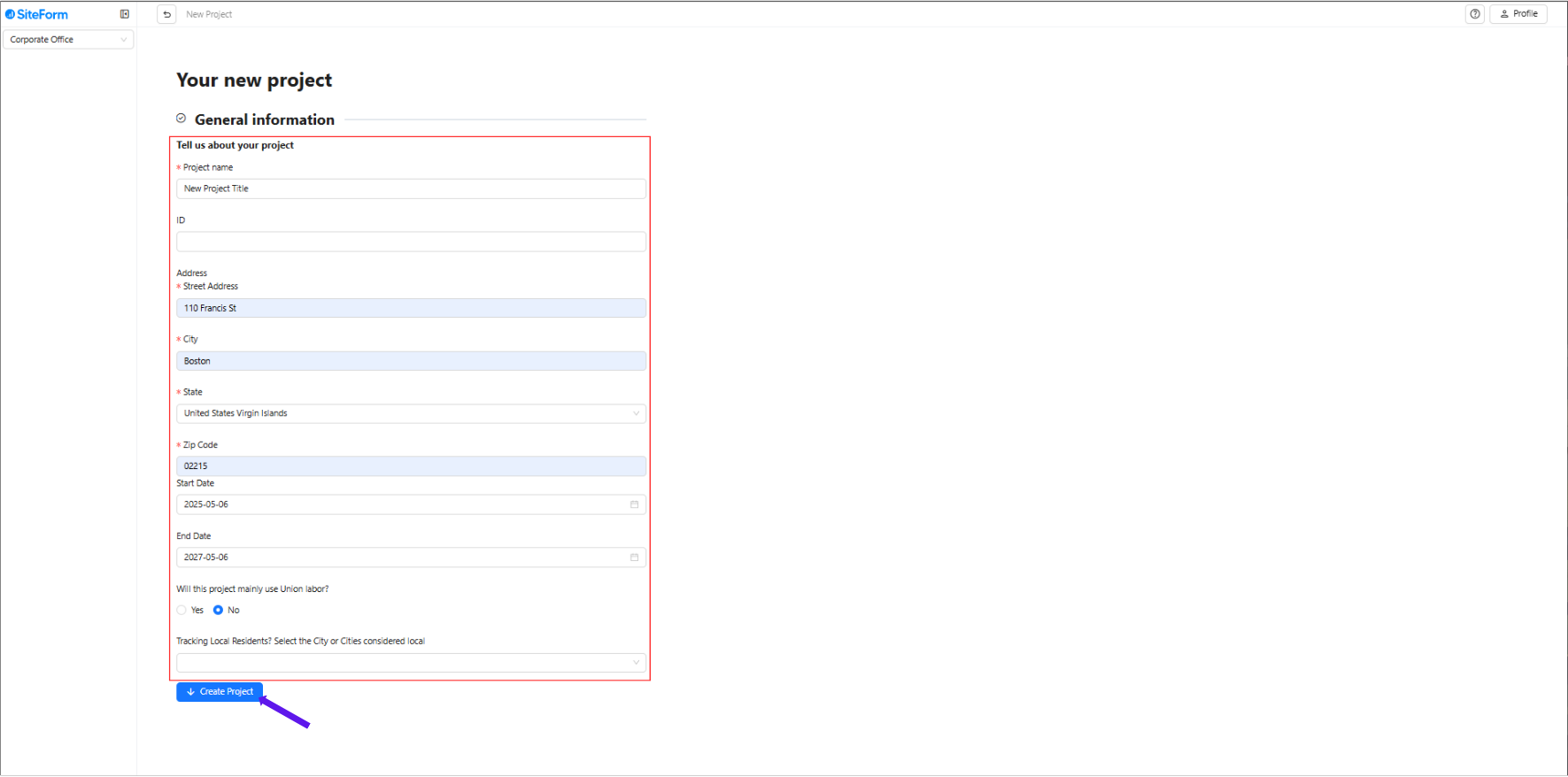
3. Fill out all required fields (marked with *):
Project Name
Project ID
Address (Street, City, State, Zip Code)
Start Date
End Date
Will this project mainly use union labor? (Select Yes or No)
Click “Create Project.”
Next Steps: Add Co-Workers or Teams
4. In the dropdown list, search for team names:
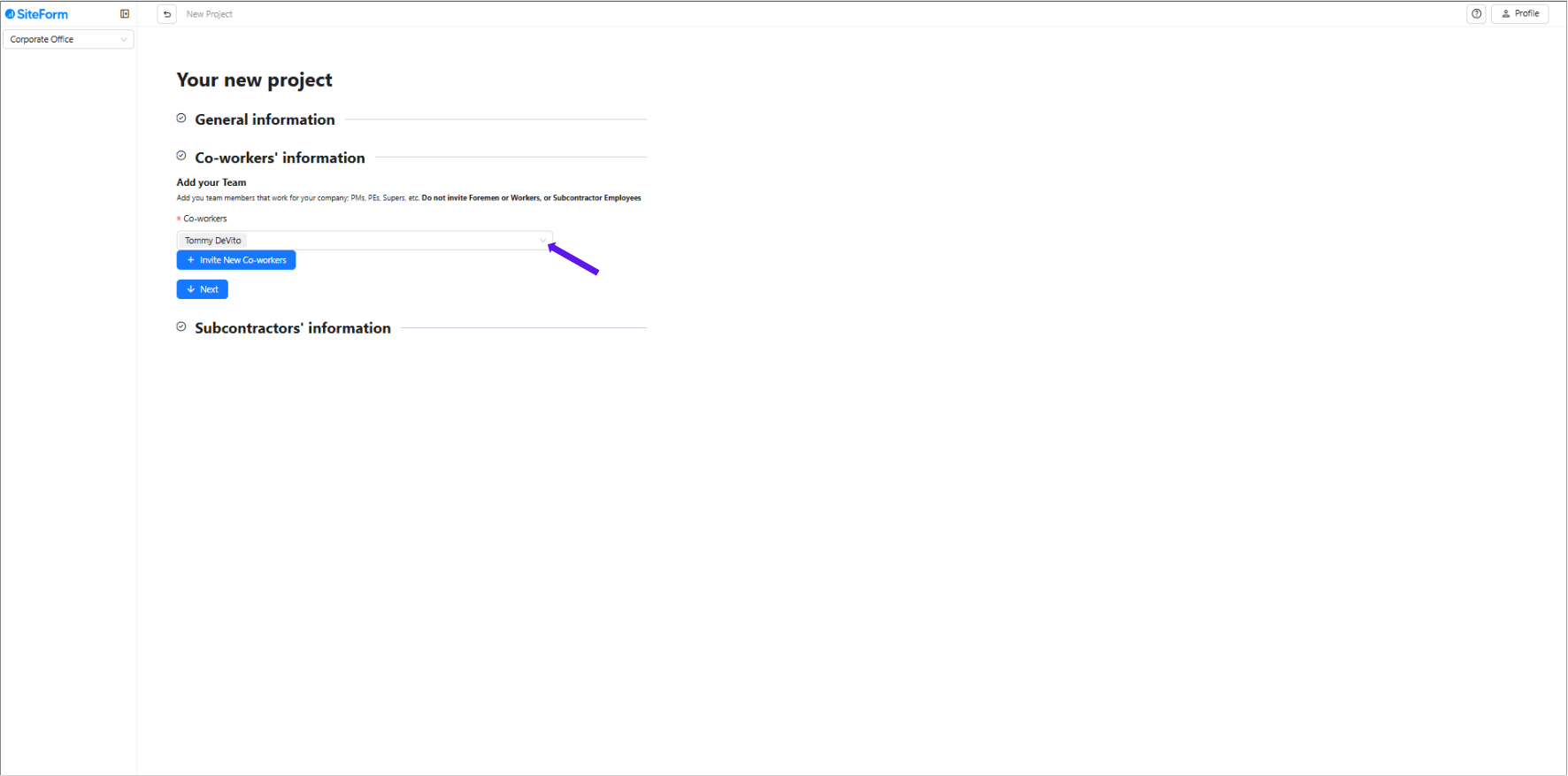
* If the team members name is found, select the names and click “Next.”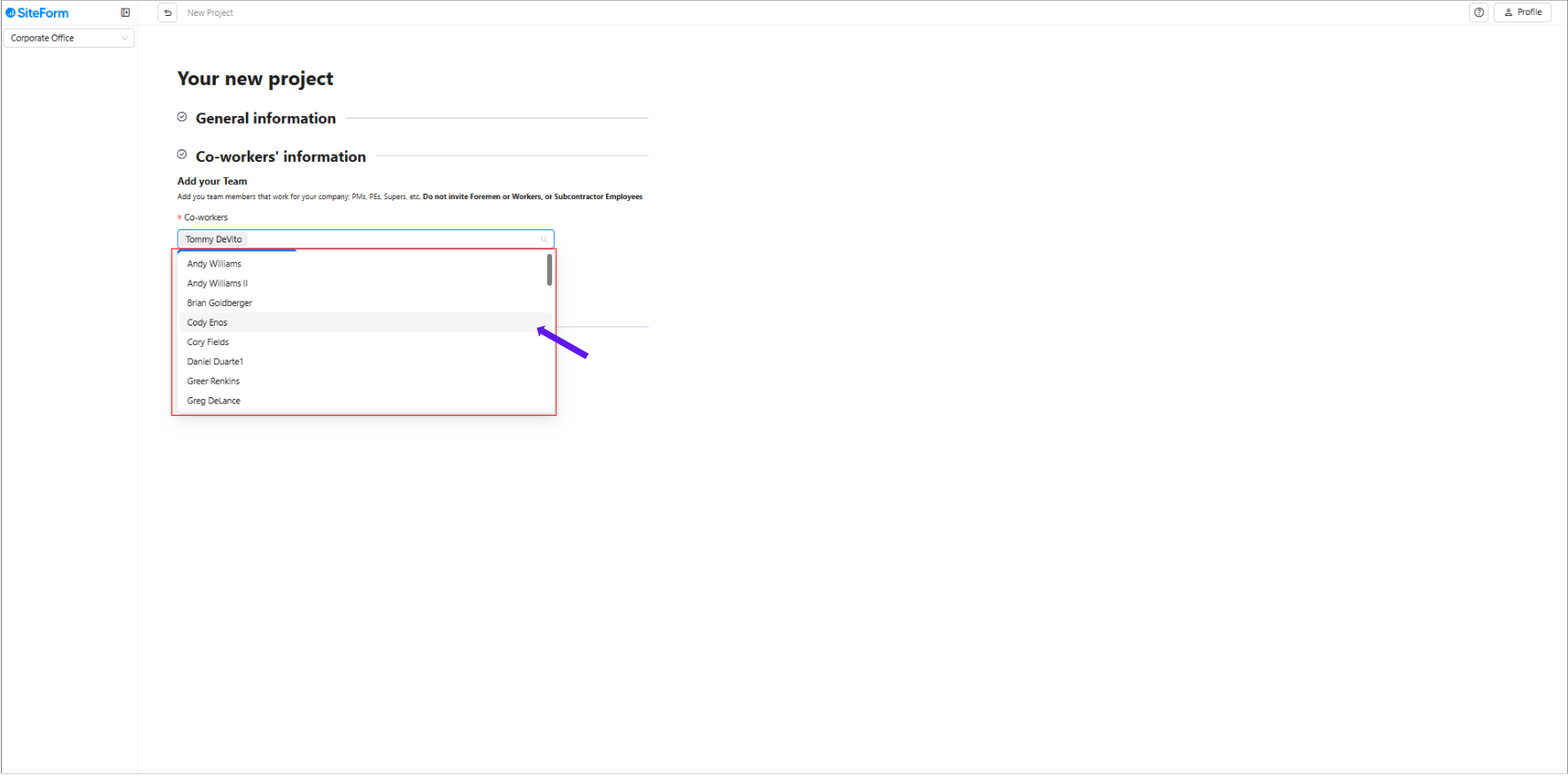
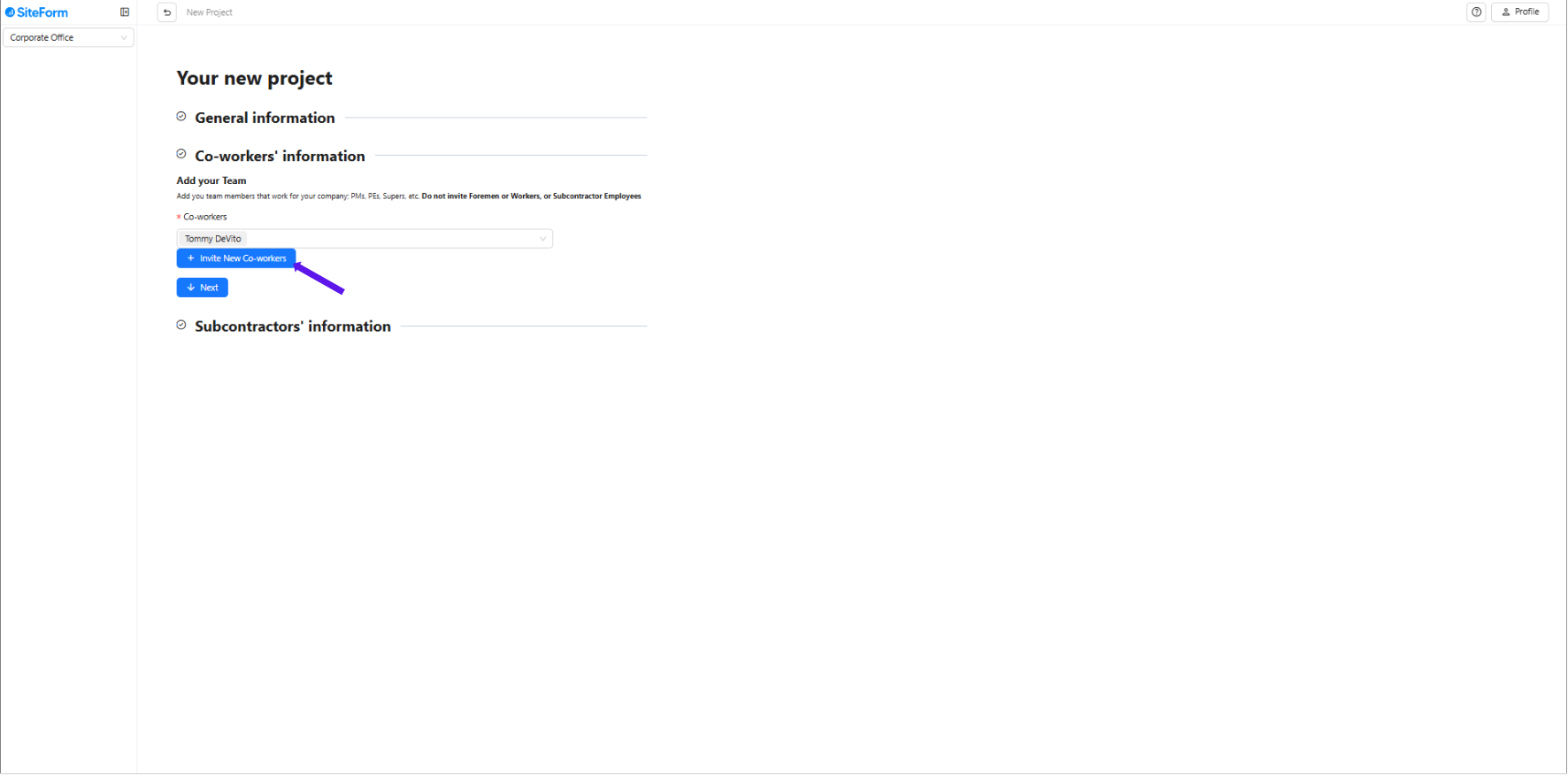
5. If the team is not listed, click “+ Invite New Co-Workers”
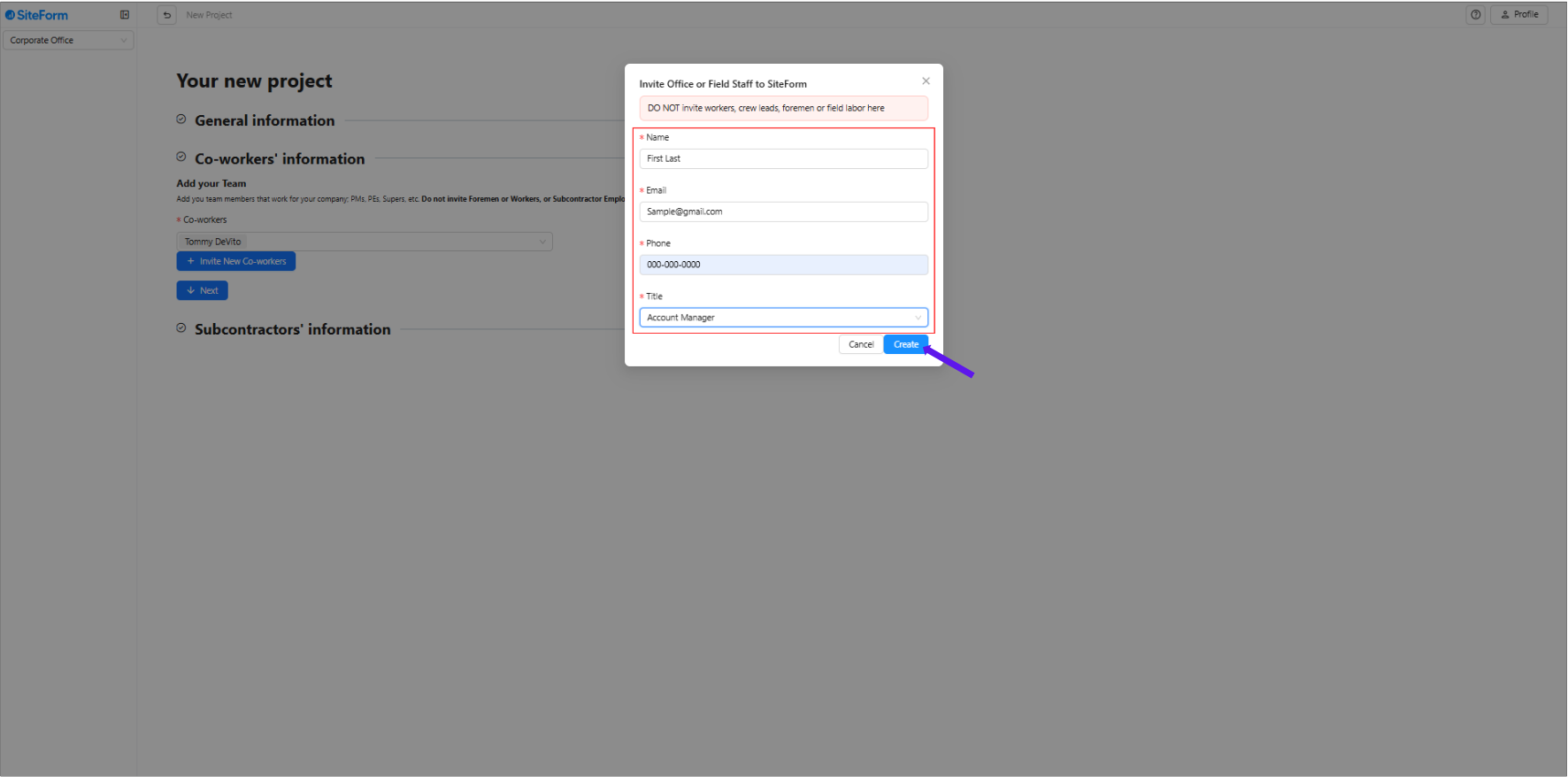
6. Fill out the following:
Name
Email Address
Phone Number
Title
Click “Create.”
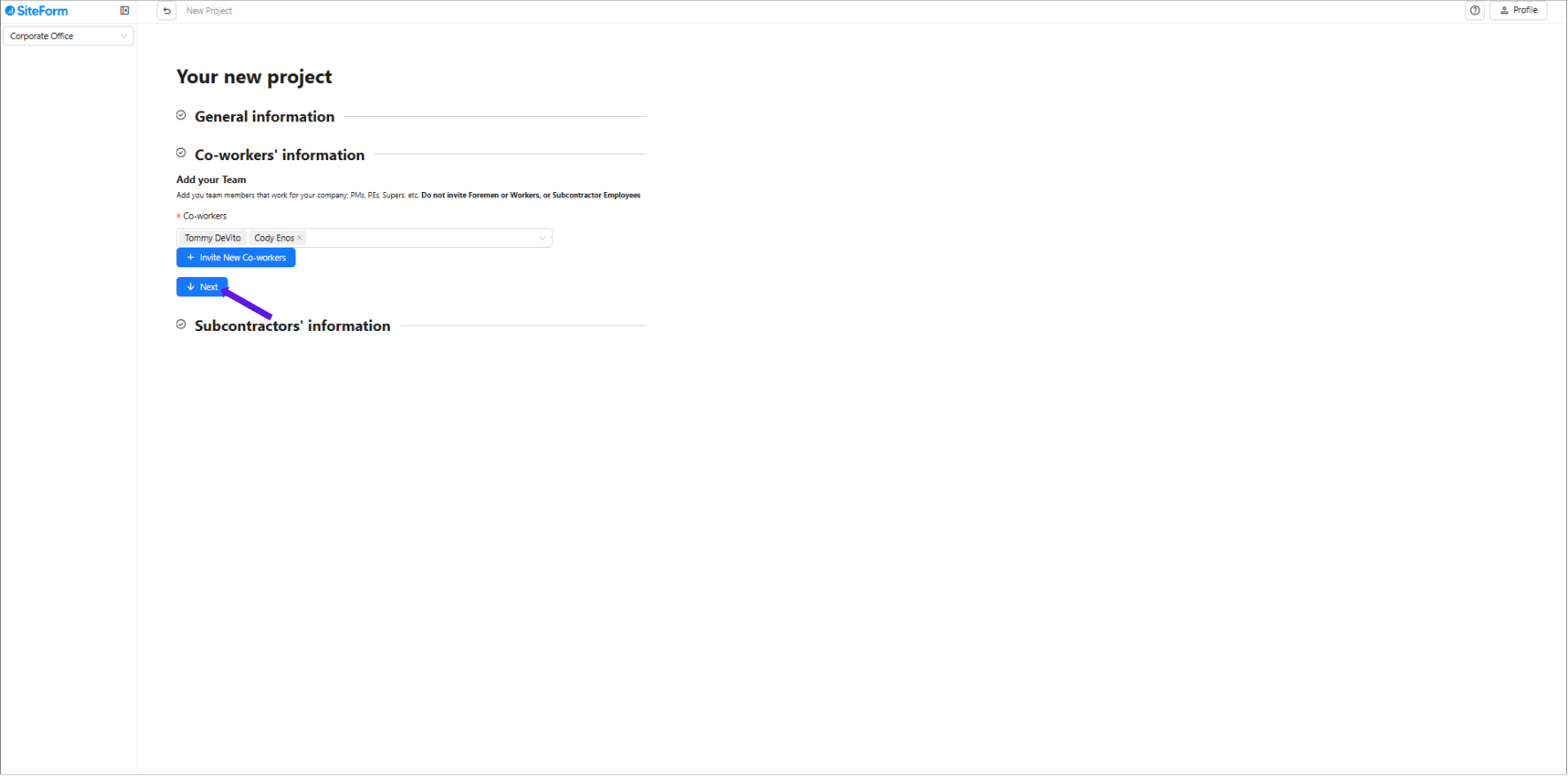
7. Click Next
Add Subcontractors
8. In the subcontractor dropdown, search for the company name
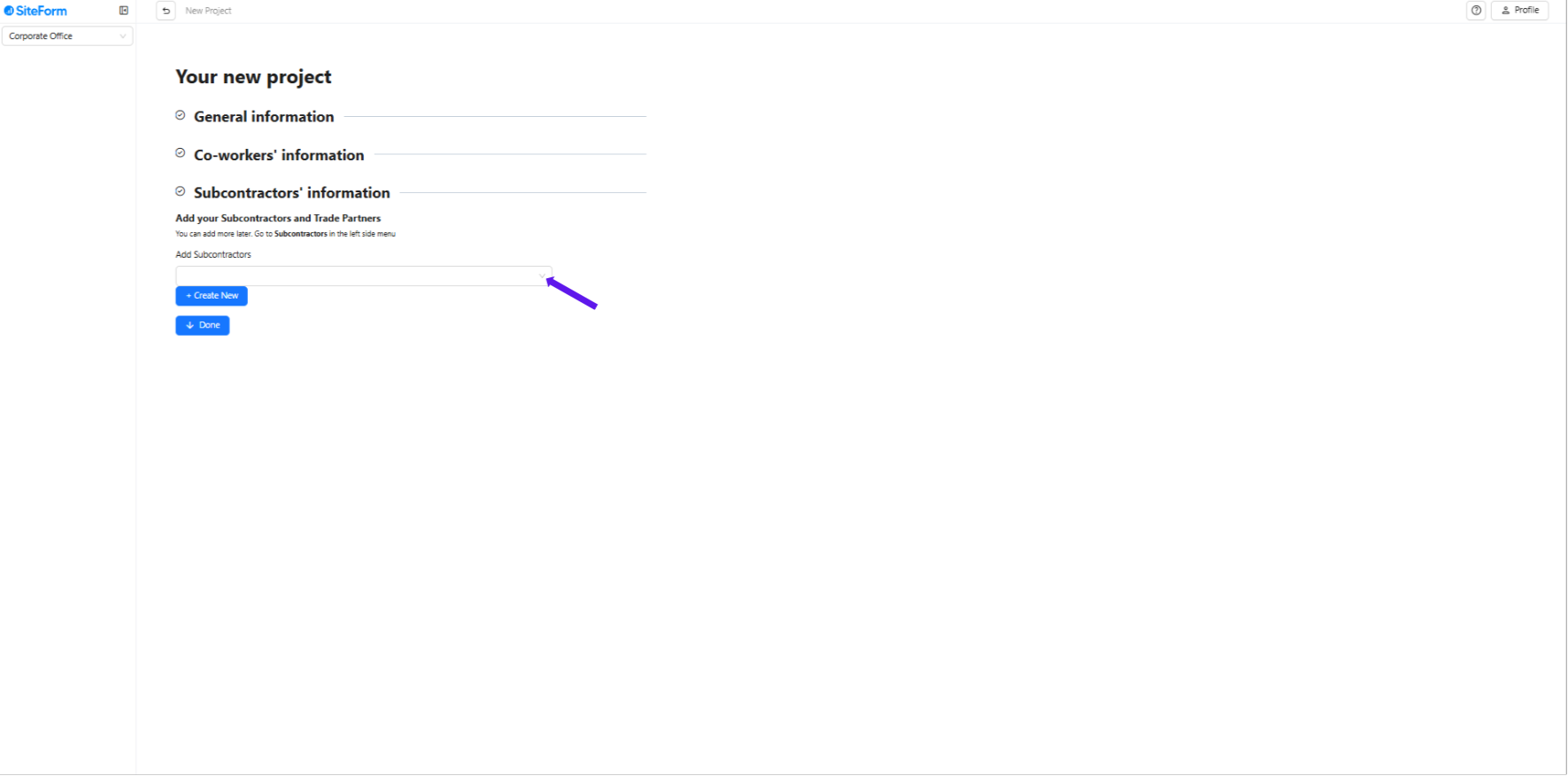
9. Select the company.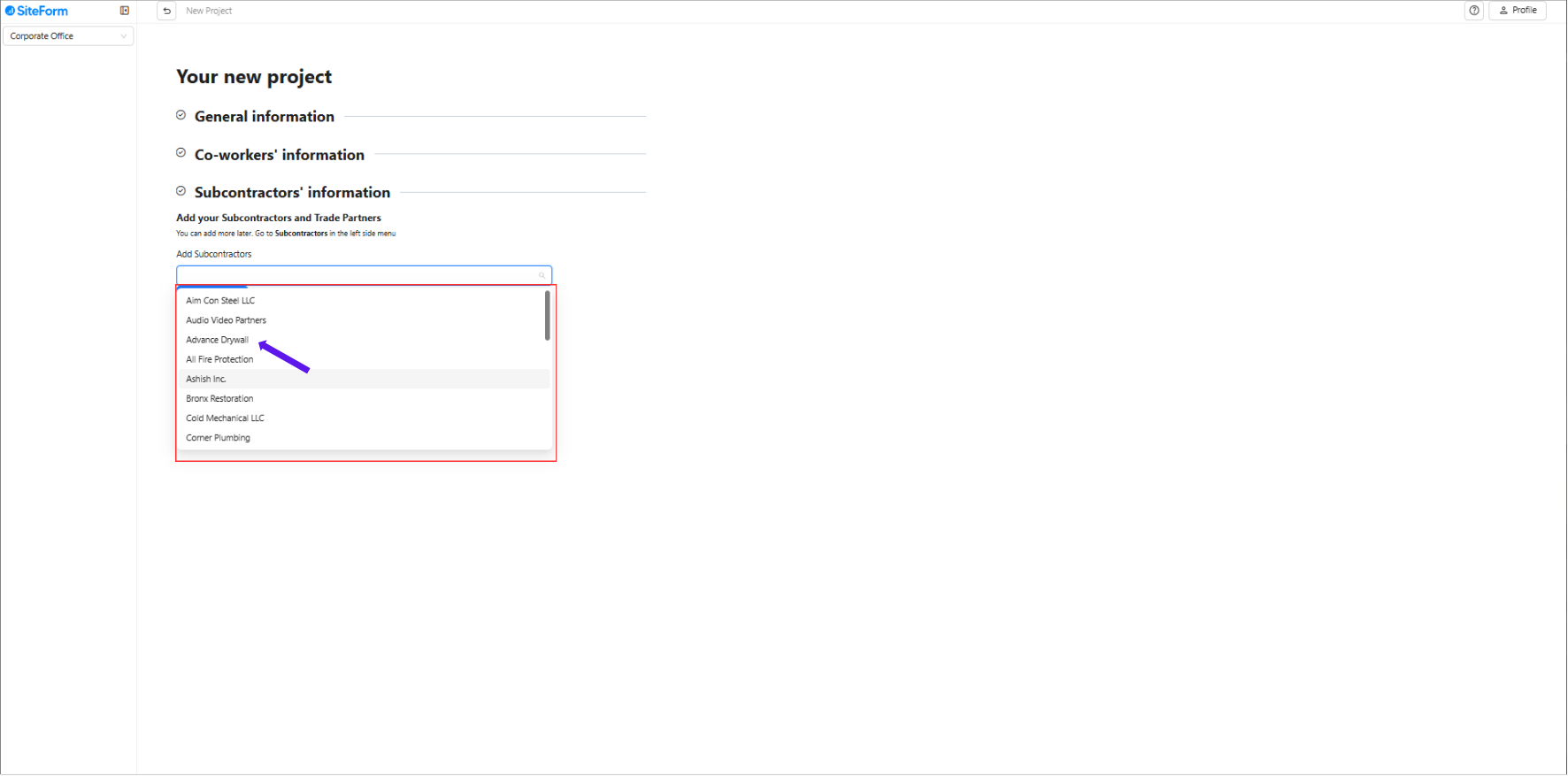
10. If the company is not listed, click “+ Create New”
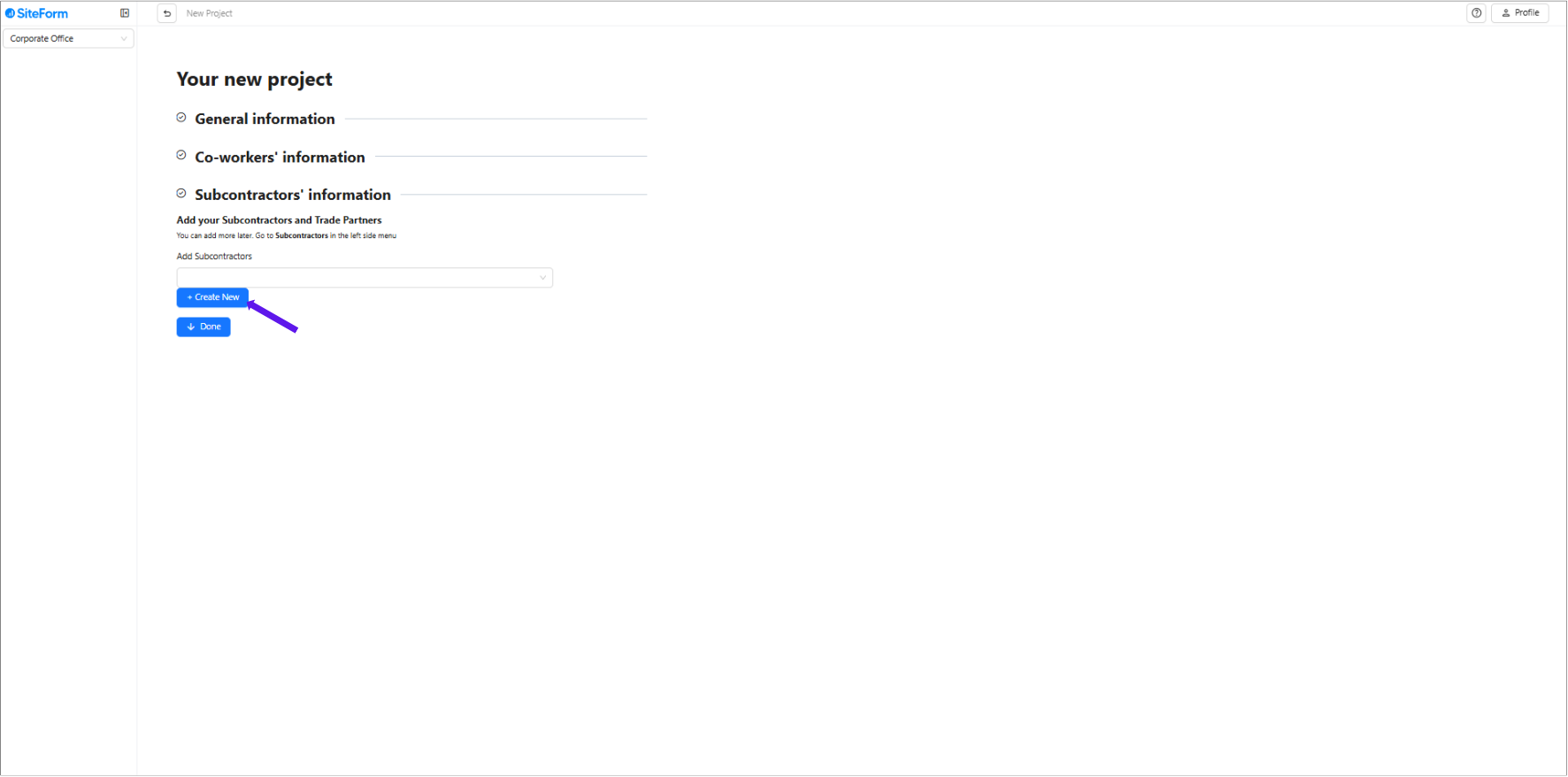
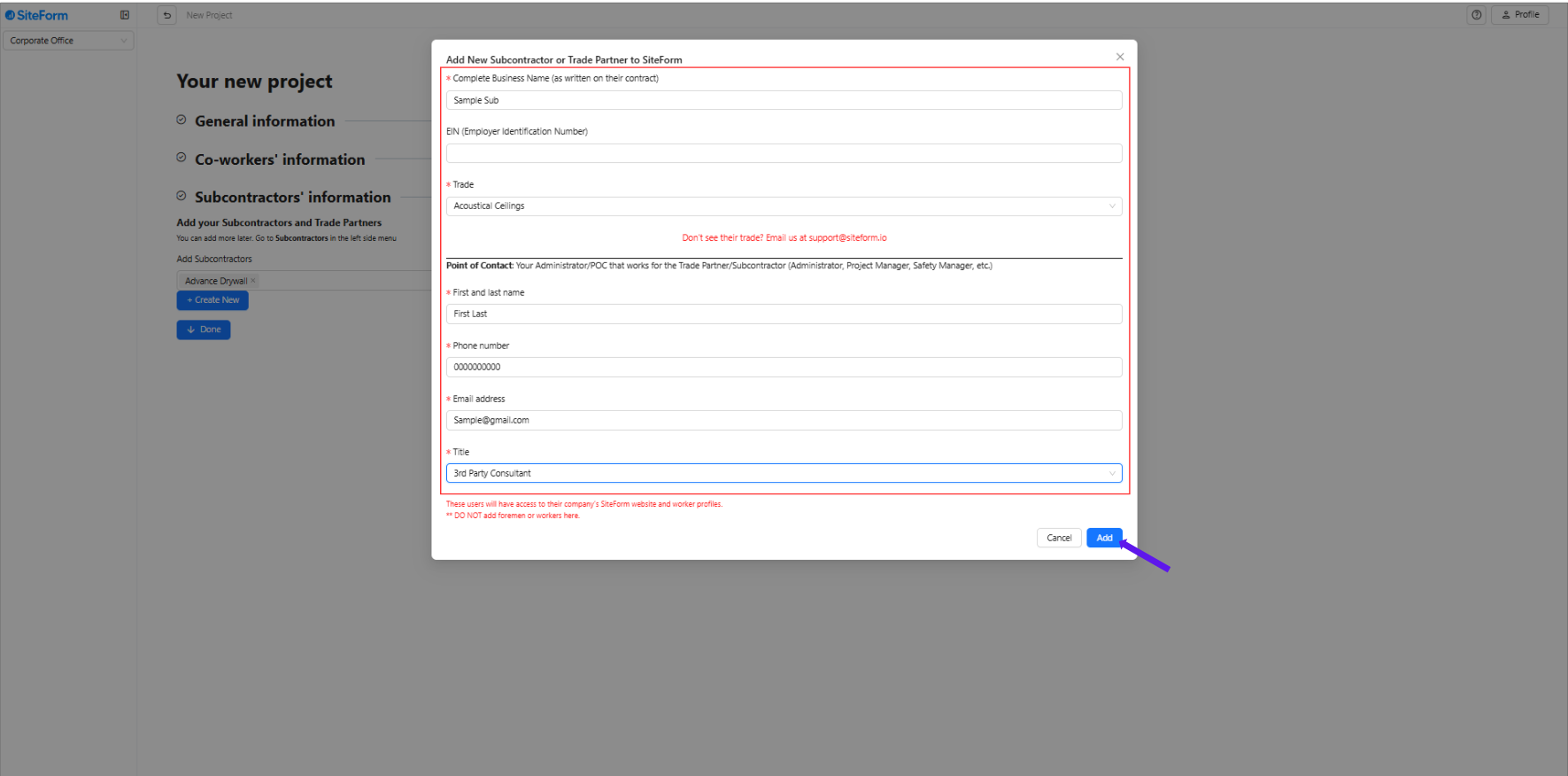
11. Fill out the following information:
Complete Business Name
Trade
Point of Contact: First Name, Last Name, Phone Number, Email Address, Title
Click “Add.”
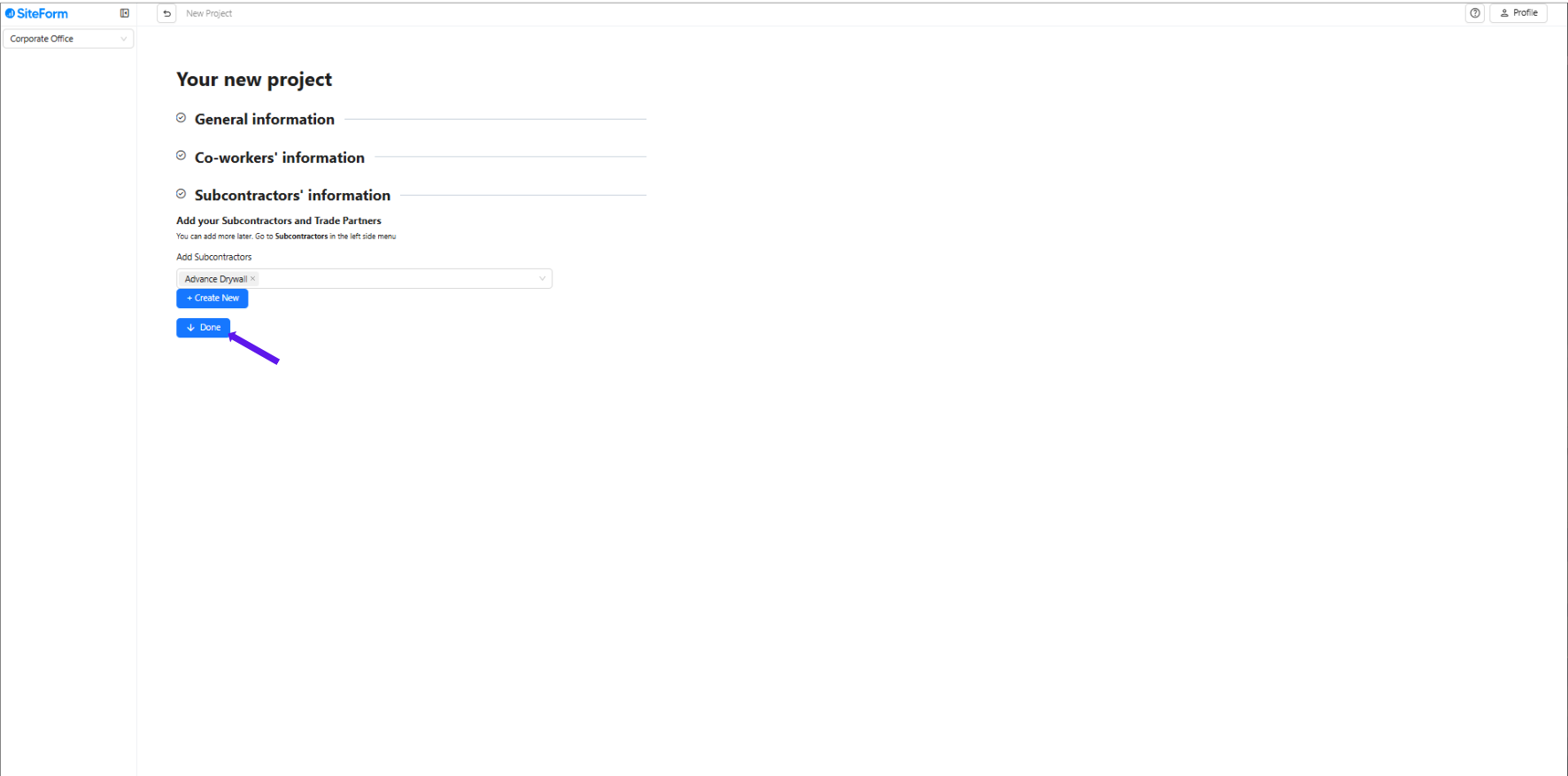
12. Click “Done” to complete the project setup.
Was this article helpful?
That’s Great!
Thank you for your feedback
Sorry! We couldn't be helpful
Thank you for your feedback
Feedback sent
We appreciate your effort and will try to fix the article