How to Access Daily Reports in Siteform
Follow these simple steps to generate and automate your daily reports with ease.
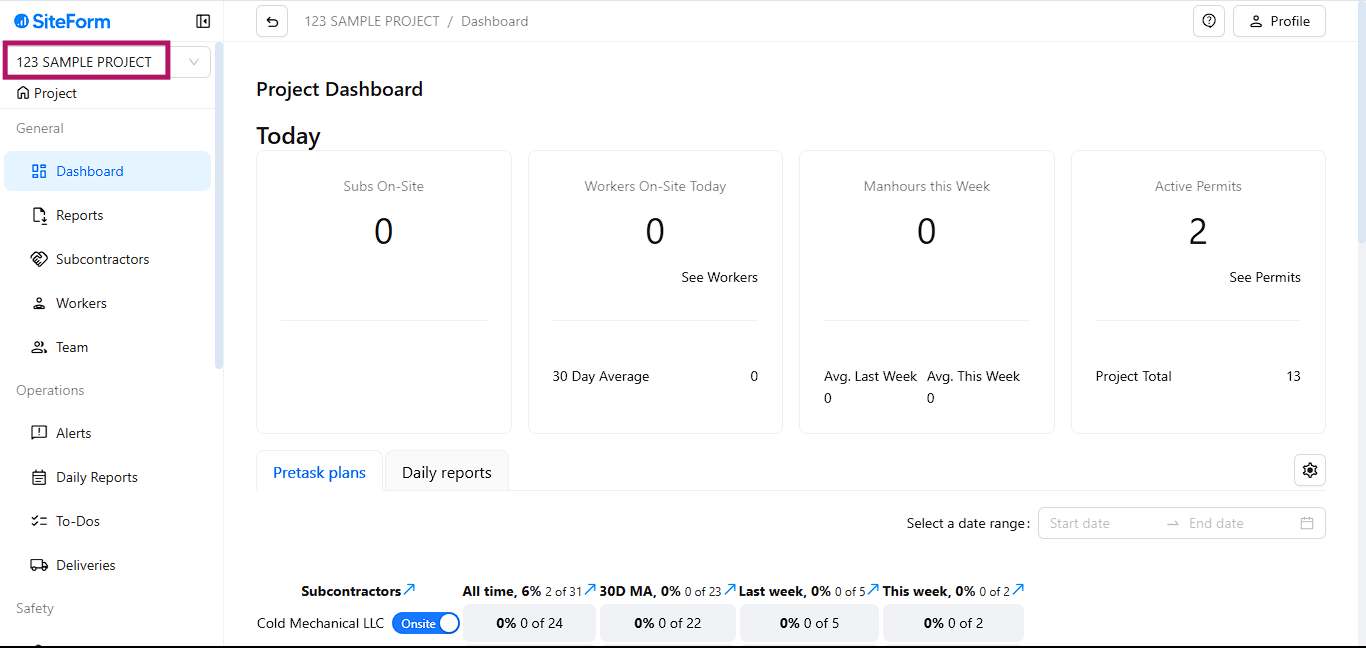
Step 1: Access the Project
First, log in to Siteform and navigate to the project you want to extract reports from.
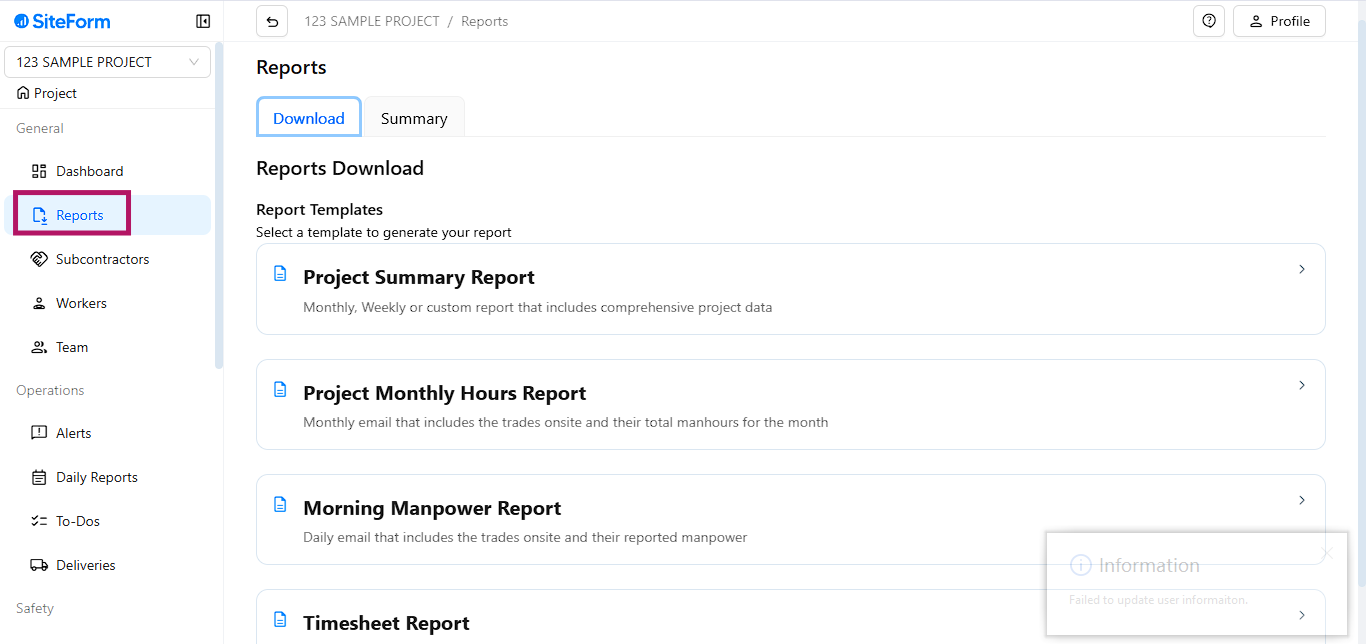
Step 2: Go to Reports
Click on the Reports section in the sidebar.
You will see two tabs:
Download
Summary
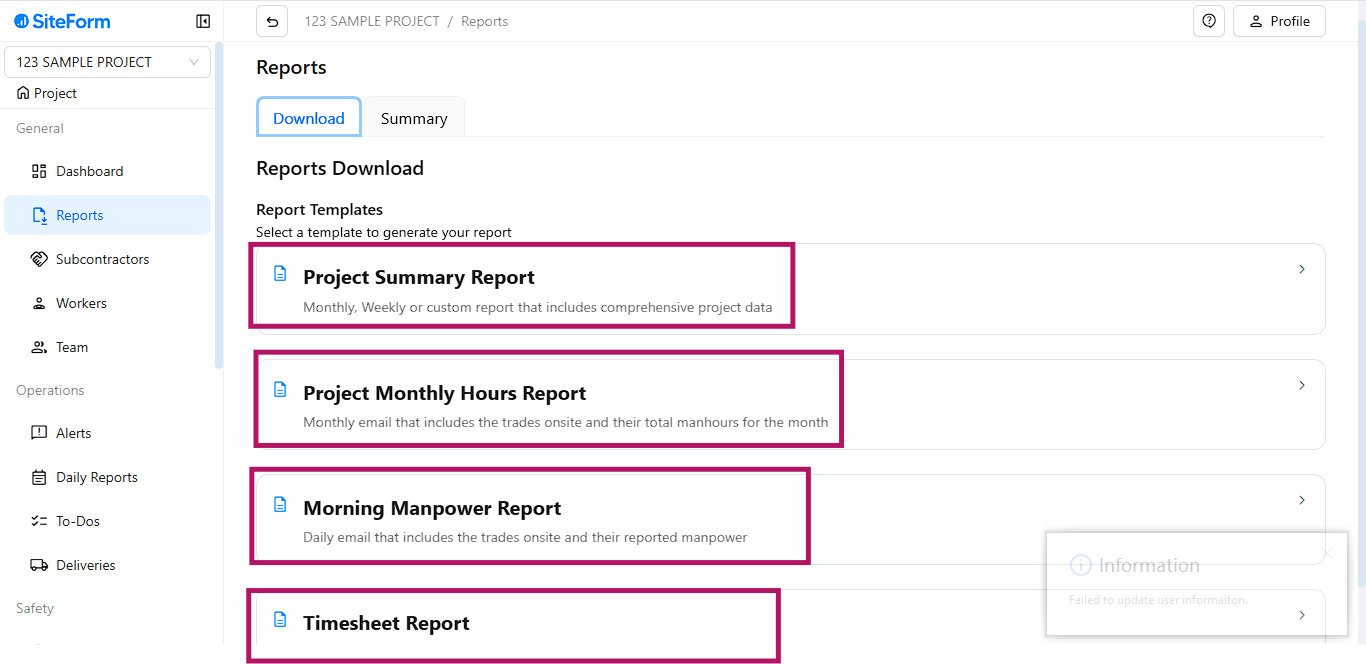
Step 3: Generate a Report
Under the Download tab, select one of the four available report options you want to generate.
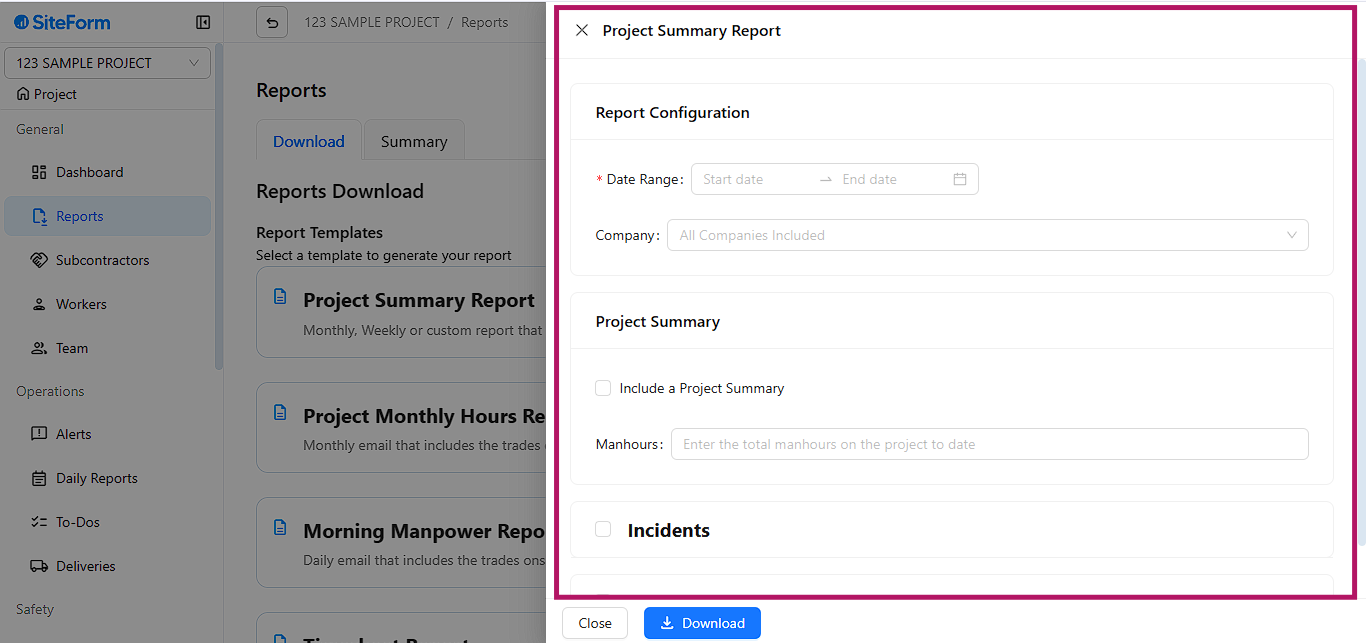
Step 4: Fill In & Download
Complete the necessary fields (like date range, category, etc.) and simply click Download to get your report.
Generating reports made EASY!
Summary
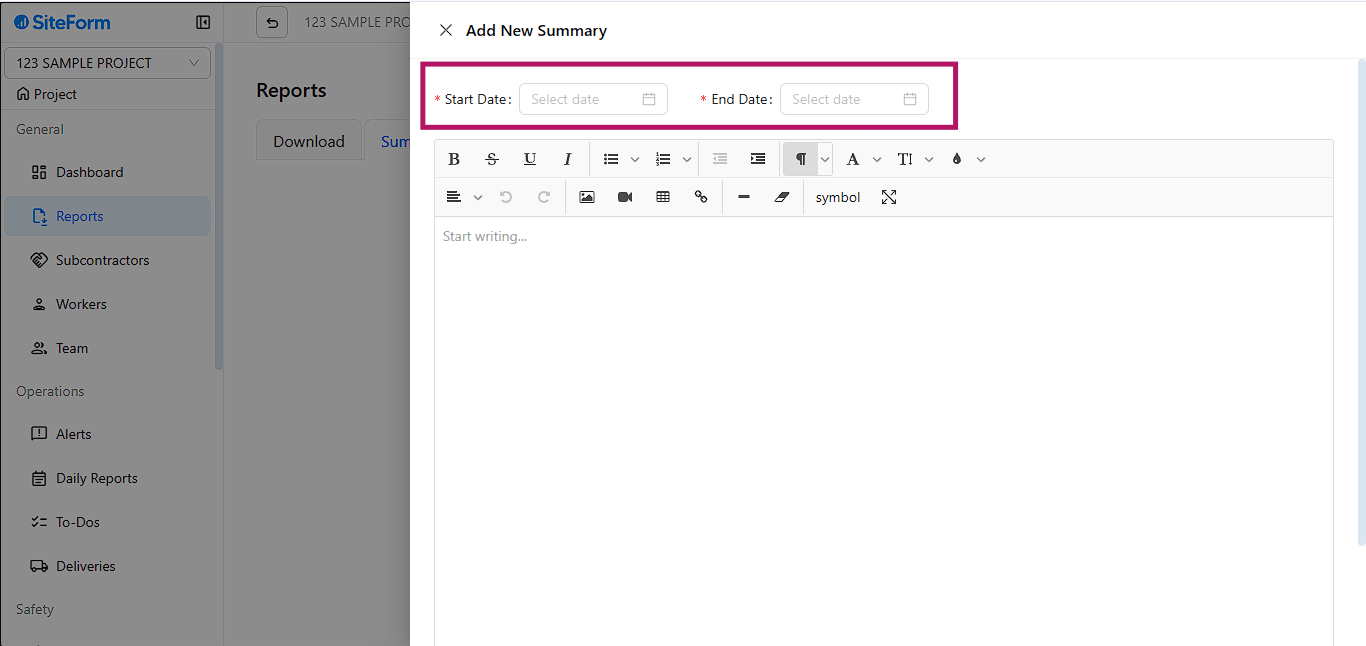
Creating Project summary done in two simple click.
Start date and End date, DONE!
Summary gives you an overview report within the date range.
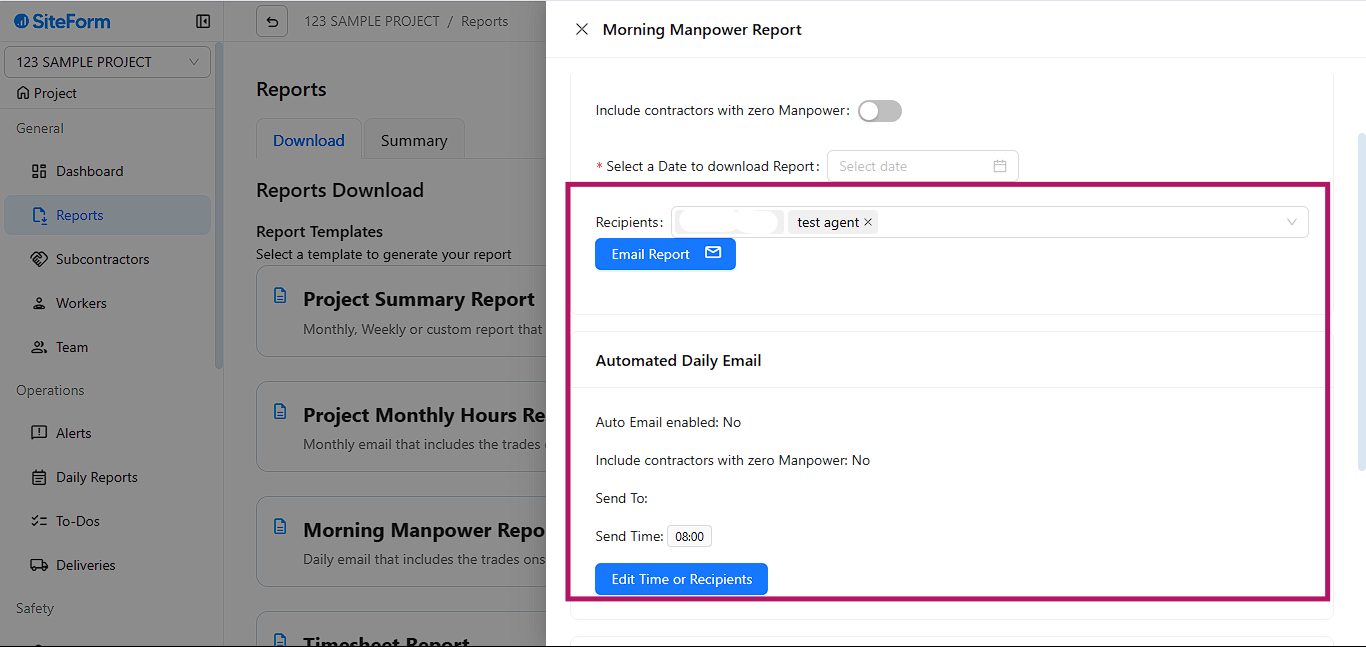
Special Feature: Automation
Tired of doing this every day?
Let Siteform send the reports to you automatically — daily, weekly, or at any frequency you choose.
Set your preferences once, and Siteform will handle the rest!
Was this article helpful?
That’s Great!
Thank you for your feedback
Sorry! We couldn't be helpful
Thank you for your feedback
Feedback sent
We appreciate your effort and will try to fix the article