Welcome to the step-by-step guide for adding orientation slides. This process allows you to create and customize your orientation experience, ensuring that new hires receive all the essential information they need to succeed in their roles.
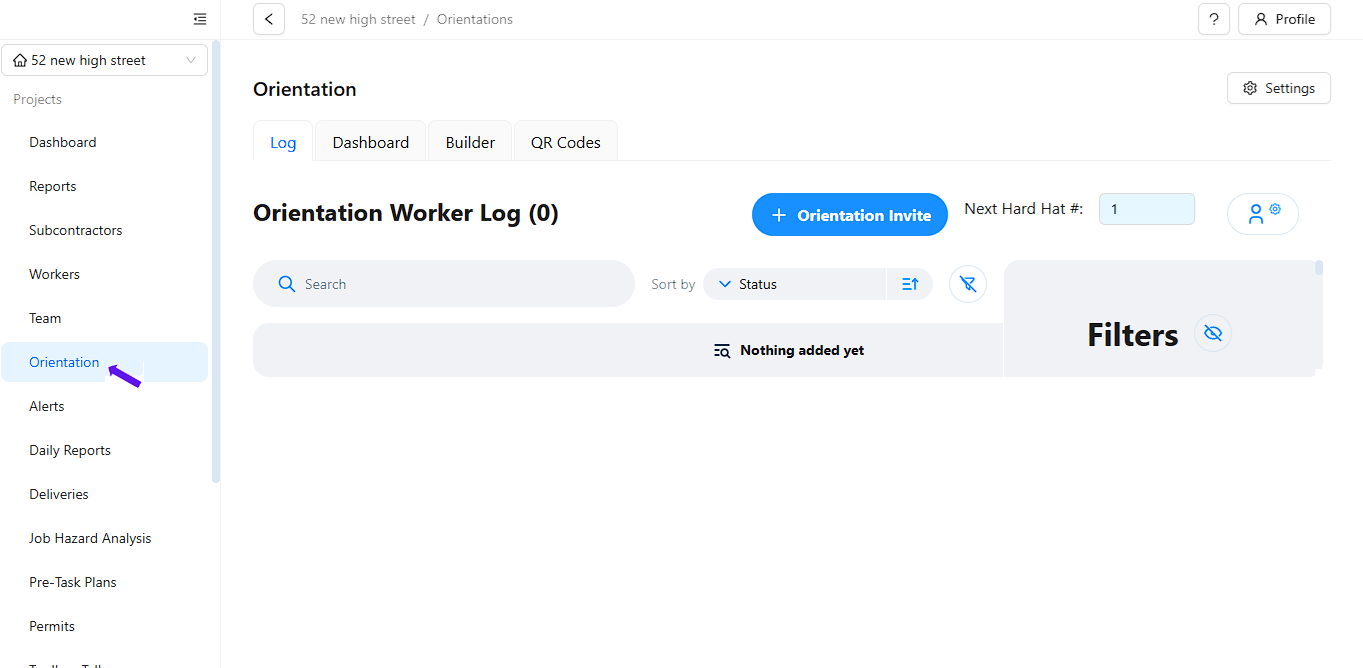
Step 1: Go to Orientation
Click "Orientation" in the left menu.
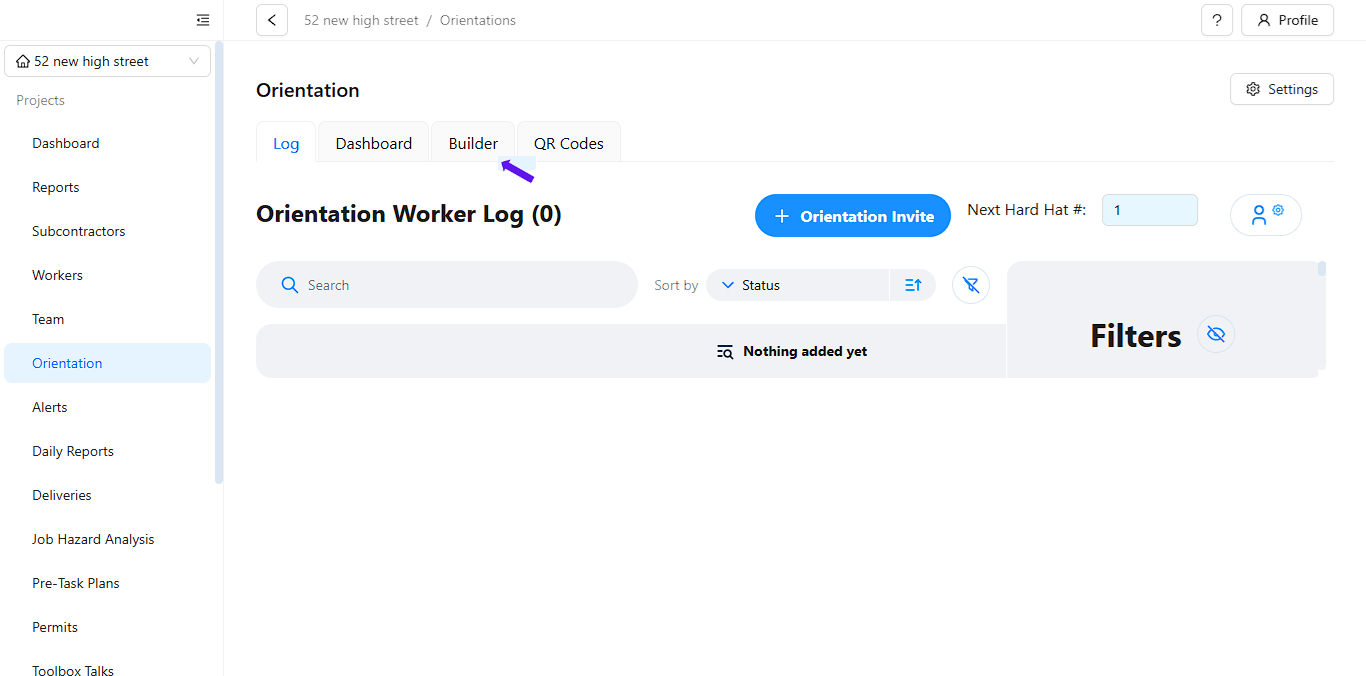
Step 2: Click the "Builder" Tab
Navigate to the "Builder" tab.
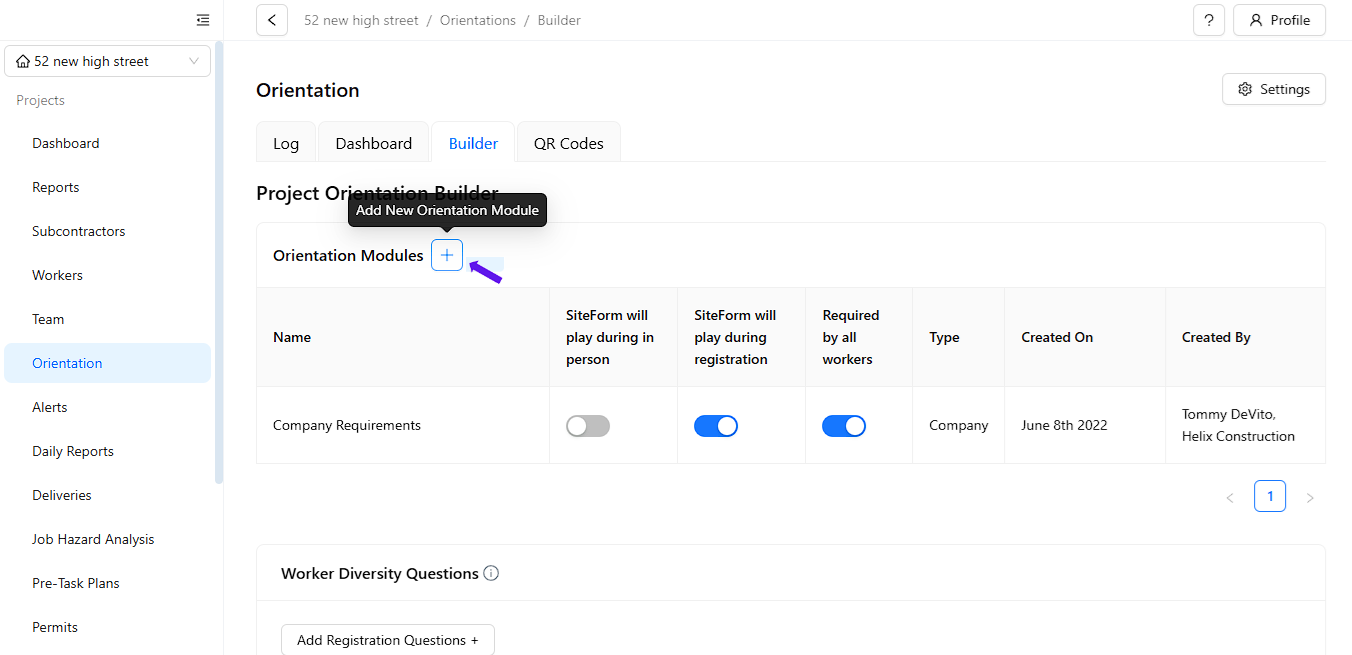
Step 3: Click (+) Orientation Modules
Click on the (+) button to add Orientation Modules.
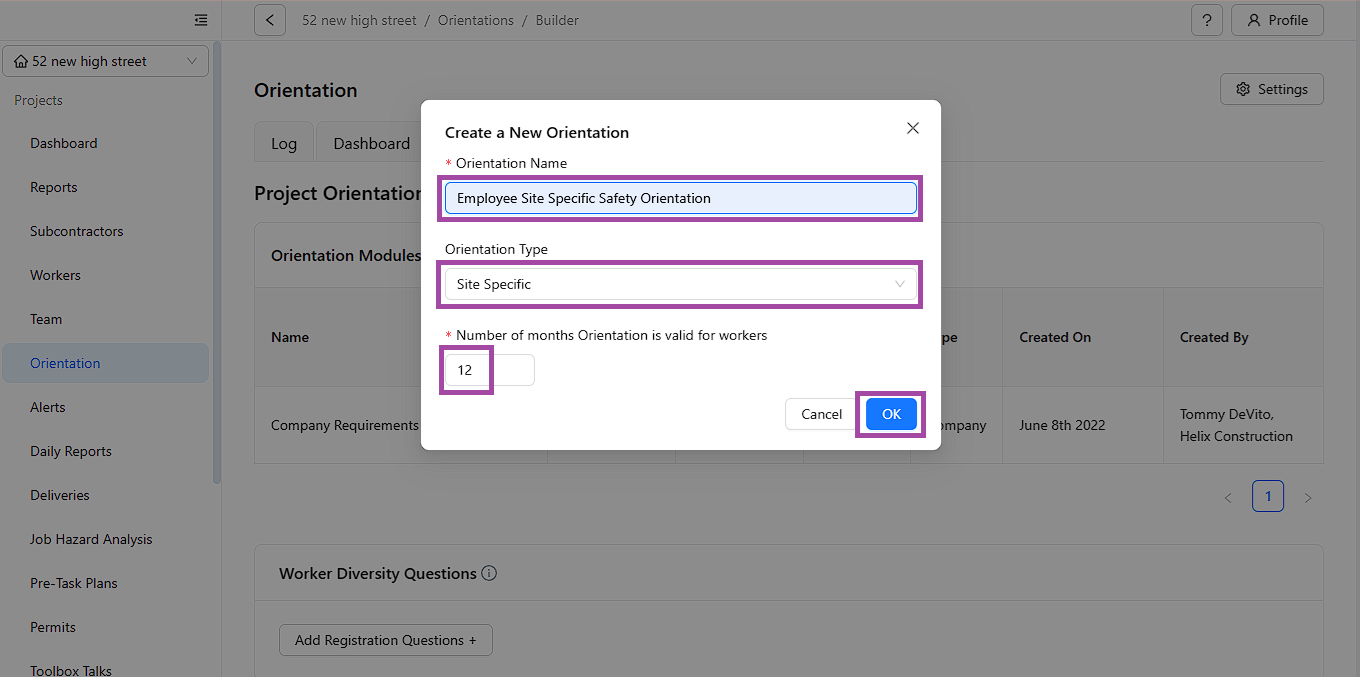
Step 4: Fill Out the Required Fields and Click "OK"
Enter the necessary details in the provided fields and then click "OK."
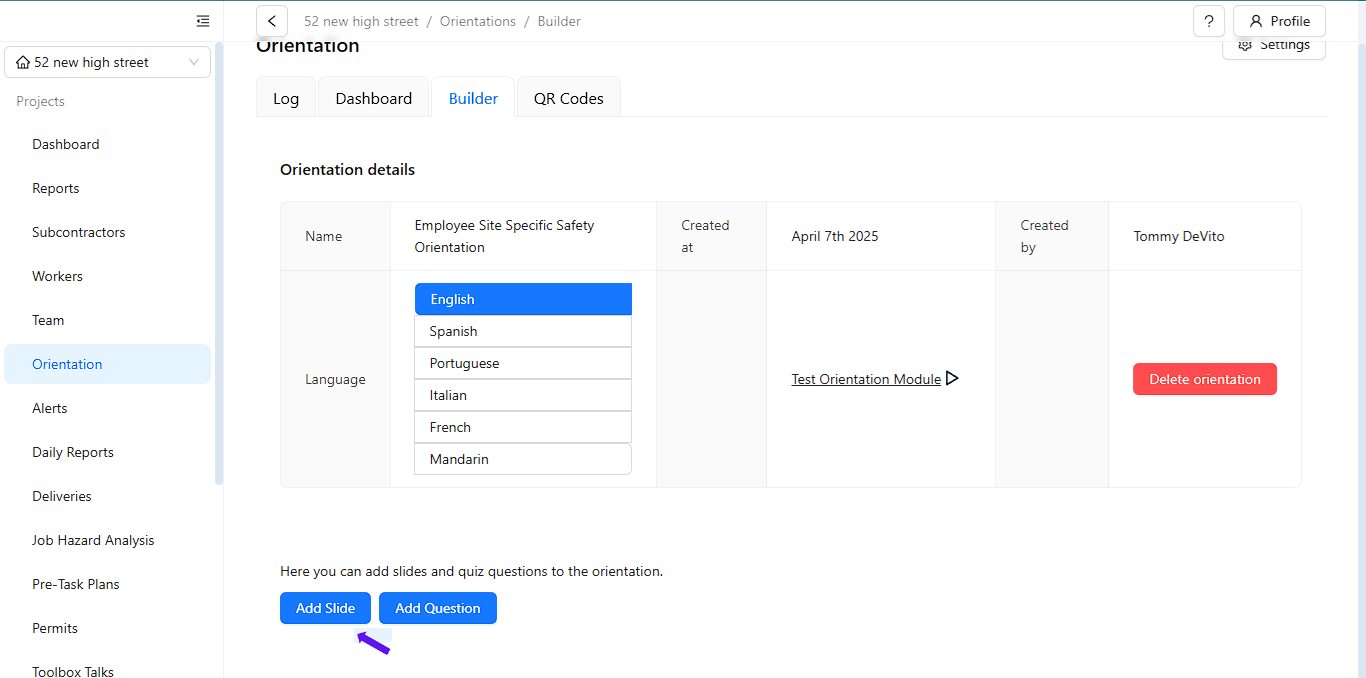
Step 5: Click the "Add Slide" Button
Click on the "Add Slide" button to start creating new slides.
Step 6: Adding Slides
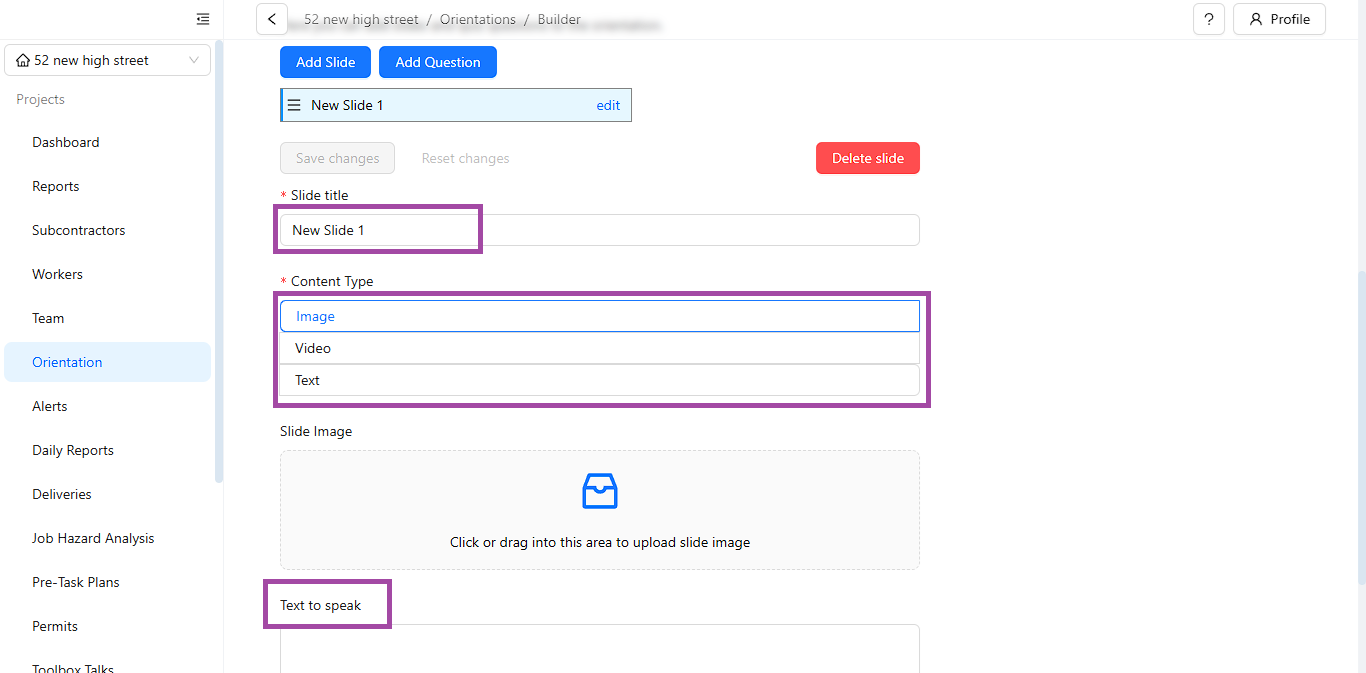
Slide Title – Click the box tab to enter the slide title.
Slide Image/Video/Text – Click or drag to upload a file (supported formats for images: JPG or PNG).
Text-to-Speak– Enter the text in the "Text to Speak" box, click on "Speak" to preview, and listen to the generated voice. Once satisfied, click "Save Changes."
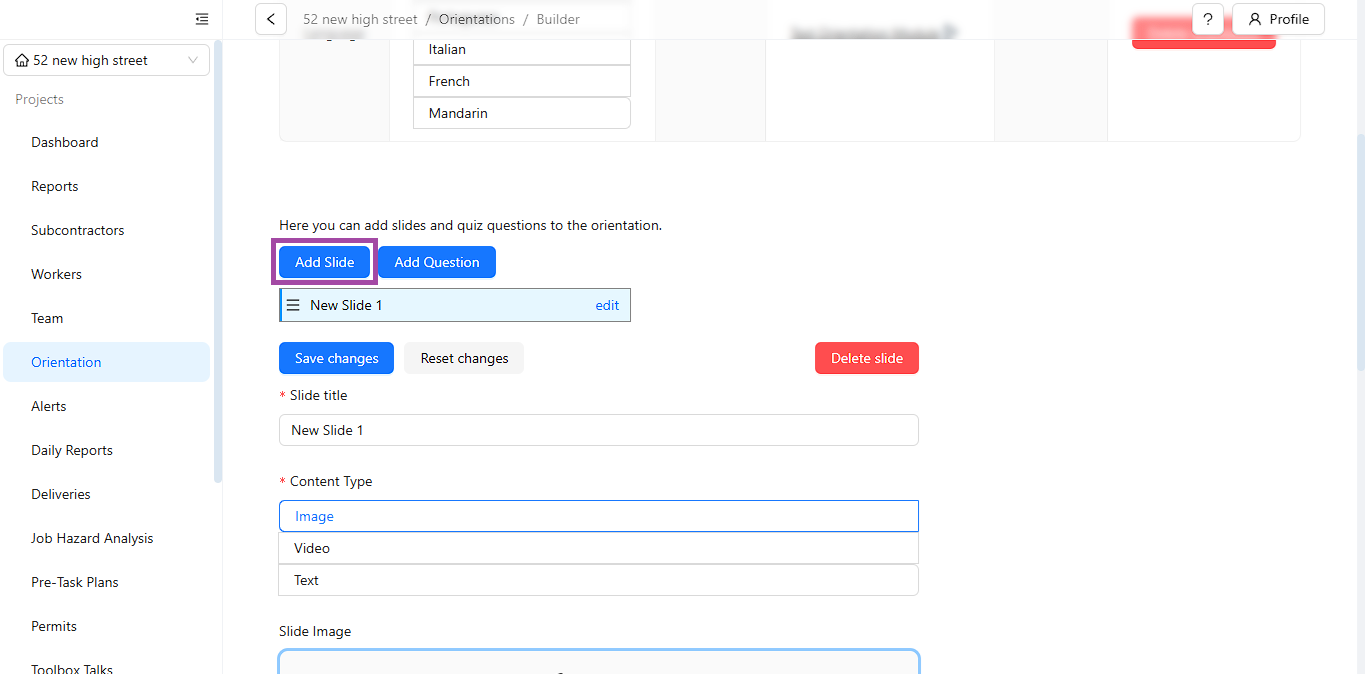
Step 7: Adding More Slides
Click on the "Add Slide" button and follow the instructions in Step 7 to add more slides.
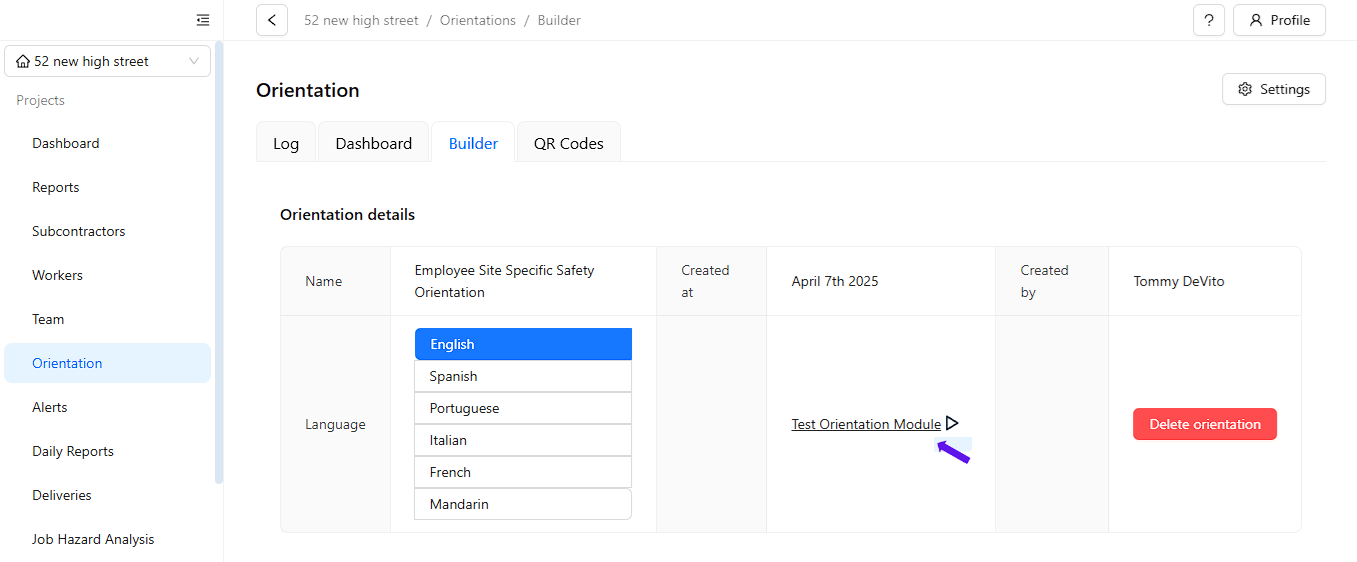
Step 8: Preview Your Orientation Module
When you're done adding all the slides, click on "Test Module" to preview your orientation.
By following these steps, you can efficiently add and review orientation slides to ensure a smooth onboarding process.
Was this article helpful?
That’s Great!
Thank you for your feedback
Sorry! We couldn't be helpful
Thank you for your feedback
Feedback sent
We appreciate your effort and will try to fix the article