You can add workers in Siteform in multiple ways. The most efficient method is using SiteOrientation, our worker onboarding feature. This module will automatically add workers as they arrive at the project, log when they arrive, and deliver any onboarding instructions. However, if you need to upload workers manually, then you can use the method below.
Instructions
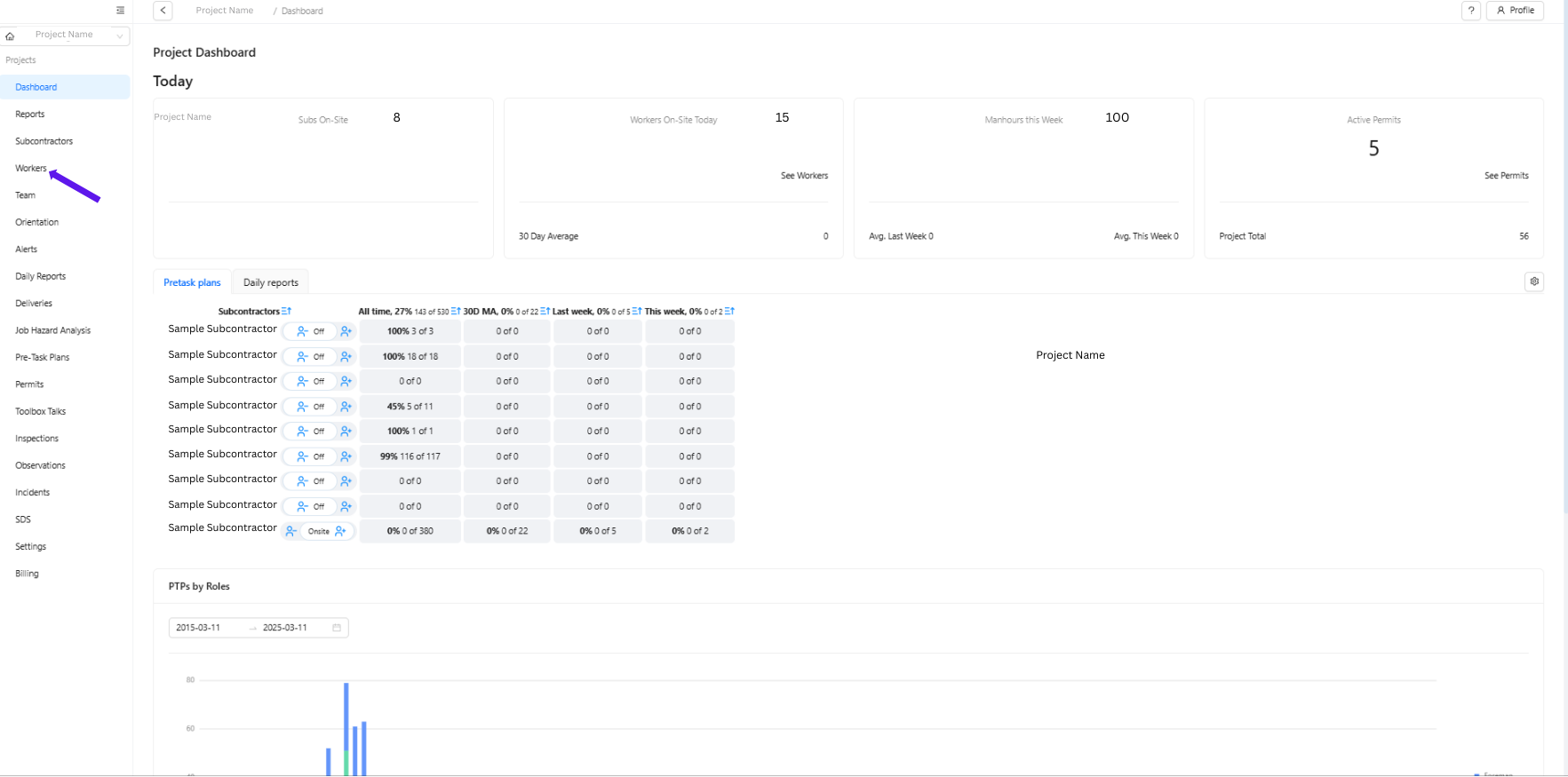
1. Select the project name, then click Workers in the left-hand corner.
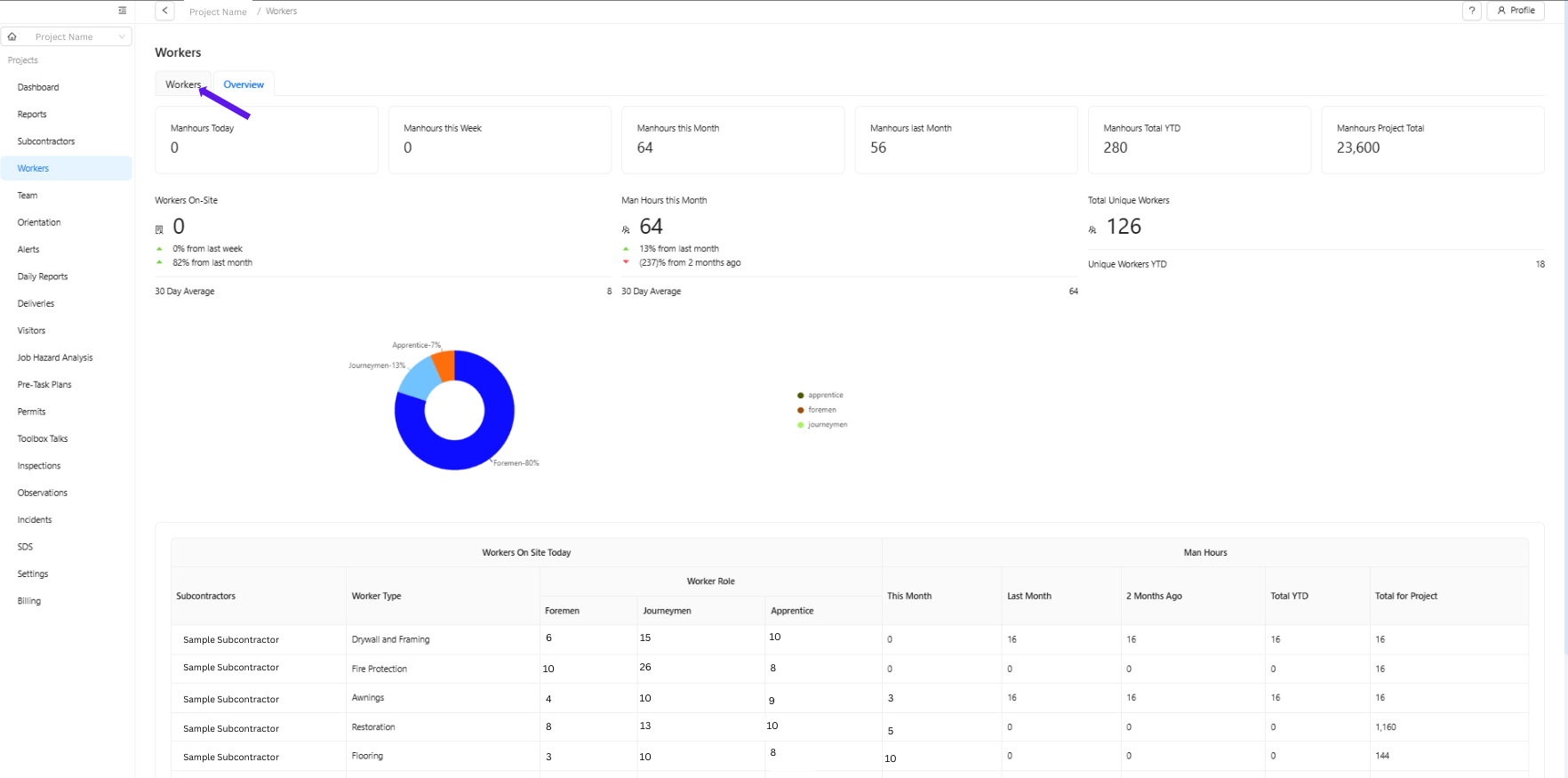
2. Click Workers
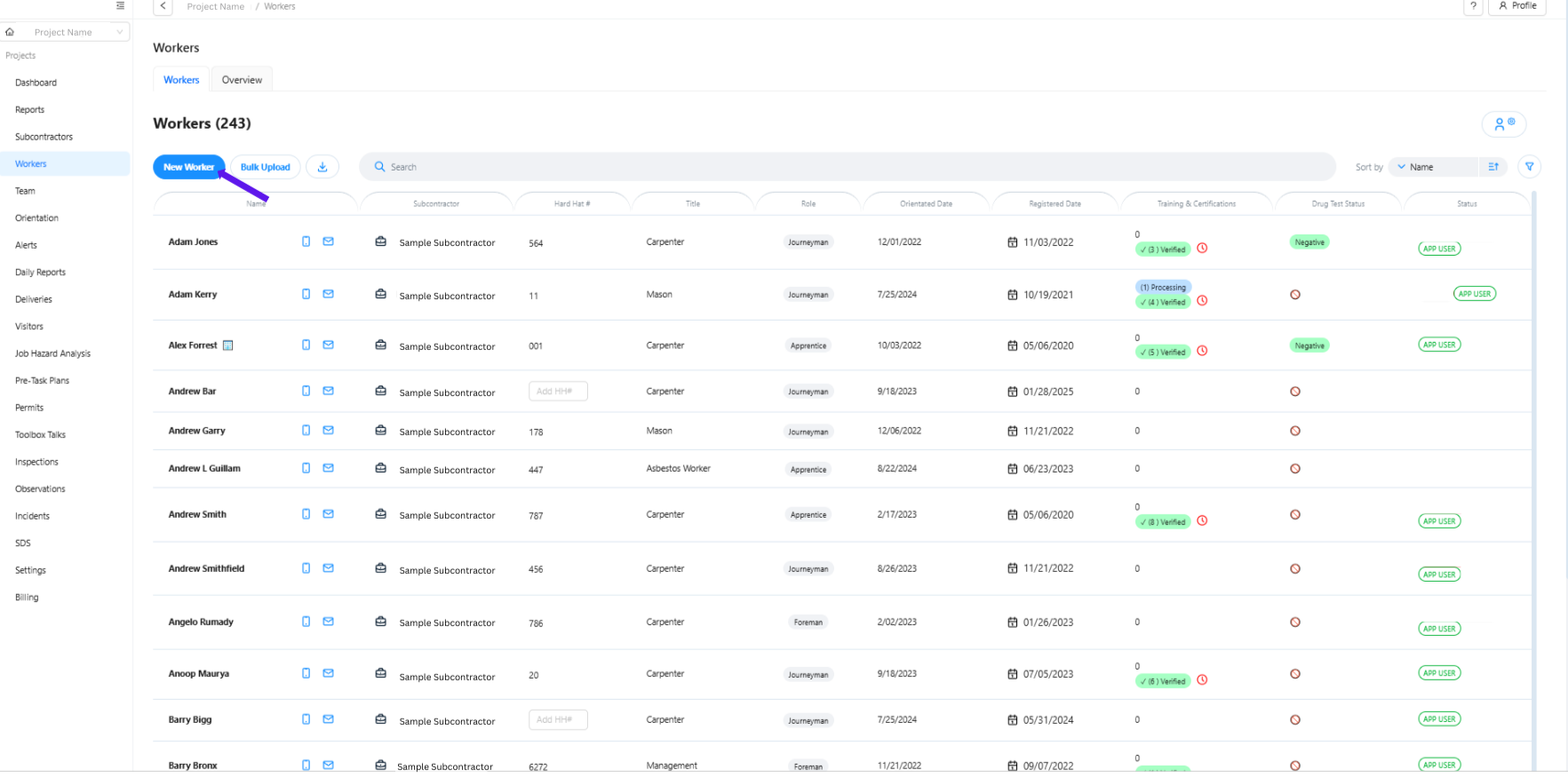
3. Option 1 - Click "New Worker" (When adding a single worker with varying companies of subcontractors)
Select New Worker to open the worker registration form.
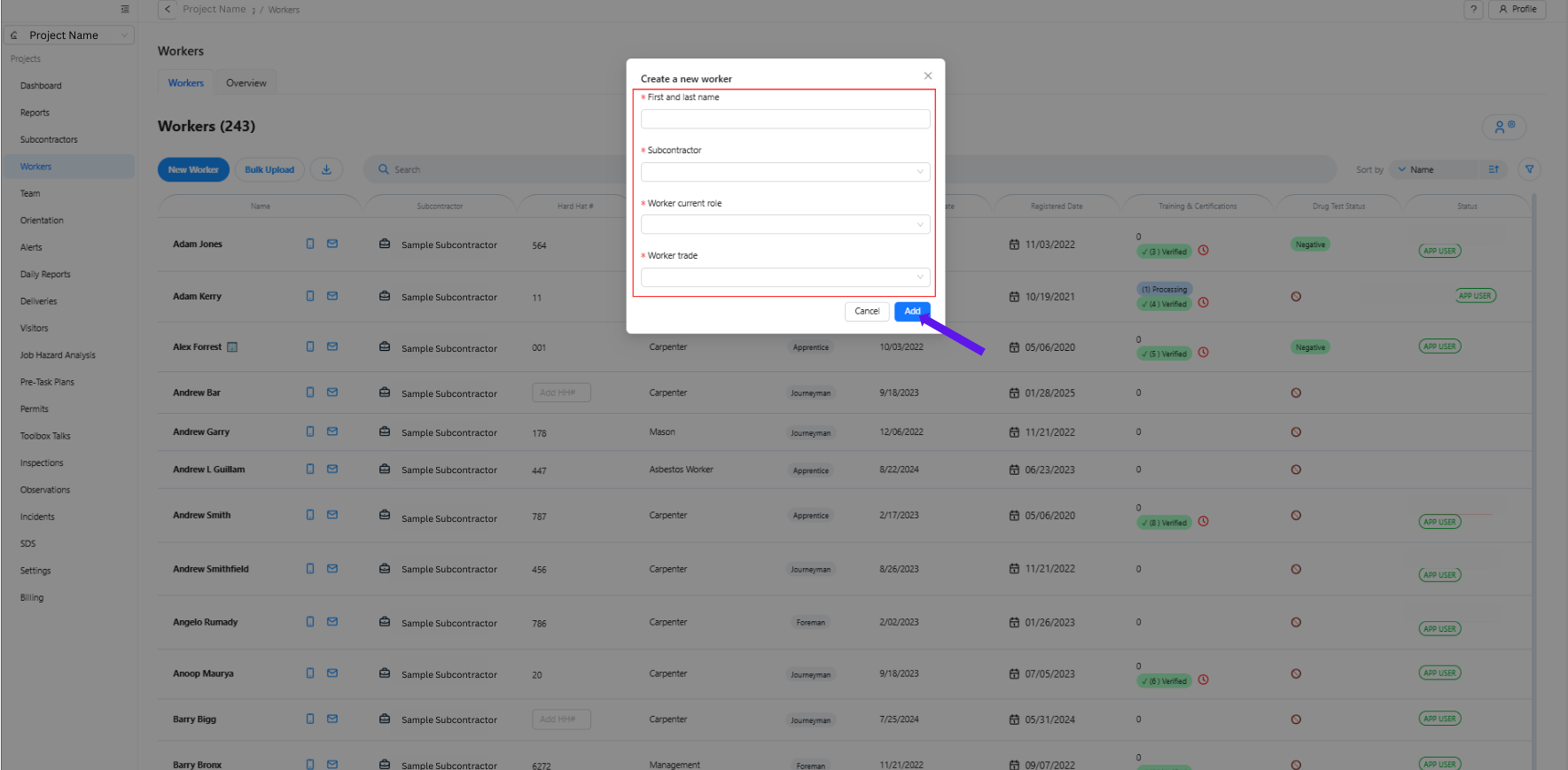
Fill in the Required Information
Enter the worker's First Name and Last Name.
Select the appropriate Subcontractor Company from the list.
Choose the worker’s Current Role and Trade.
Click Add to save the worker’s details.
NOTE: If you need to add two or more workers under the same subcontractor company, follow these steps:
3. Option 2 - Click Bulk Upload (When adding two or more workers who belong to the same subcontractor company)
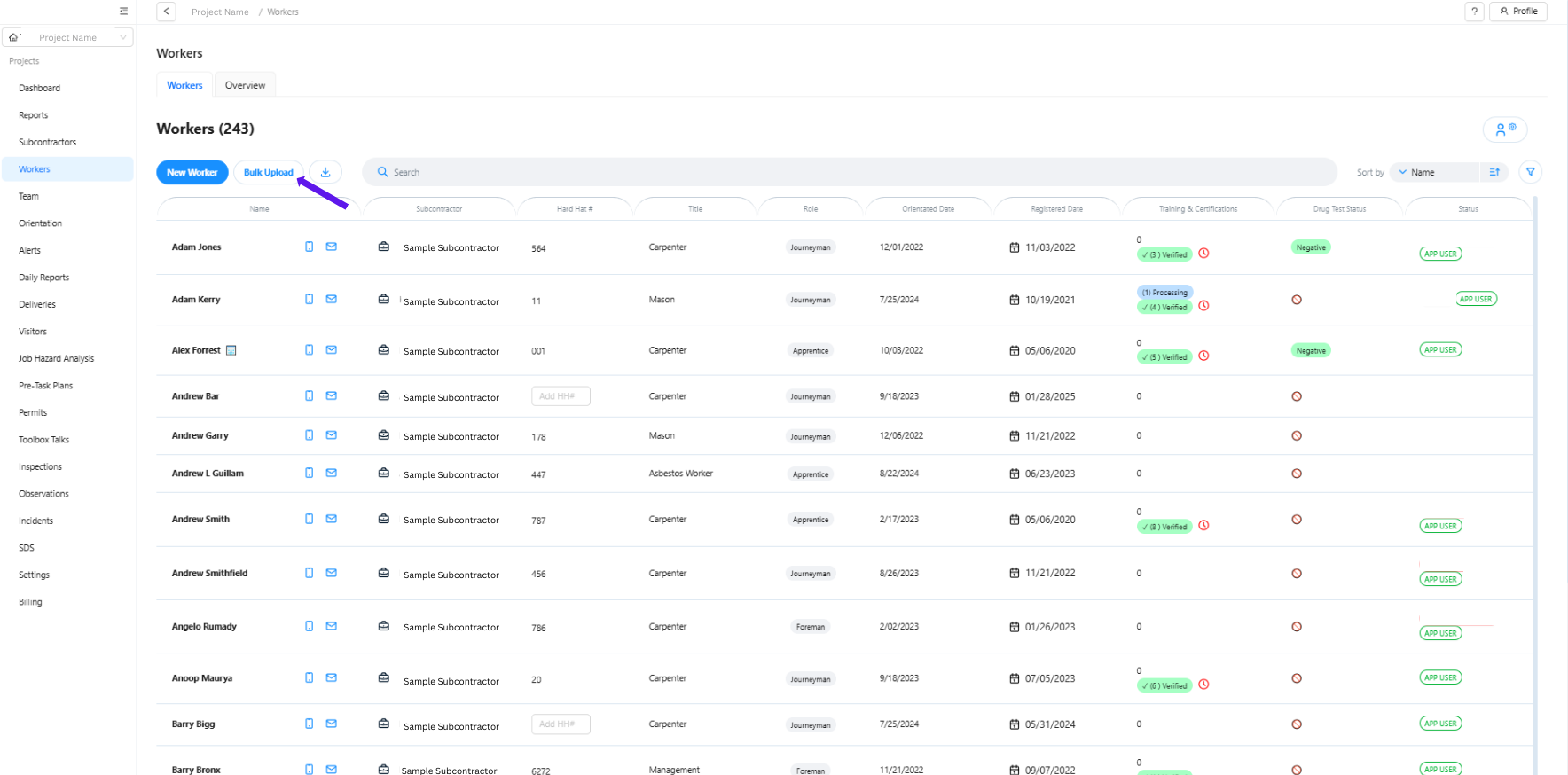
Fill Out the Template
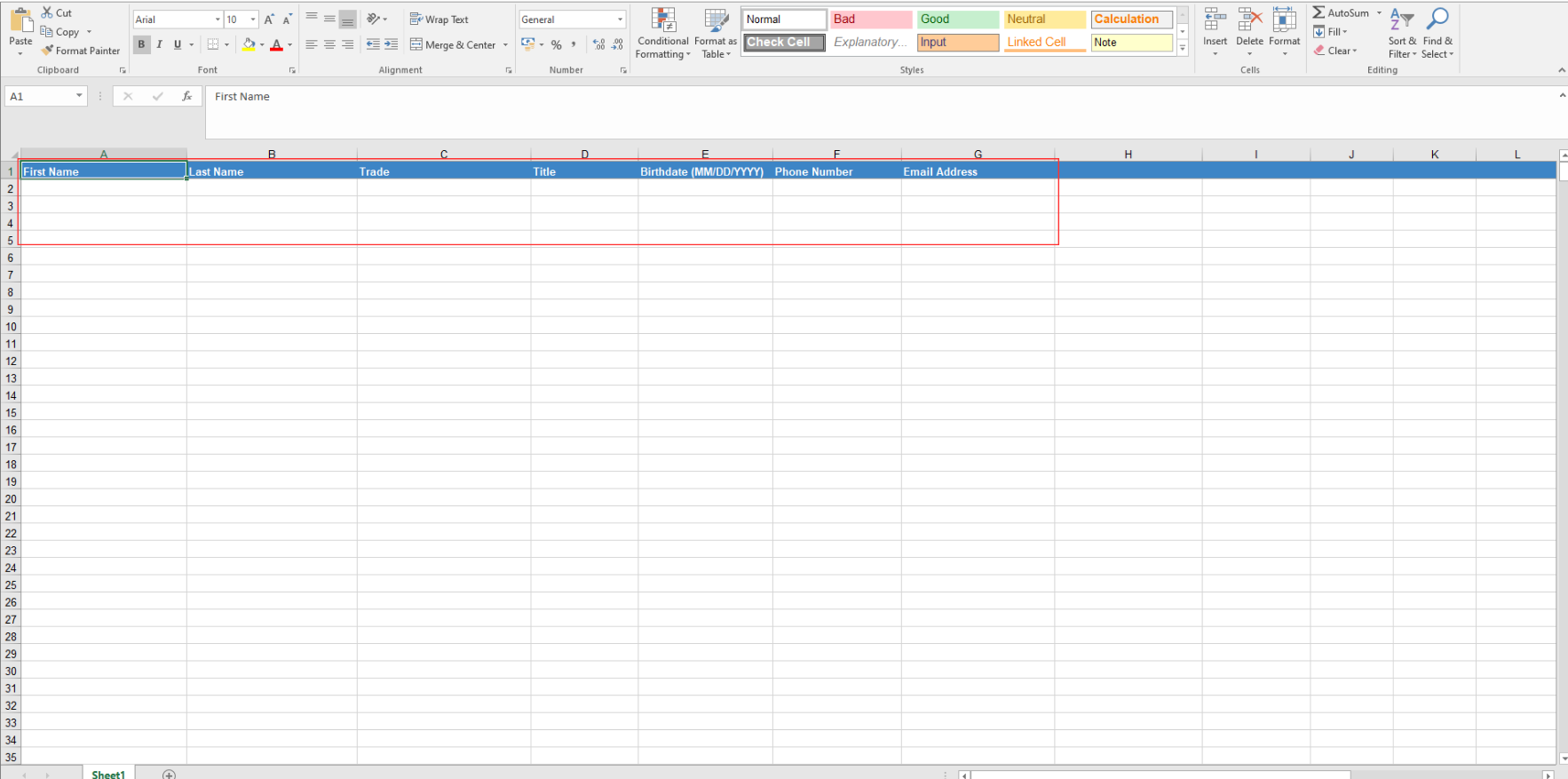
Open the template and enter the required information for each worker:
First Name
Last Name
Trade
Title
Birthday
Mobile Number
Email Address
Save the completed Excel file.
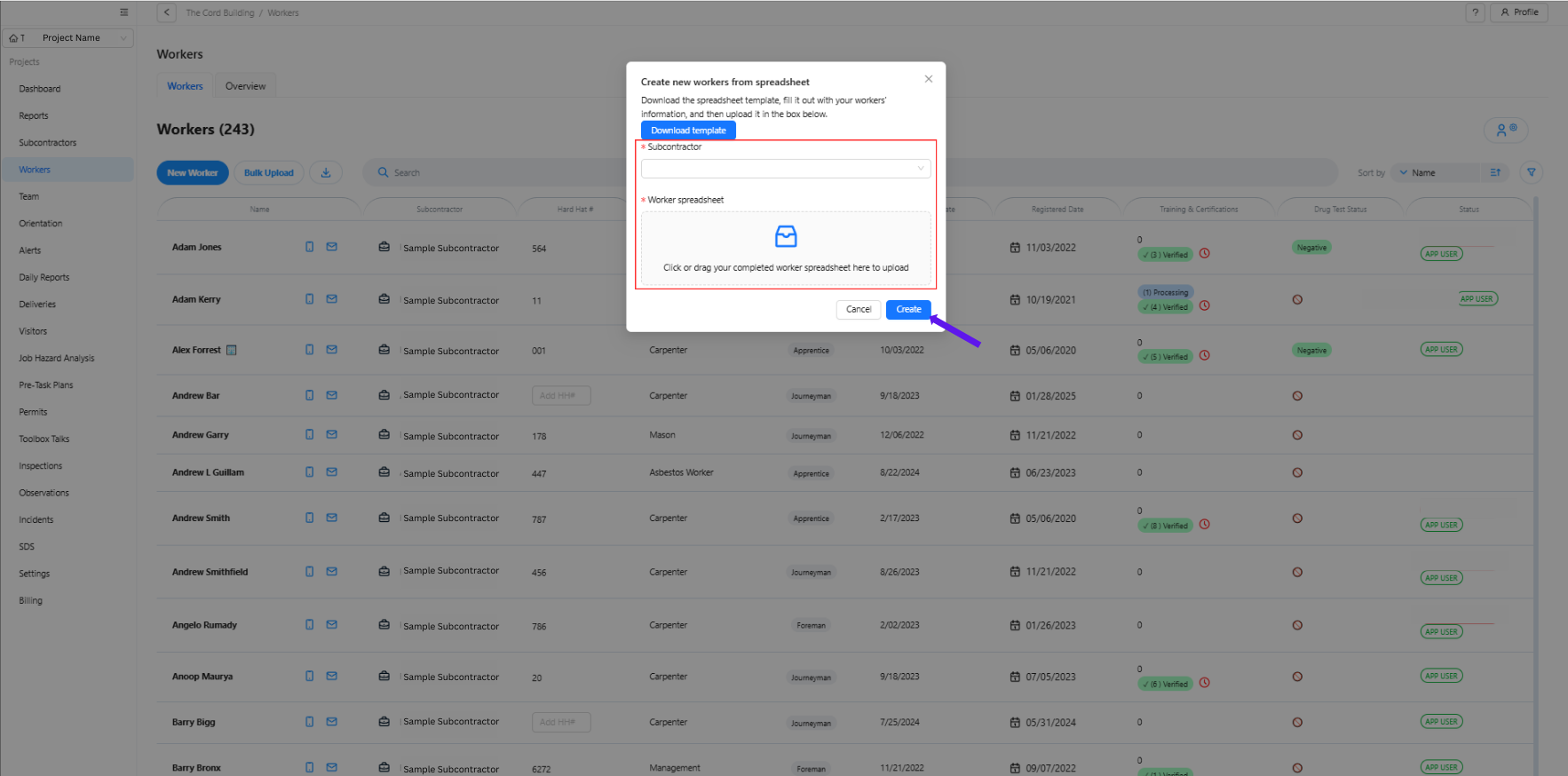
Upload the Worker Spreadsheet
Drag and drop the saved Excel file into the Worker Spreadsheet section.
Click Create to upload and save the workers' details.
Was this article helpful?
That’s Great!
Thank you for your feedback
Sorry! We couldn't be helpful
Thank you for your feedback
Feedback sent
We appreciate your effort and will try to fix the article