How to Create a Pre-Task Plan (PTP) Without a Huddle Board
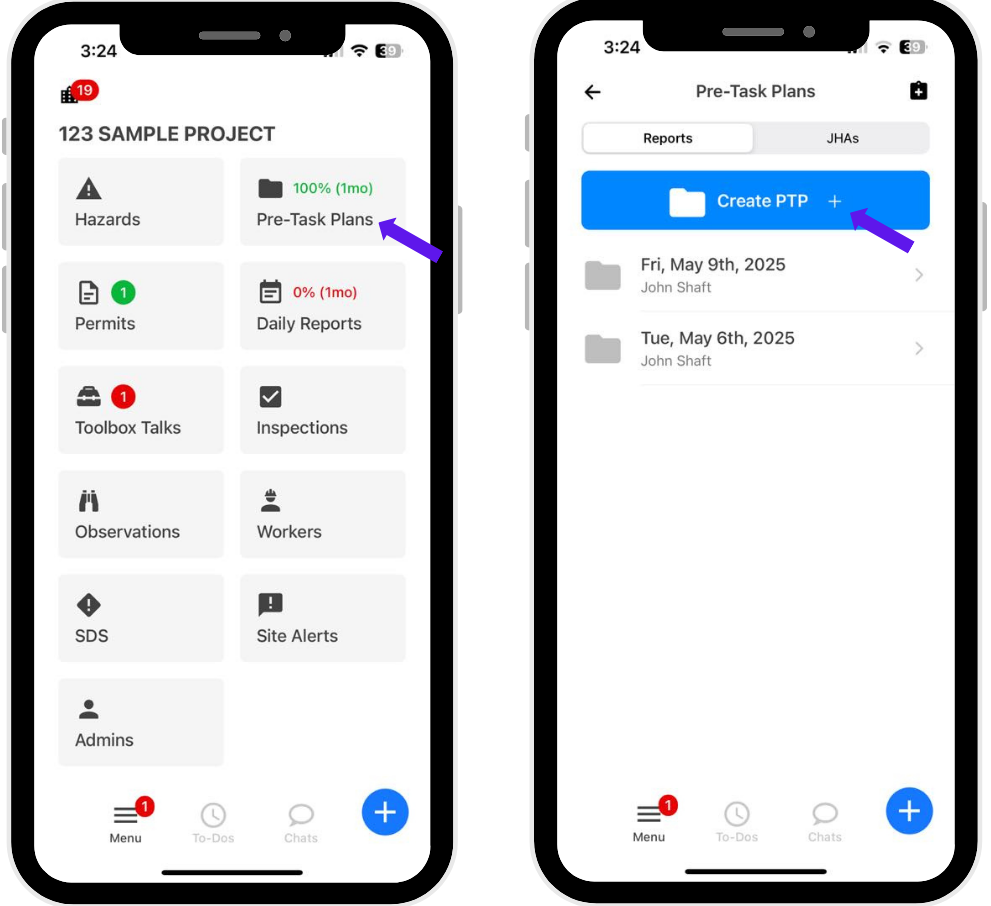
1. Click “Pre-Task Plans.”
– Navigate to the Pre-Task Plans section from your main menu.
2. Click “Create PTP +”
– This will begin the process of creating a new Pre-Task Plan.
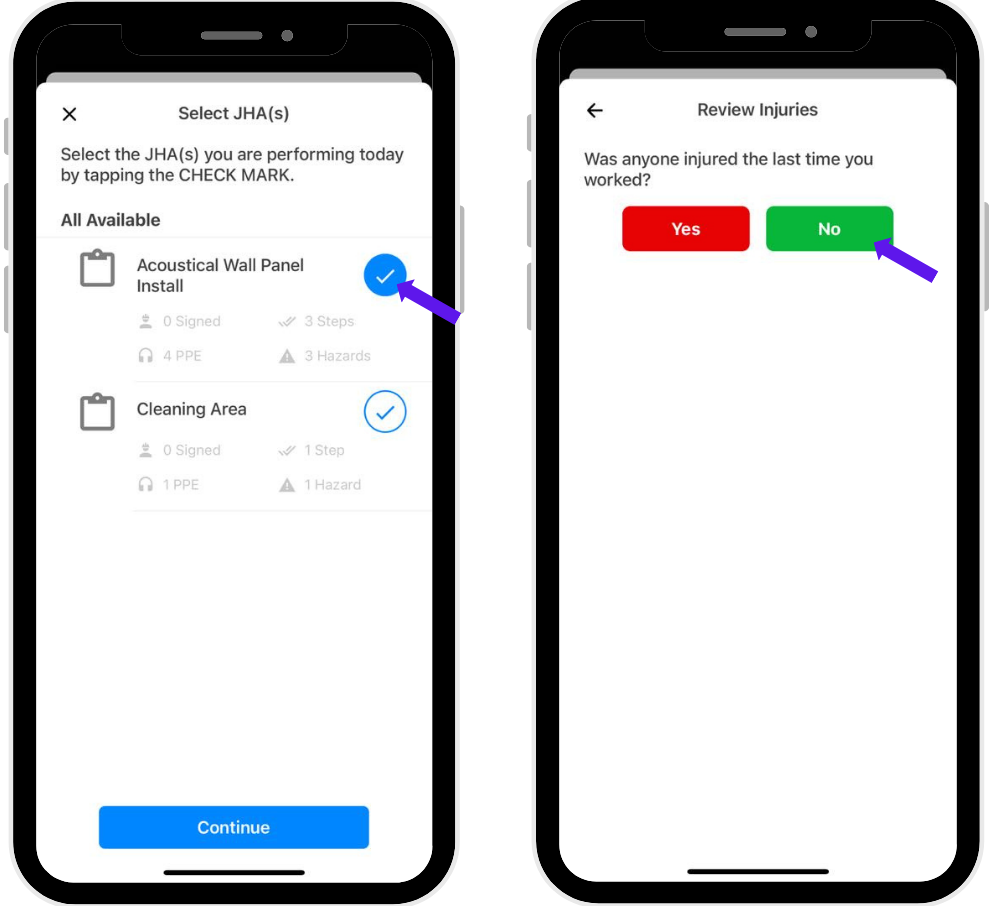
3. Select the JHA
– Choose the Job Hazard Analysis (JHA) that corresponds to the task being performed.
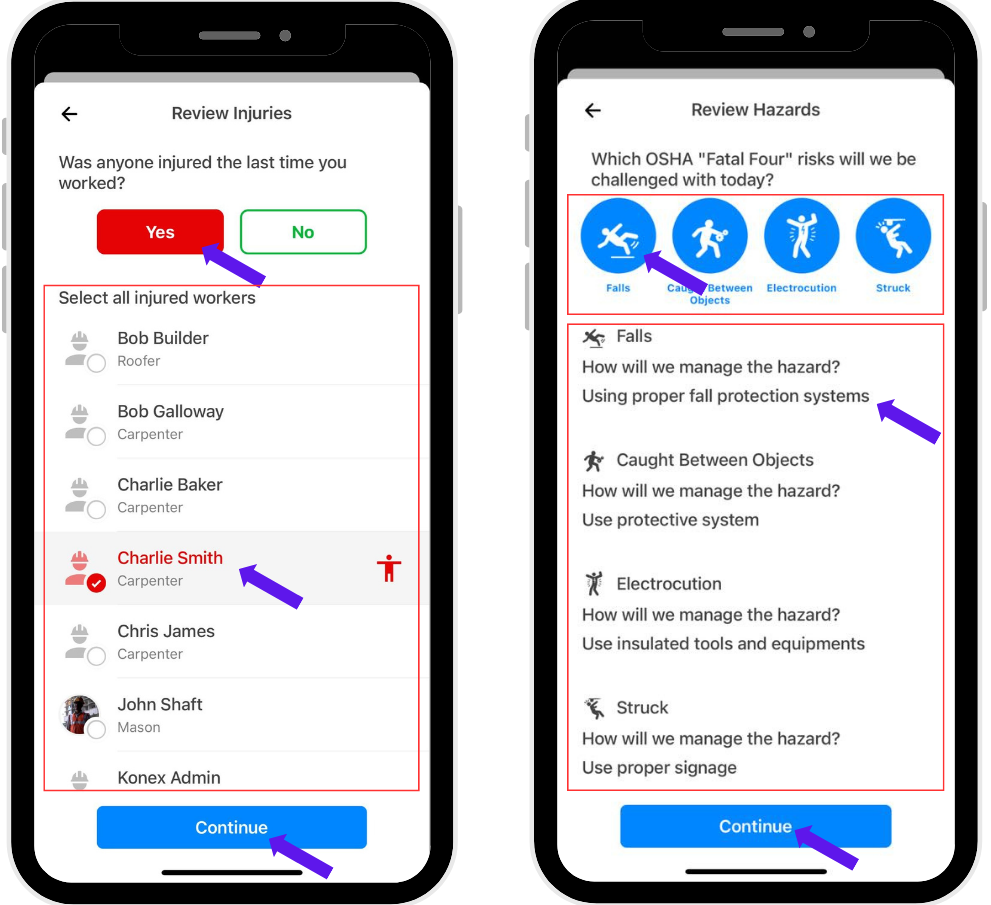
4. Review Past Incidents
– If any injuries occurred during the last time this task was performed, indicate “Yes.”
5. Select the name(s) of the injured worker(s) and click Continue.
6. Review Hazards
– Under “Review Hazards,” select which of the OSHA Fatal Four risks apply to the task.
7. Answer Hazard-Related Questions
– Complete all required questions based on the selected hazard(s), then click Continue.
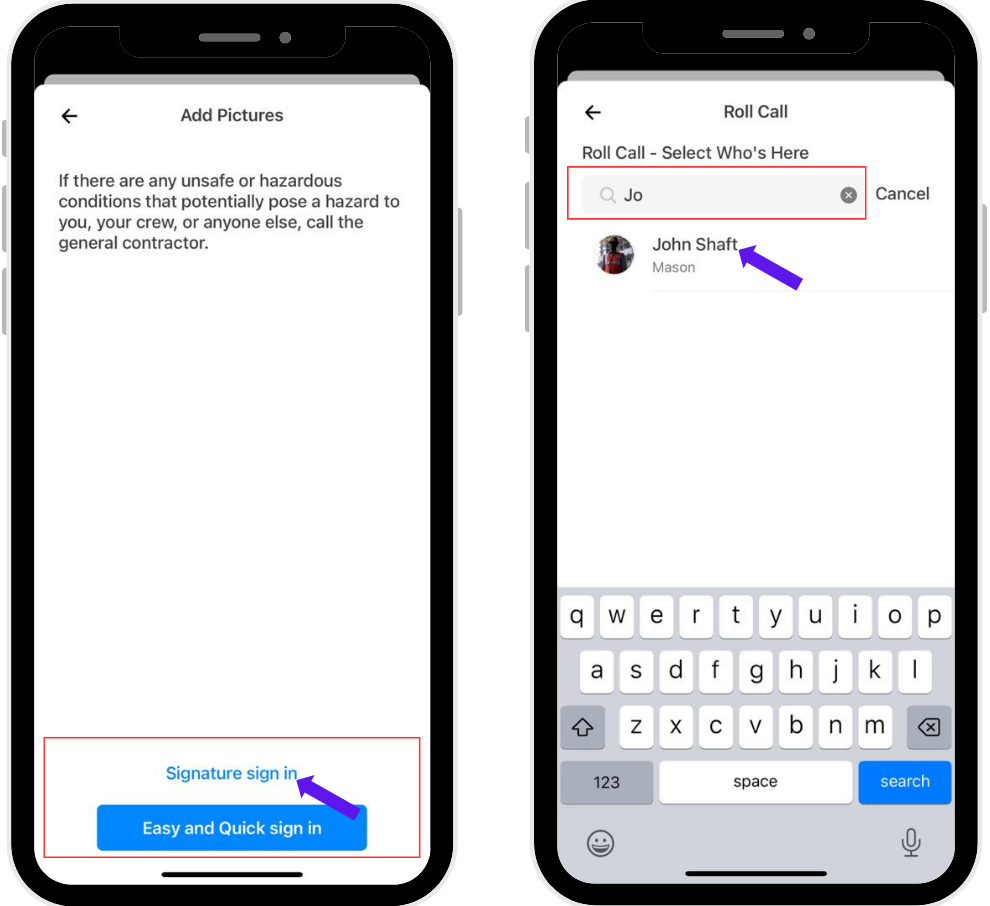
8. Choose a Sign-In Method
– You have two options:
Signature and Sign In – Formal acknowledgment with individual signatures
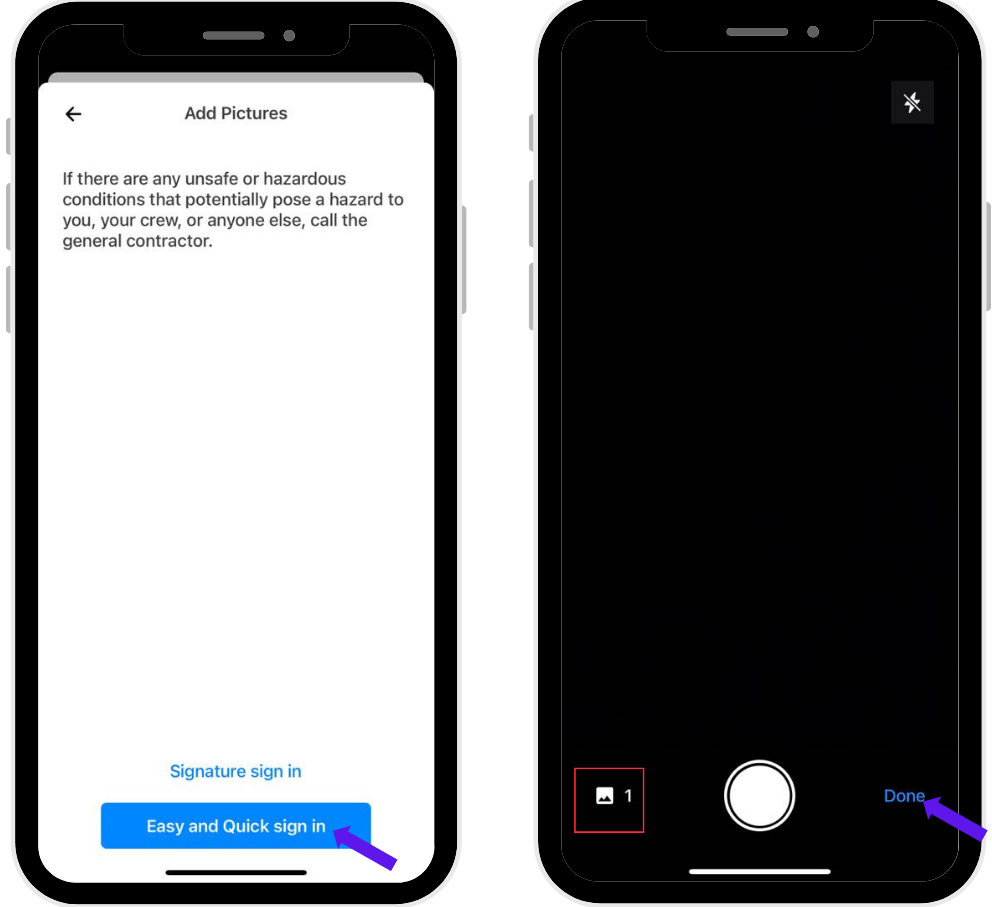
Easy and Quick Sign In – Fast roll call using a photo
If Using “Signature and Sign In”
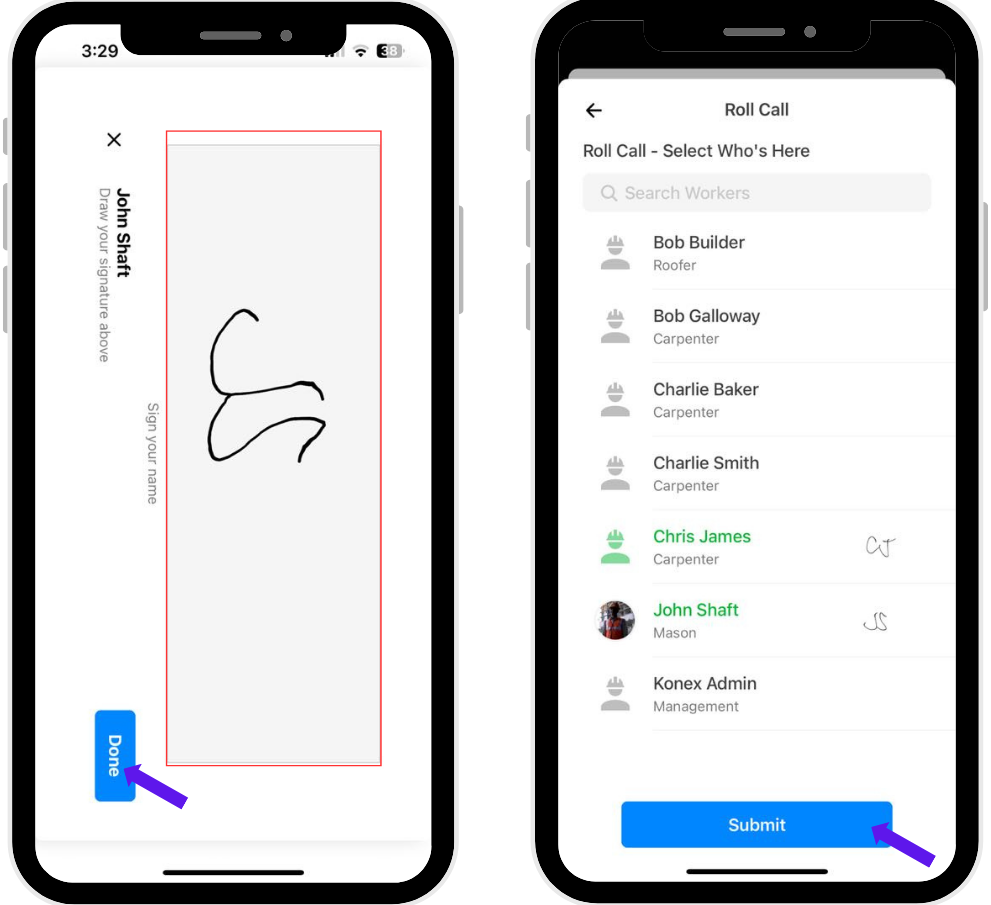
9. Select Workers
– Check the boxes for all workers present, or conduct a live roll call.
10. Sign and Click “Done”
– Complete the sign-in process to finalize worker attendance.
If Using “Easy and Quick Sign In”
11. Capture or Upload a Photo
– The device camera will open—take a group photo or upload one from your gallery.
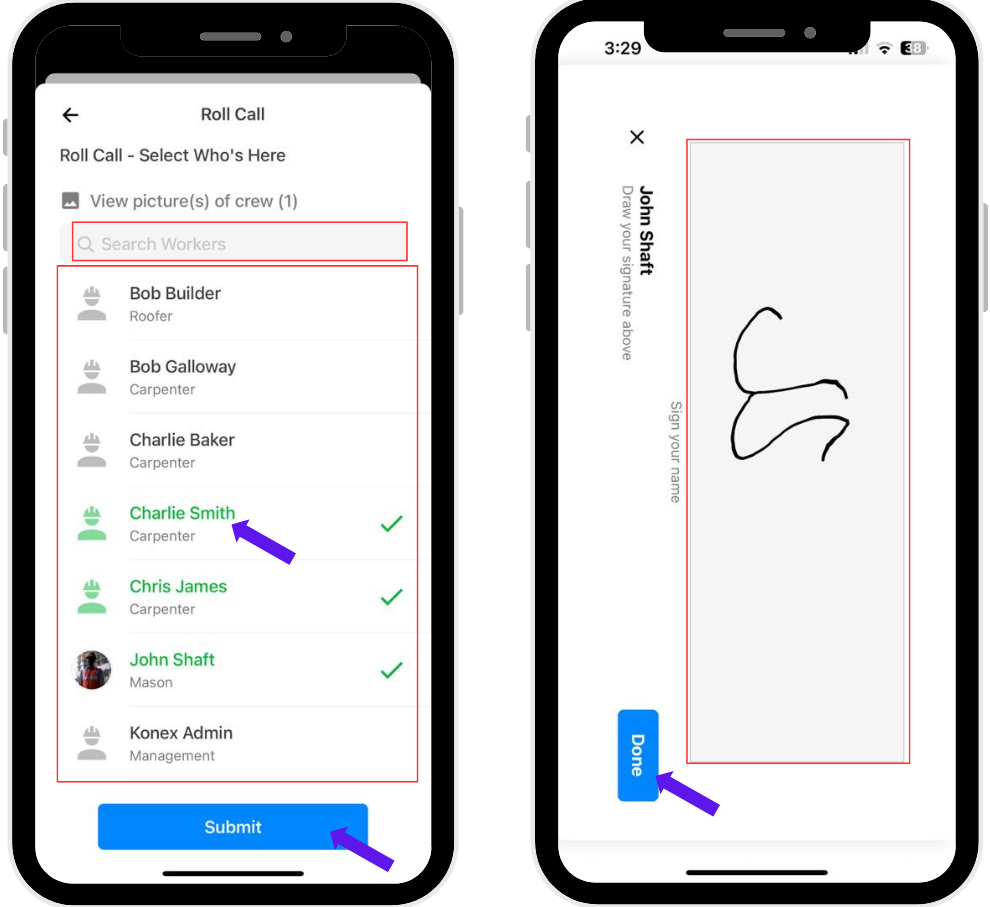
12. Select Workers
– Check the boxes for all workers shown in the photo or present during the roll call.
13. Sign and Click “Done.”
– Finalize the sign-in to complete the process.
Was this article helpful?
That’s Great!
Thank you for your feedback
Sorry! We couldn't be helpful
Thank you for your feedback
Feedback sent
We appreciate your effort and will try to fix the article