How to Add Crews in Siteform (User App)
This guide explains how to manually add crews and workers to your Siteform project when Orientation is not being used. If you’re using Orientation for crew setup, you can skip this process. However, if you’re not using Orientation, follow these steps to add your crew and assign workers to tasks.
Step 1: Select Project
On the top-left menu, click on Project and select the project where you want to add a crew.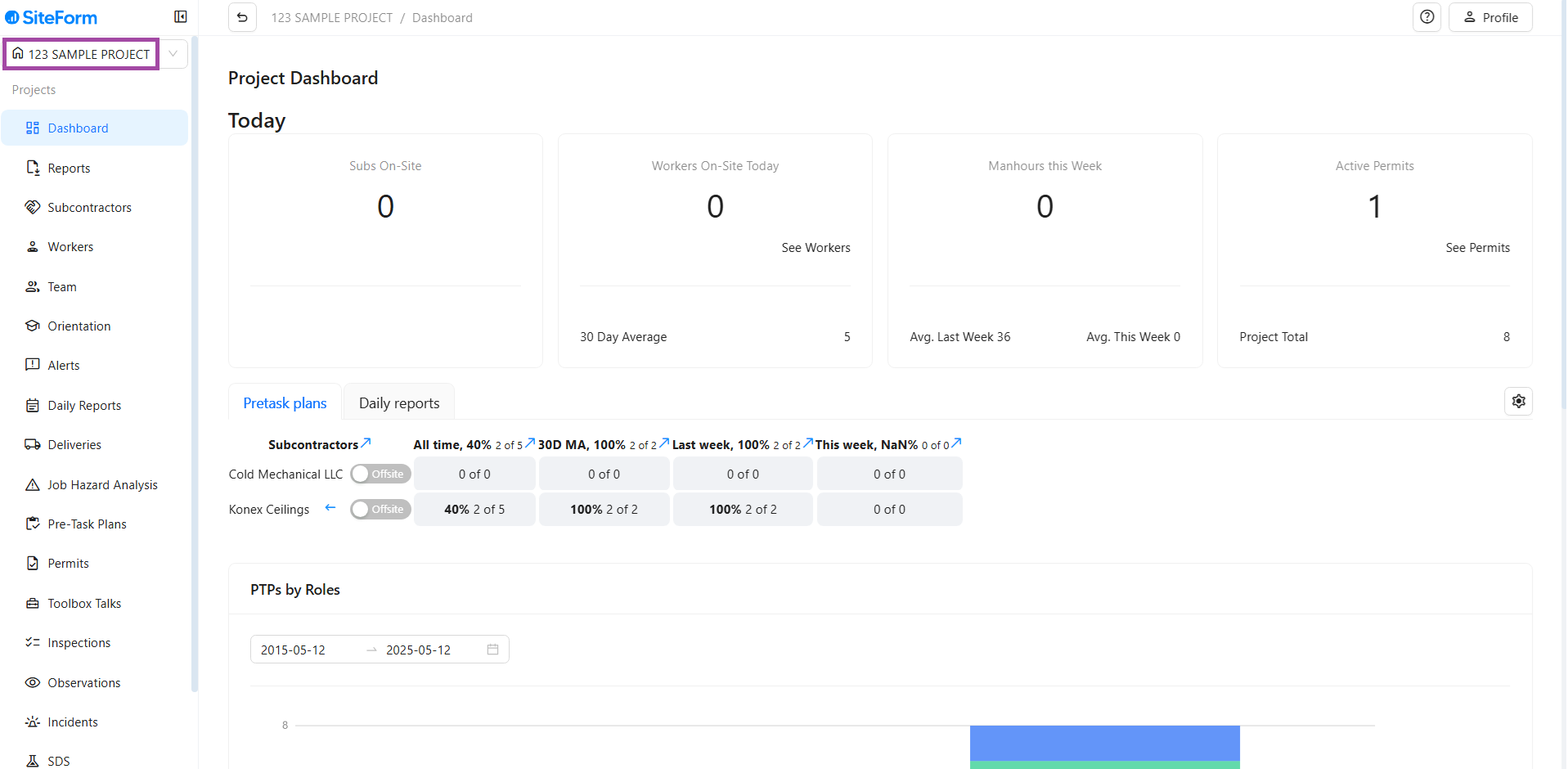
Step2: Click on Subcontractor
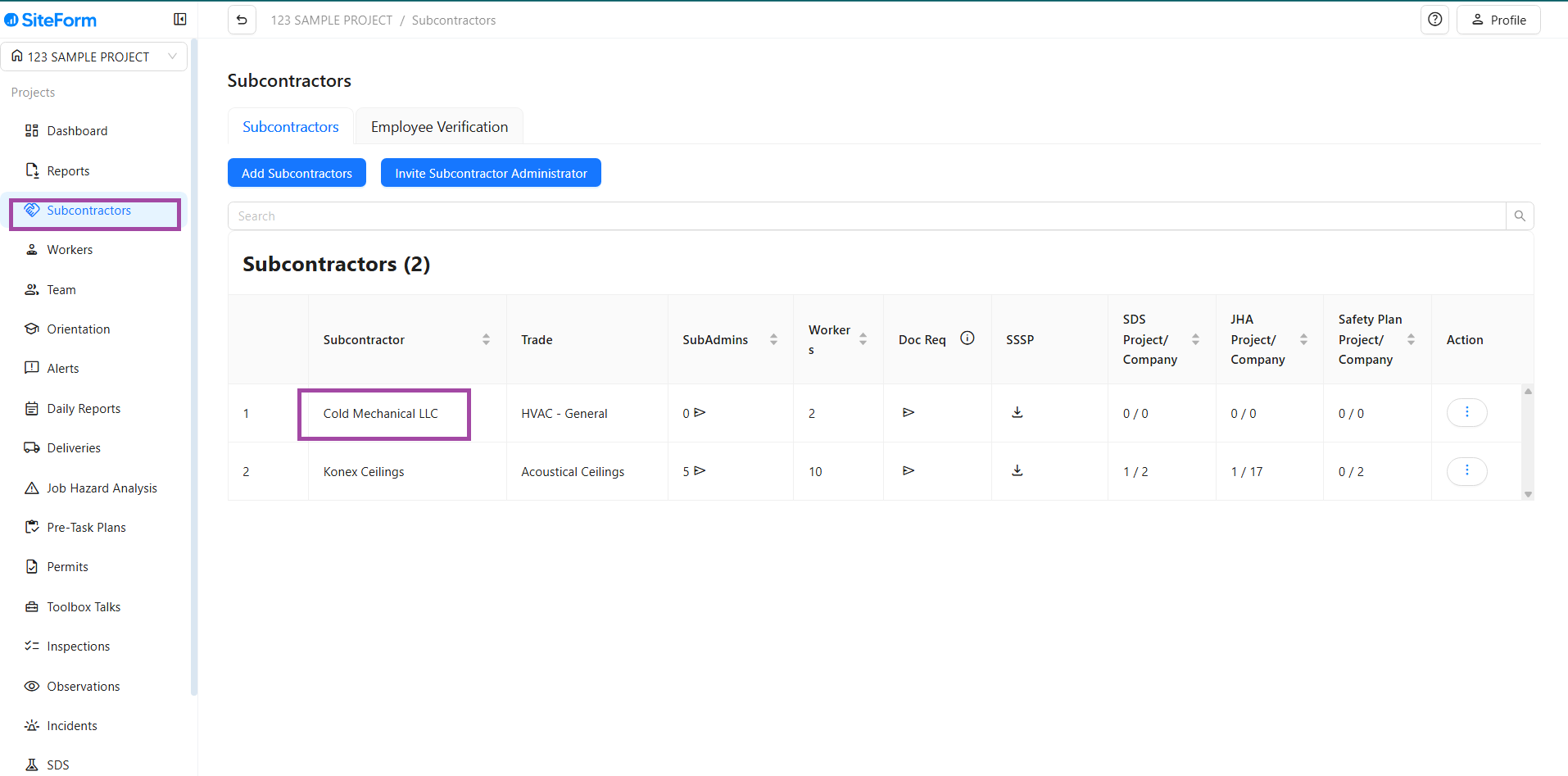
- From the project menu, click on Subcontractor.
- Click the subcontractor company for which you want to add a crew. If the subcontractor is not already listed, you’ll need to add them first.
Step3: Navigate to Workers and Crews Tab
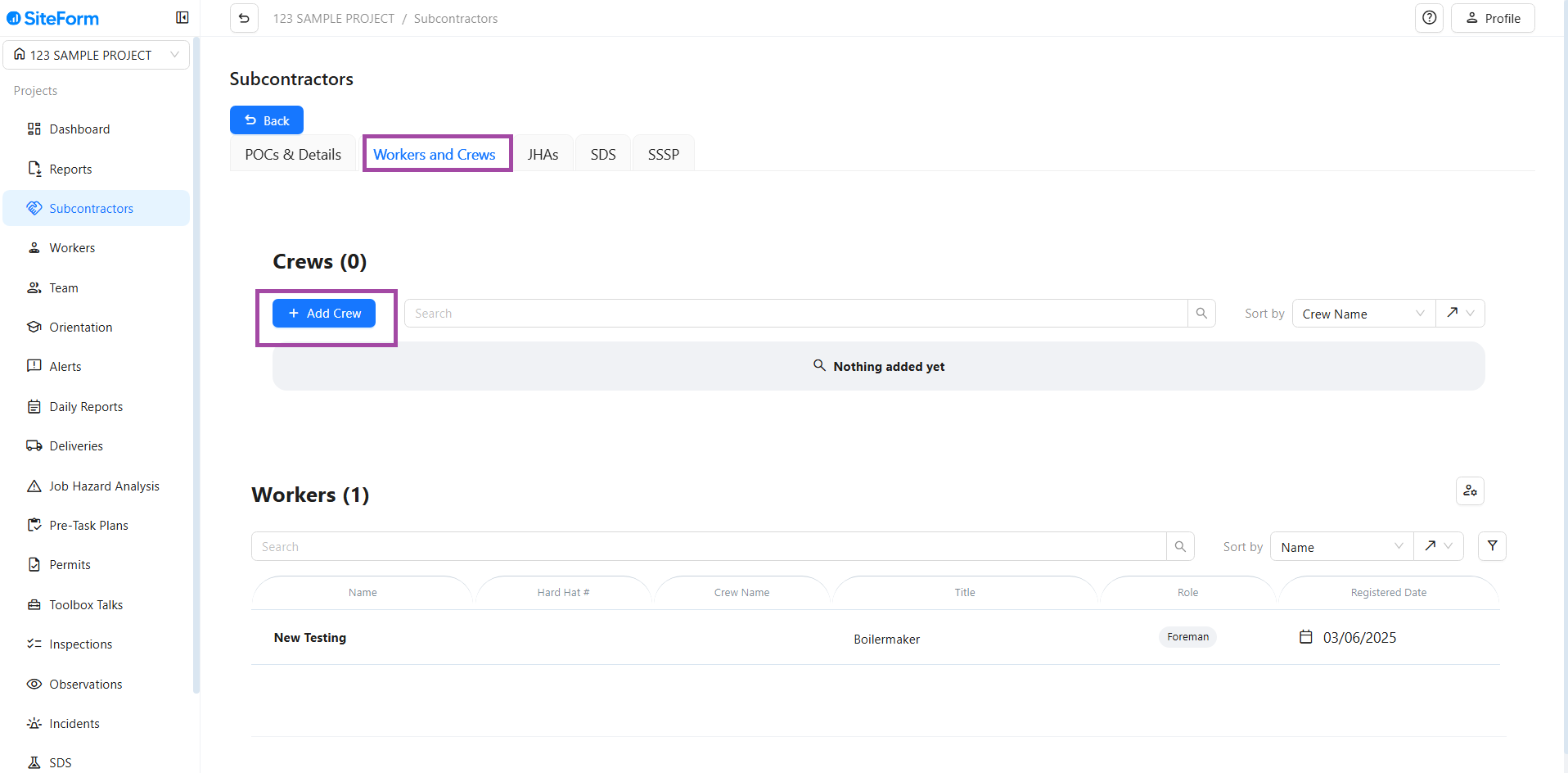
After selecting the subcontractor, go to the Workers and Crews tab.
This tab is specifically for managing workers and the crews they belong to, but it’s only relevant if you’re not using the Orientation feature.
Click on "Add Crew"
Step 4: Input Crew Information
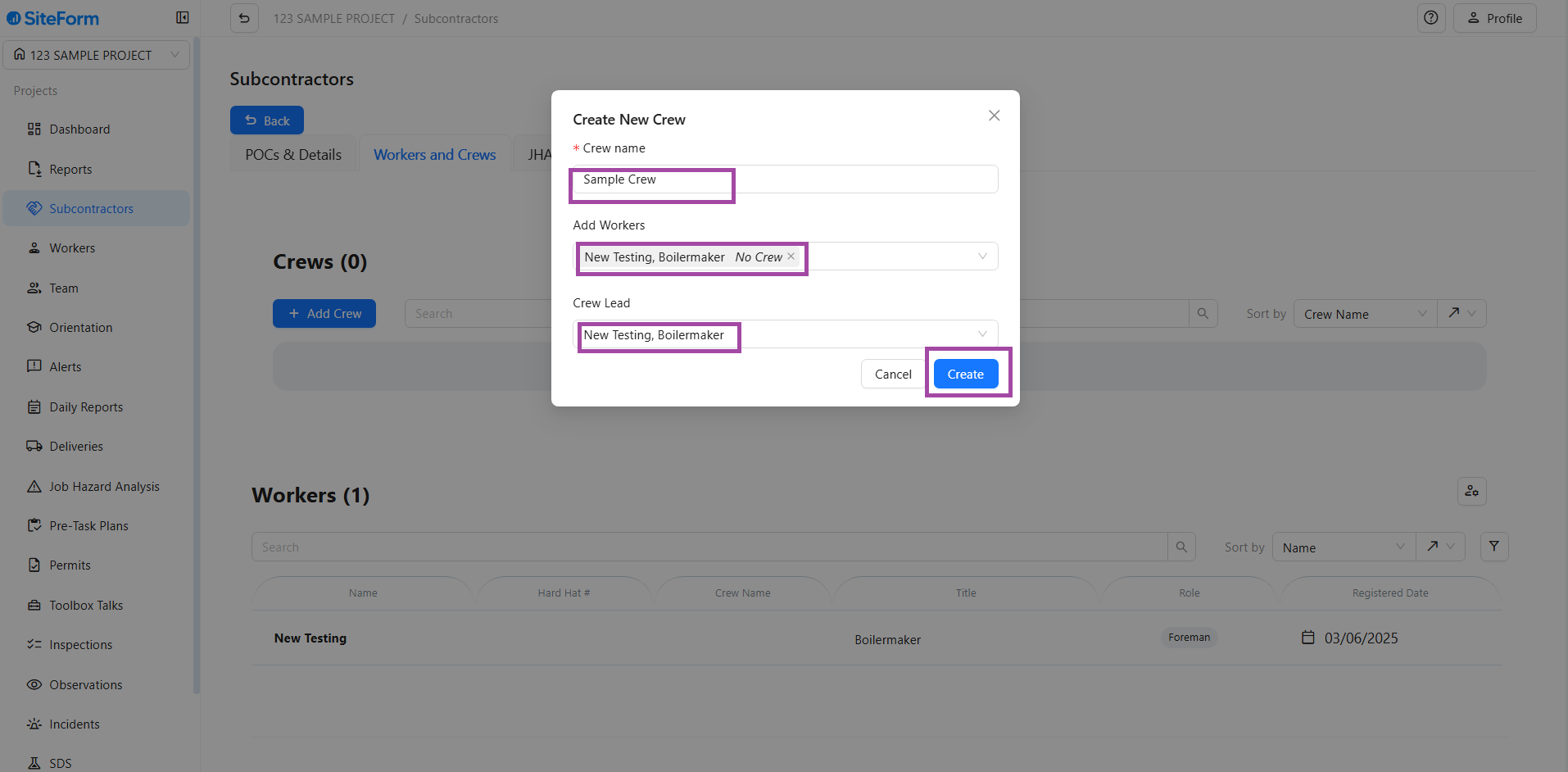
Crew Name: Enter a name for the crew (e.g., "Sample Crew", "Team 1"). Choose a name that is easy to identify.
Add Workers: Add workers to the crew by selecting them from the dropdown list. You can add multiple workers here.
Crew Lead: Select the Crew Lead (the worker responsible for managing the crew). This is an important step to ensure leadership is in place for the team.
Step 5: Click Create
After filling out the details (Crew Name, Workers, and Crew Lead), click the Create button to save the crew.
Crew Added Successfully!
Your crew is now set up and ready to be assigned to project tasks. With a Crew Lead in place, you can expect smoother coordination and better task management.
Important Note: This process is only necessary if you are NOT using Orientation.
Was this article helpful?
That’s Great!
Thank you for your feedback
Sorry! We couldn't be helpful
Thank you for your feedback
Feedback sent
We appreciate your effort and will try to fix the article