How to Integrate Procore with Siteform for PDF Permits
Use this guide to connect your Siteform project with Procore, so PDF reports are automatically saved in the correct Procore document folder.
Step 1: Select the Project
Click the dropdown in the top-left corner.
Select the Project you want to integrate.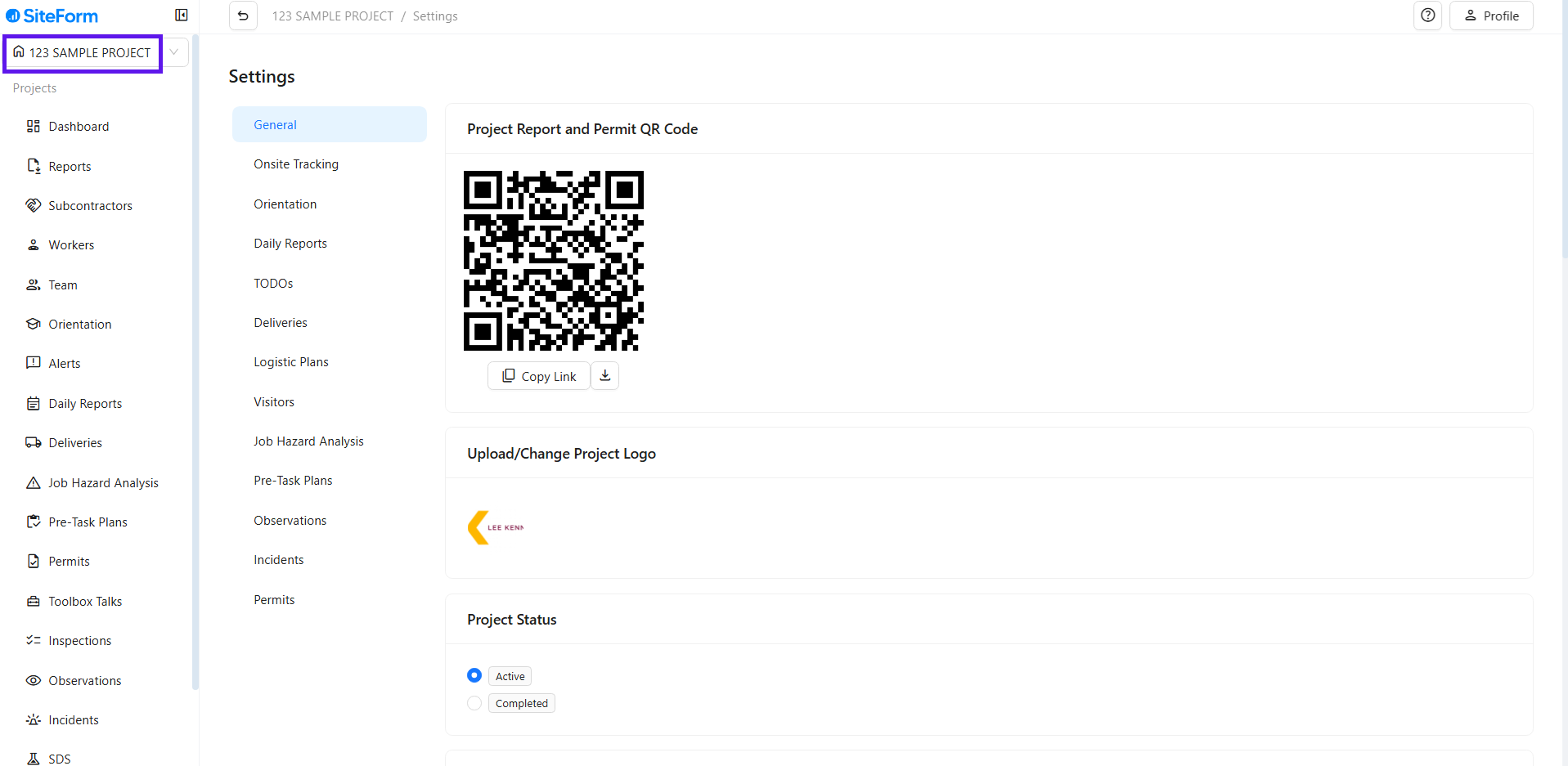
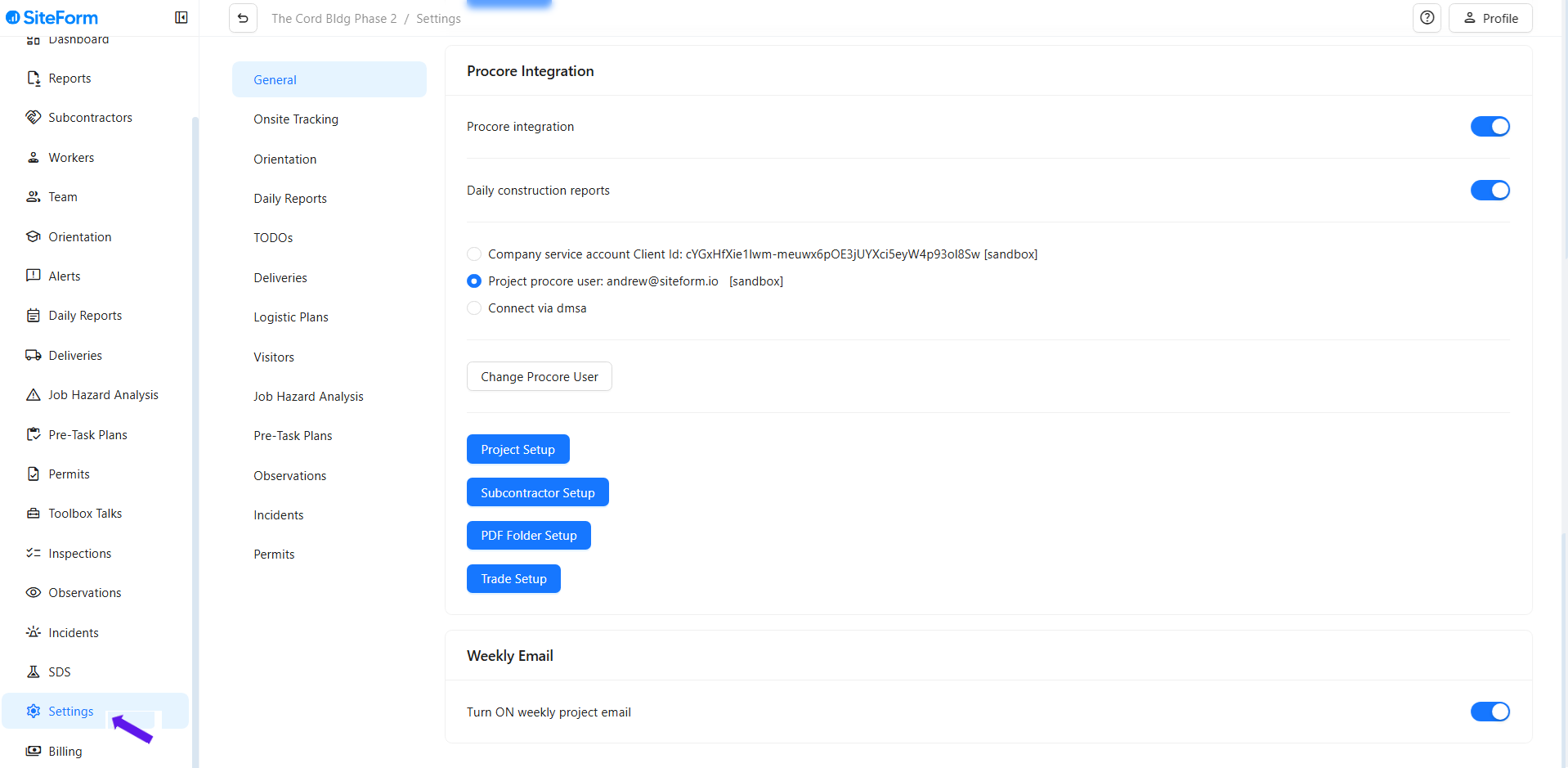
Step 2: Click Settings
In the left-side menu, click on Settings.
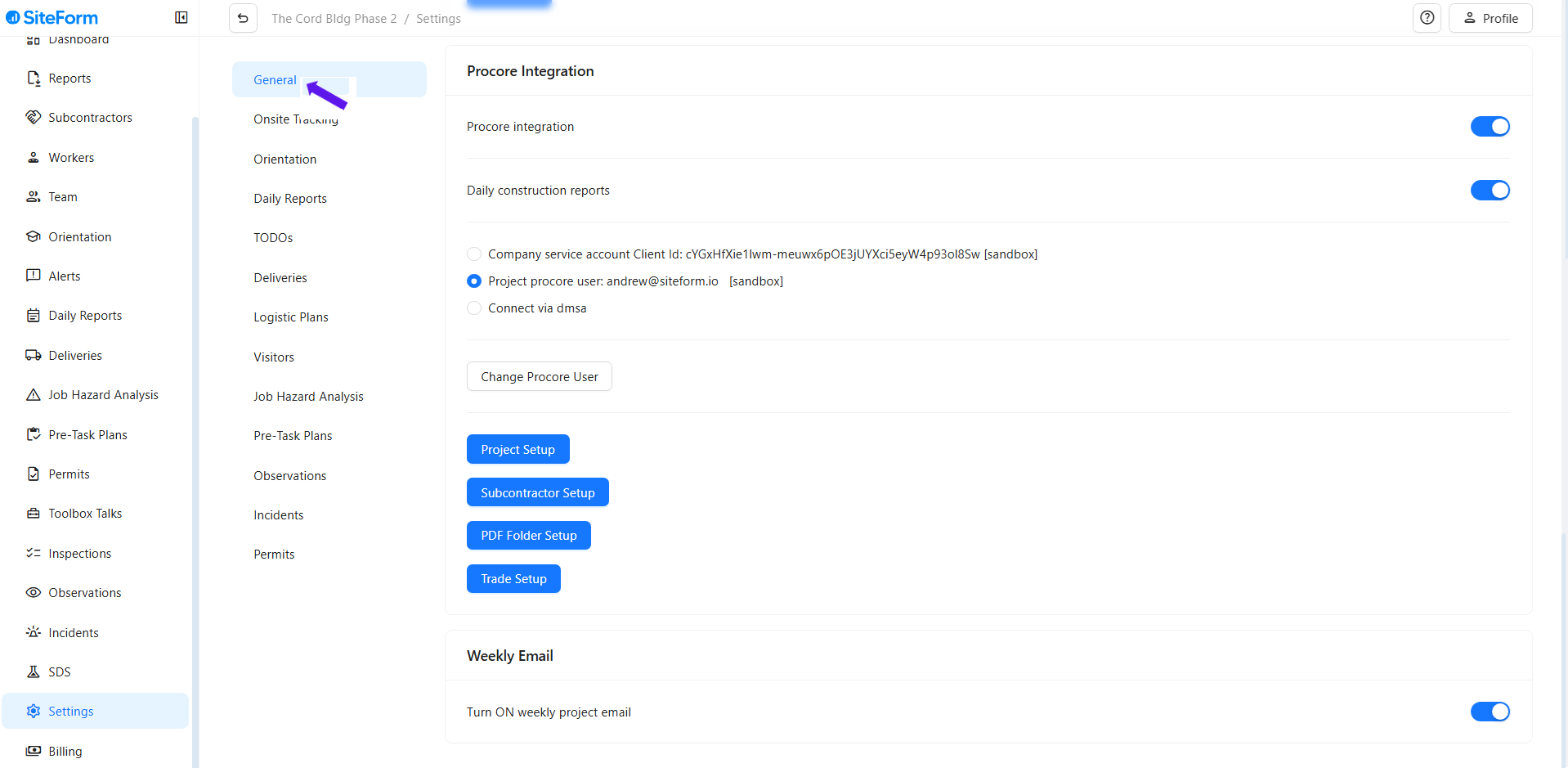
Step 3: Click General
Under Settings, select General.
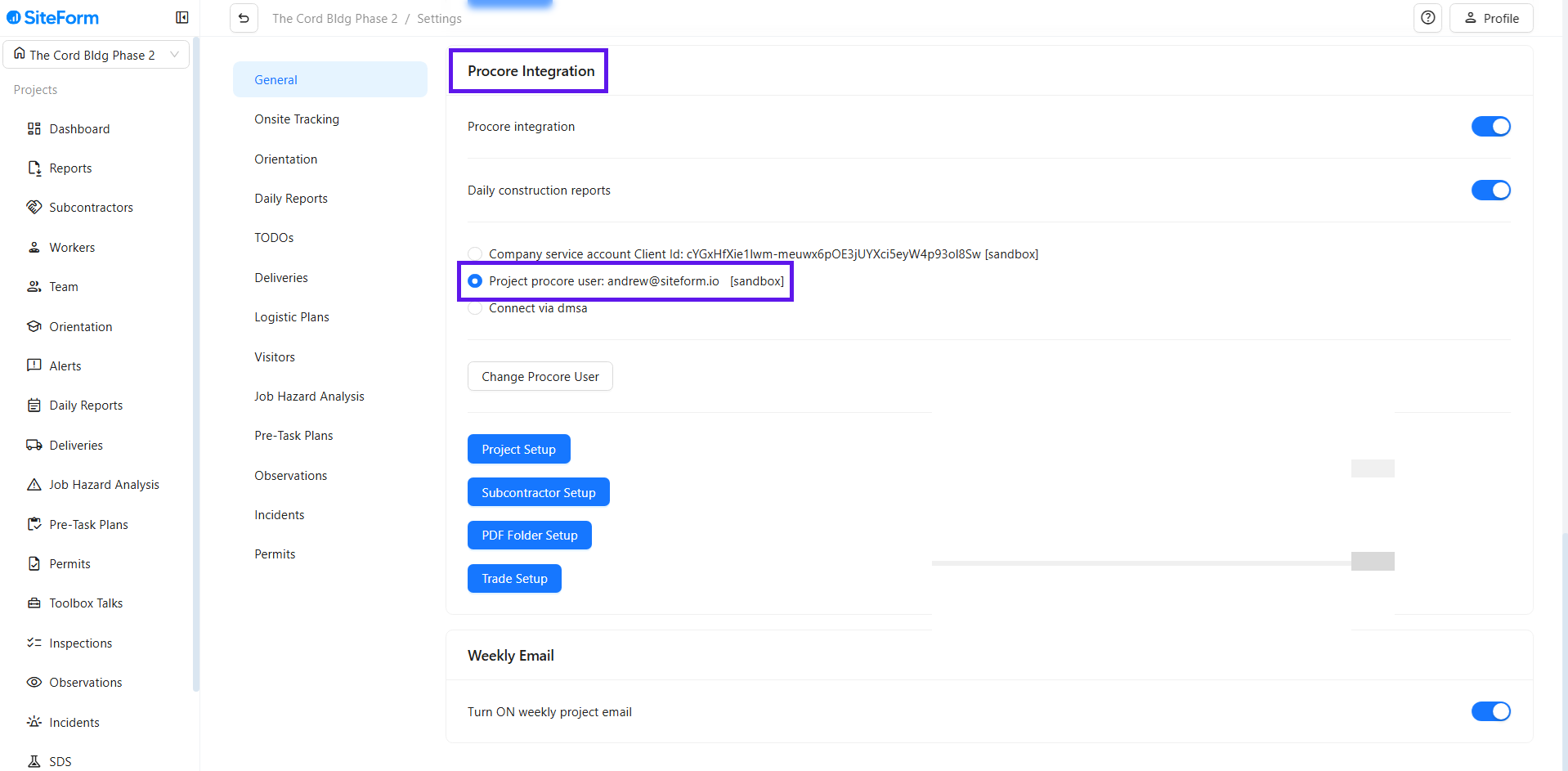
Step 4: Scroll Down to Procore Integration
Scroll down until you find the Procore Integration section and select Procore project user.
Step 5: Click on PDF Folder Setup
Click the PDF Folder Setup button to begin linking folders.
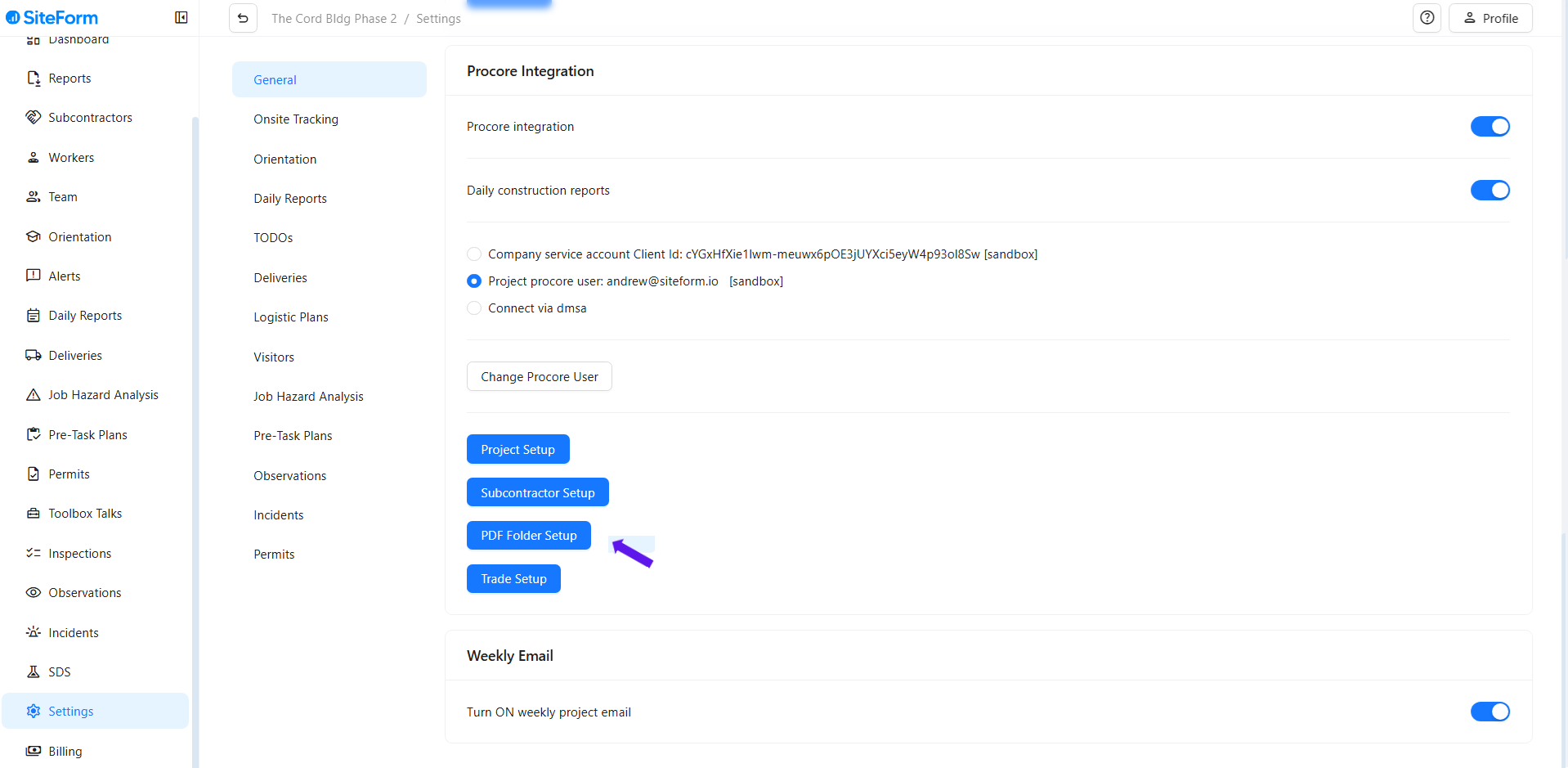
Step 6: Navigate Through the Dropdowns
Click PDF Folder Setup and navigate ing the dropdowns to the Procore documents folders where each PDF report will be saved. After selecting the correct folder, click Save to apply and store the integration settings.
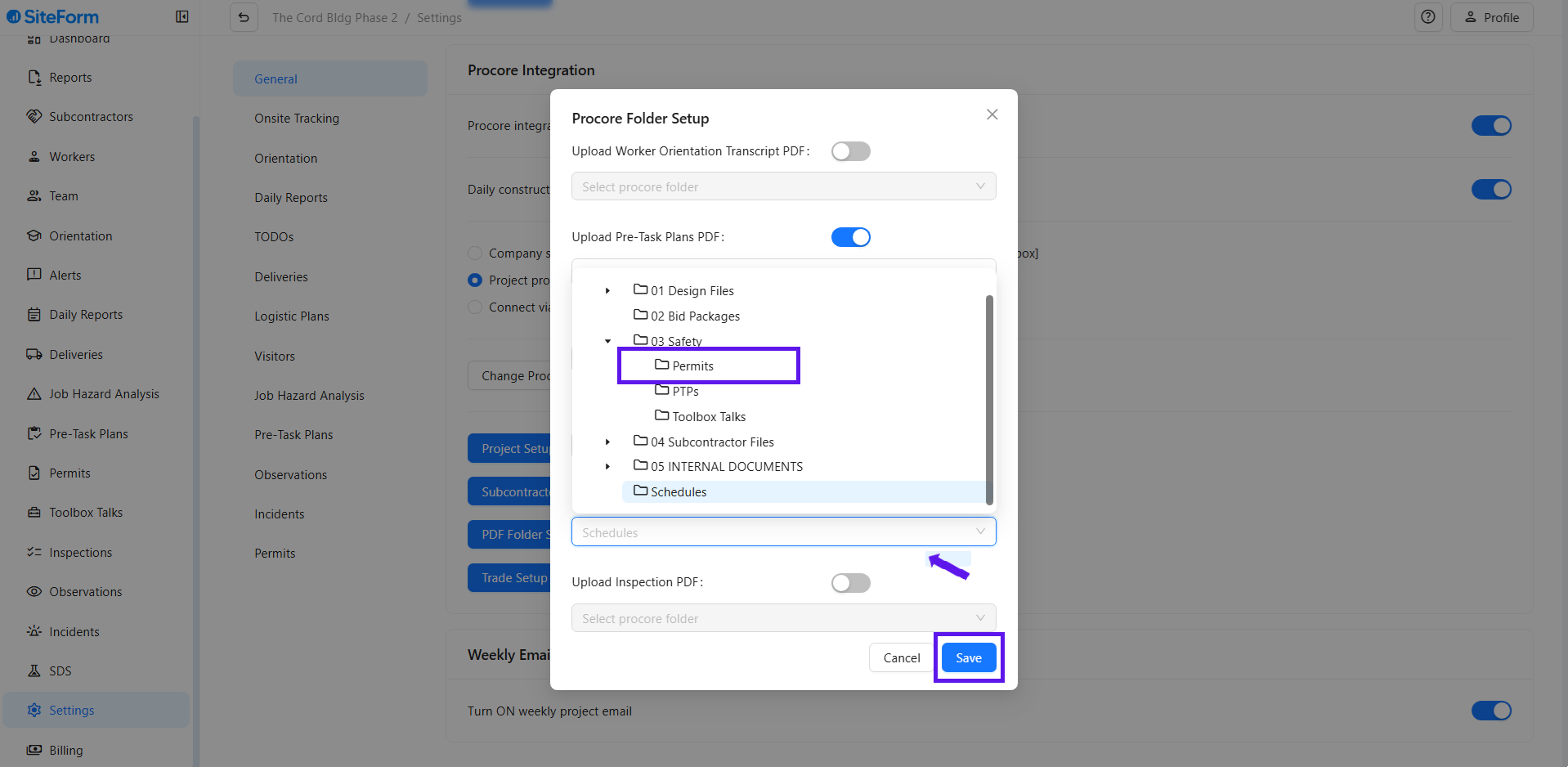
? Integration Complete!
Your Siteform reports will now flow directly into Procore, right where you need them.
Need to make changes? Just revisit the settings anytime. If you have questions, feel free to reach out to our support team.
Was this article helpful?
That’s Great!
Thank you for your feedback
Sorry! We couldn't be helpful
Thank you for your feedback
Feedback sent
We appreciate your effort and will try to fix the article