This article details the initial steps required to set up the integration between SiteForm and Procore, which will create Daily Report entries and upload Documents.
In Procore: Install the SiteForm app in the Procore Marketplace
NOTE: DMSA-enabled Apps are installed by the Procore company administrator either from the Procore App Marketplace or as a custom installation.
Marketplace Installation
1. Navigate to the Procore Marketplace
2. Log In to Procore.
If you are a Company Admin in more than one company, you will be prompted to select the company you want to install the App in.
3. Search for SiteForm
4. Click Install App and click Install again to confirm your selection
5. Navigate to App Management
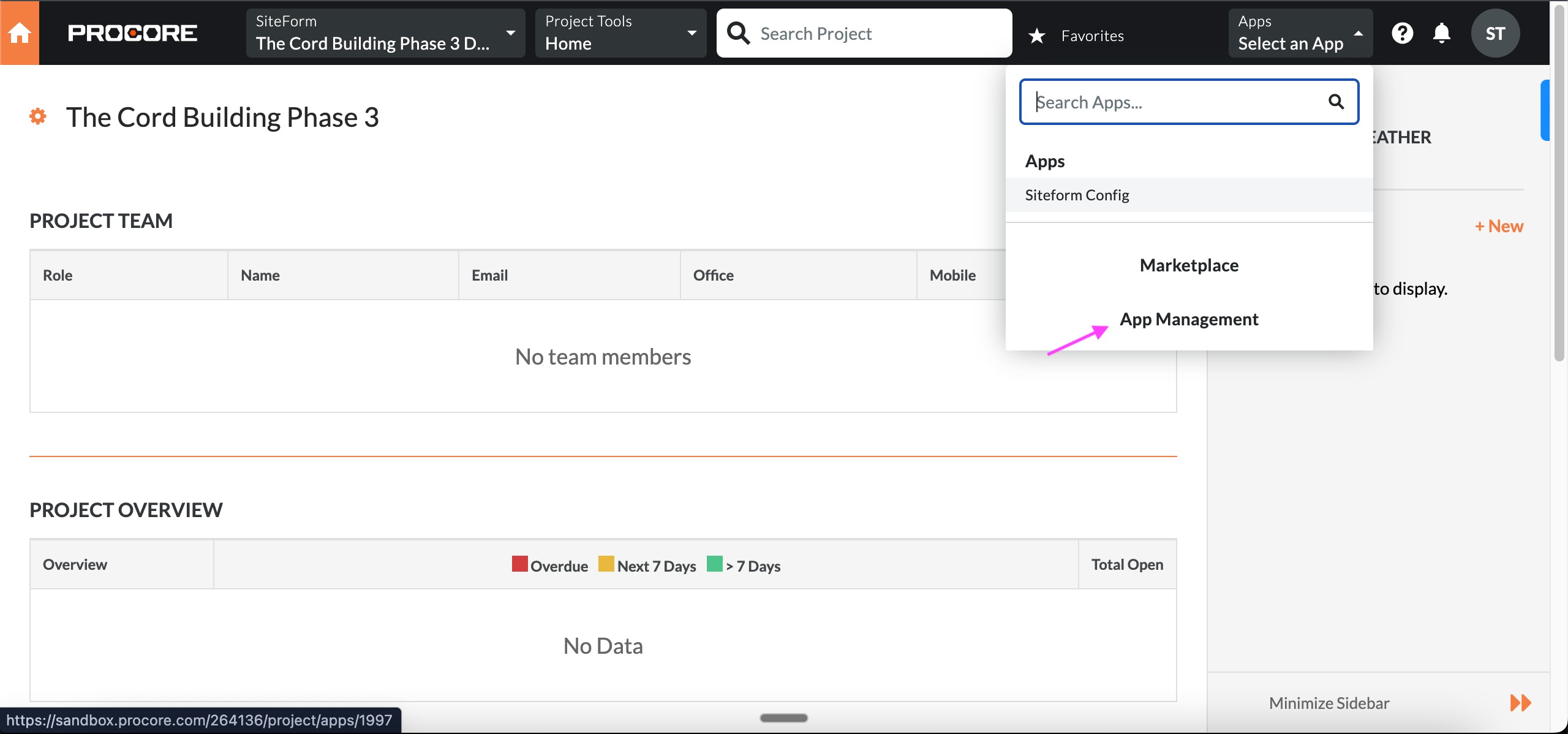
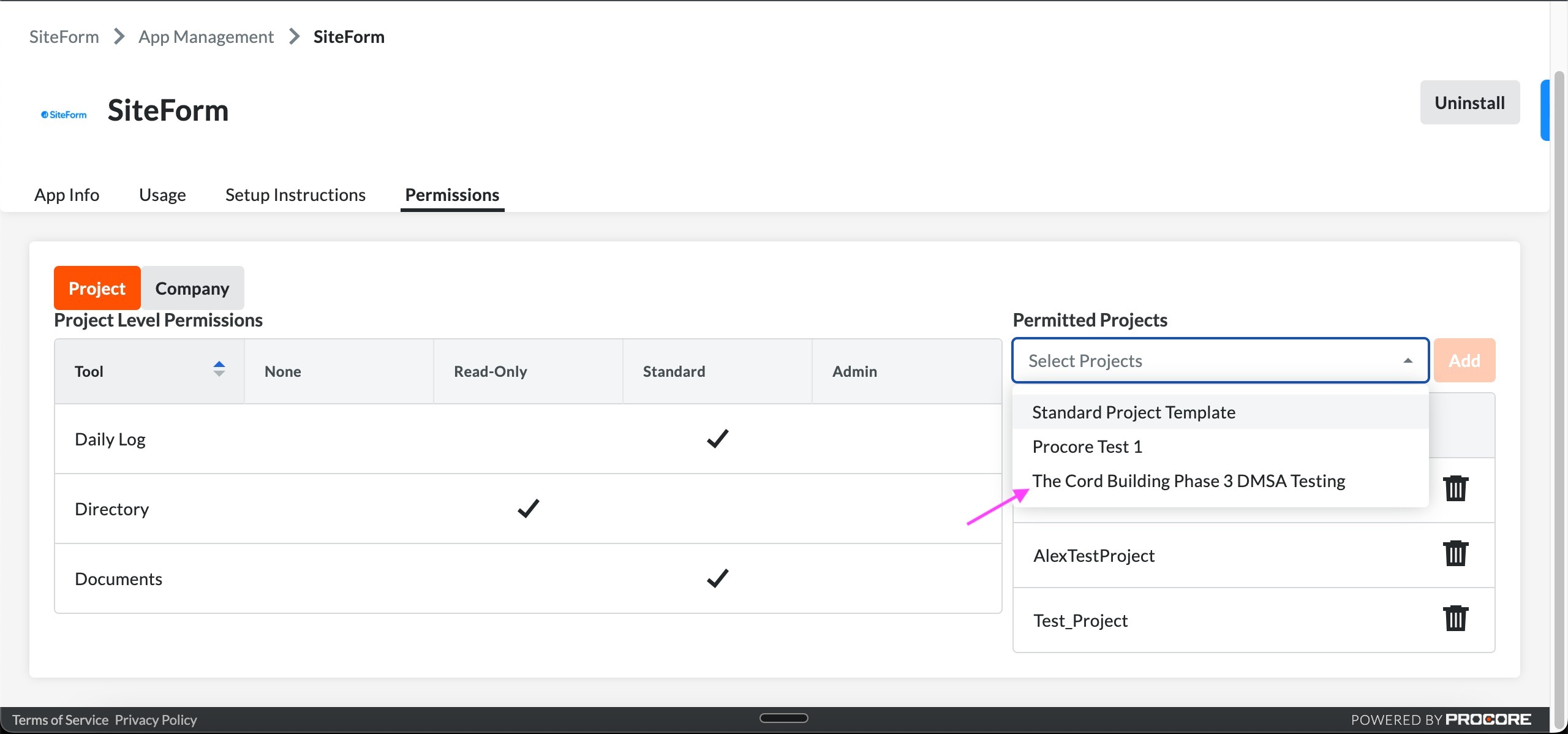
6. Select Permissions
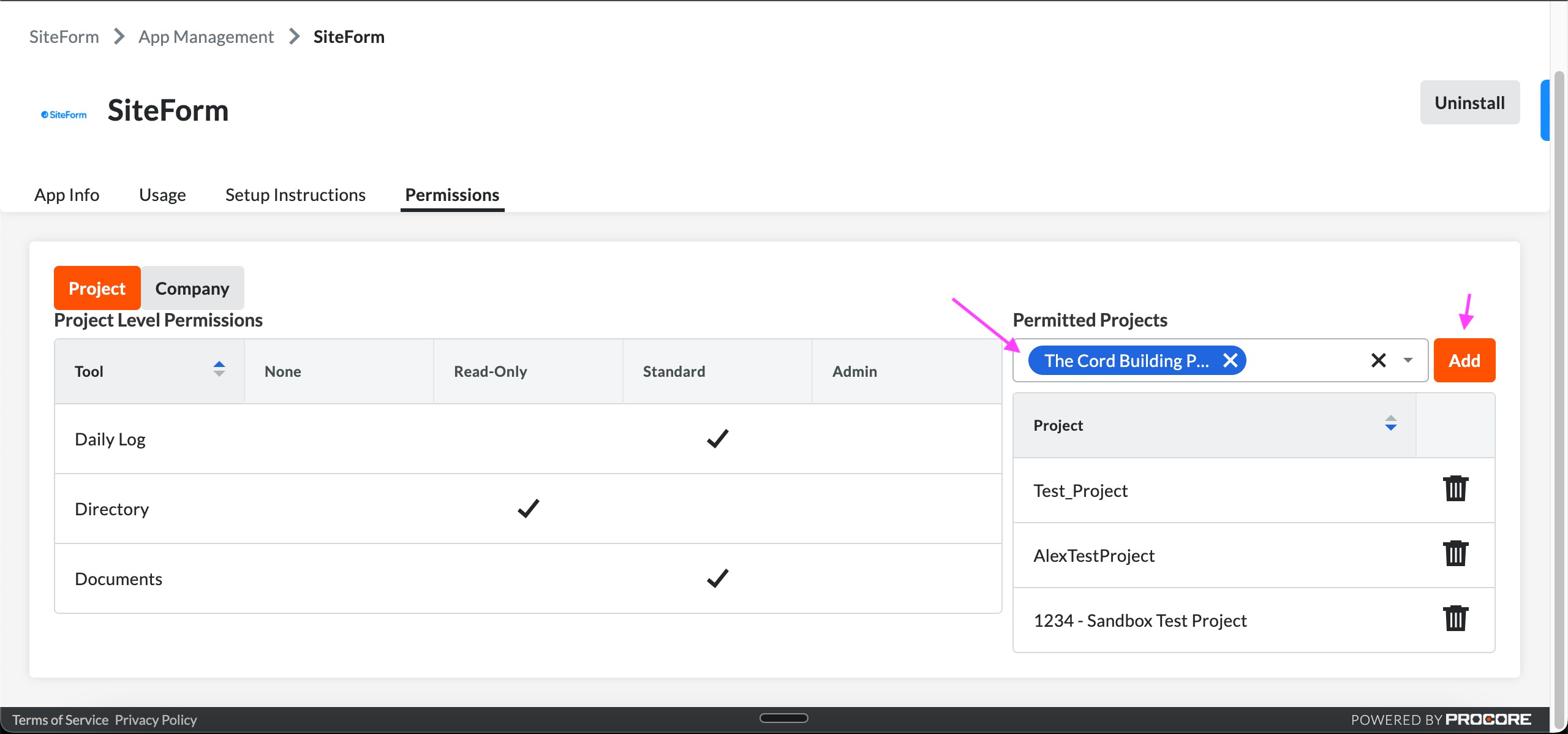
7. Select the Procore project(s) you are adding SiteForm to and select Add
In SiteForm: set up data transfer to Procore
NOTE: the following steps will map data points between SiteForm and Procore
Configure SiteForm
1. In SiteForm, navigate to your project and click Settings in the left-side menu
2. Under General Settings, scroll to the Procore Integration card
3. Select "Connect via DMSA..." and select Project Setup
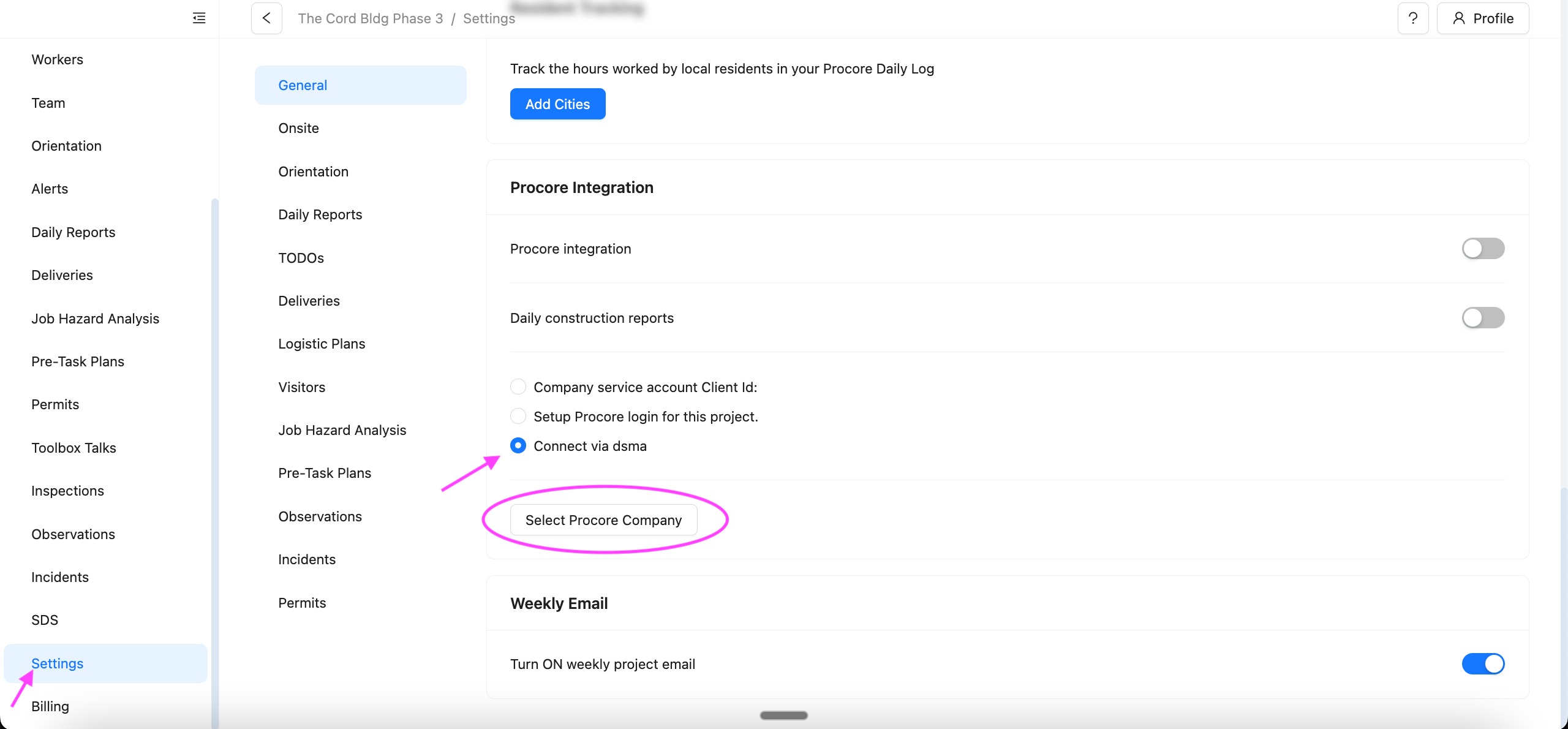
4. Select the Procore Company the project is linked to and the Project
- Troubleshooting: if you do not see your project(s), confirm the SiteForm app was installed successfully in the Procore marketplace
5. Procore may require you to log in and allow access.
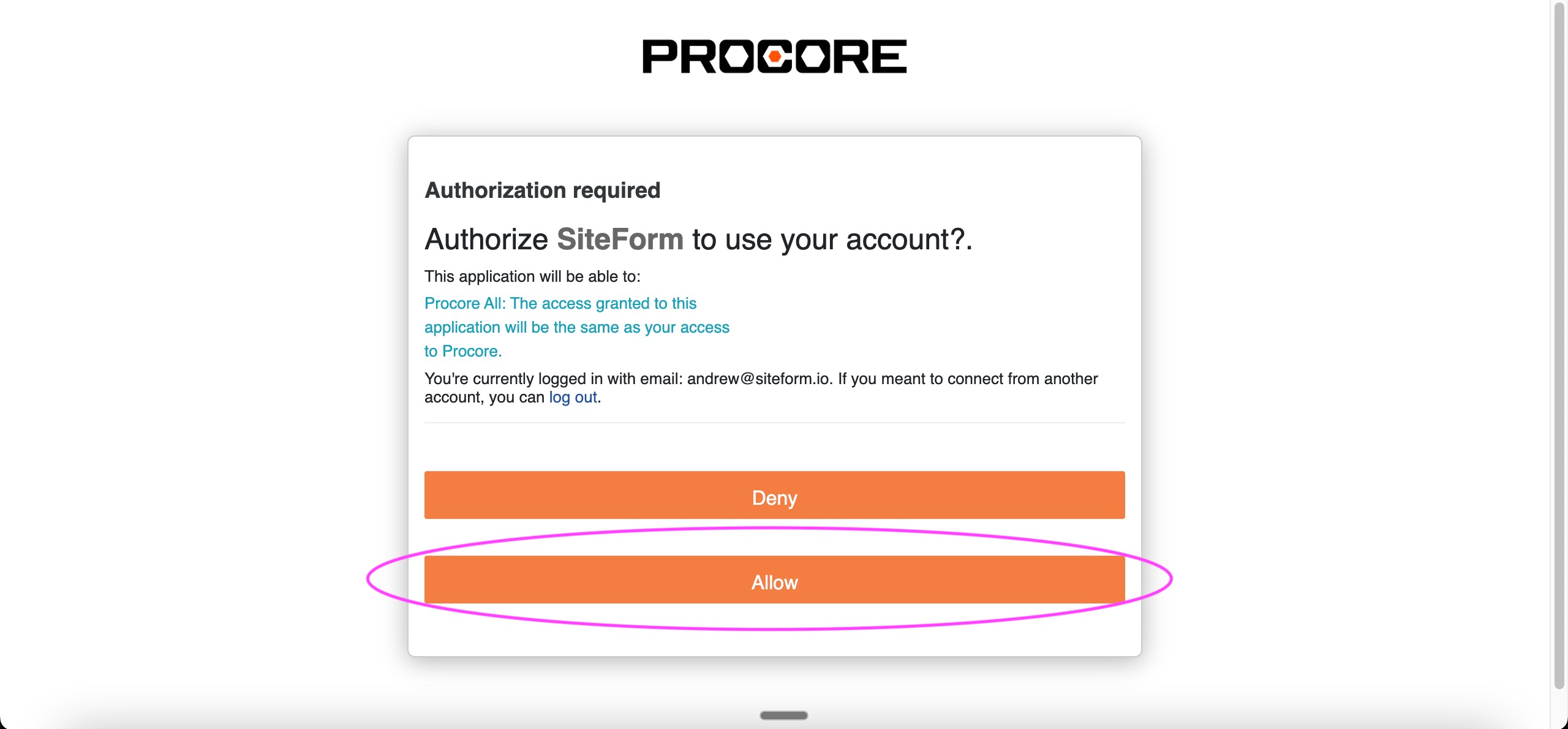
6. After the page reloads in SiteForm, the systems should now be connected, scroll down to the Procore Integration card
7. Click Subcontractor Setup and map the Subcontractors by selecting the matching Procore Sub. This links the SiteForm trades to your Procore trades. If you will be submitting Daily Report entries for any subcontractors, you will need to also select their trade. Then click Save
8. Click PDF Folder Setup and navigate ing the dropdowns to the Procore documents folders where each PDF report will be saved.
9. Select Trade Setup and match the trades between SiteForm and Procore. This is required to populate entries in the Procore daily log with Manpower or DCR entries. Select the best fits for each SiteForm trade
10. Turn ON the Procore integration
This is the last step which allows our system to push data in to Procore.
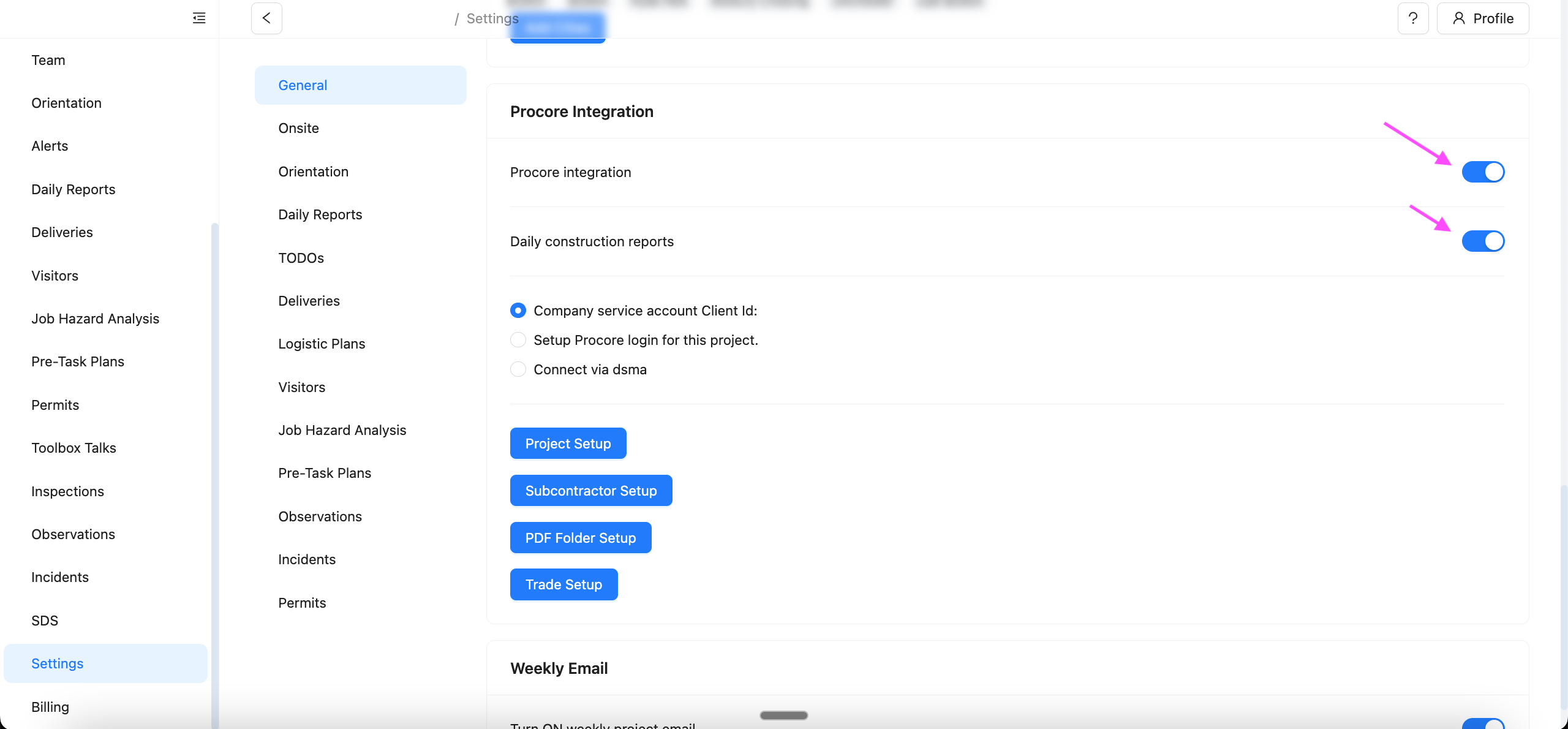
Daily Report entries automatically create Manpower entries in Procore. If your project is using the Daily Construction Report then also turn ON the DCR
If you have any trouble completing the integration, please contact your Customer Service Representative to help with the integration.
Was this article helpful?
That’s Great!
Thank you for your feedback
Sorry! We couldn't be helpful
Thank you for your feedback
Feedback sent
We appreciate your effort and will try to fix the article