Sending Document Requests to Subcontractors
Why This Matters
Before subcontractors begin work on your site, GCs typically request their safety documents (JHAs, SDS sheets, safety manuals). SiteForm makes collecting these documents simple by emailing the requests and providing an easy upload portal.
How It Works
- Add a subcontractor and their administrator to your project (see these articles to Add a Sub or Add an Admin)
- Send a document request email through SiteForm
- Subcontractor receives the email with a link to an upload portal
- They drag and drop required documents into labeled sections
- SiteForm combines these documents into a downloadable site-specific safety manual
Benefits
- No more lost emails or missing documents
- Collecting the critical JHAs that are necessary for Pre-Task Planning
- Easy tracking of document submissions
- Automatic creation of site-specific safety manuals
- Simplified compliance management
Note: This feature is still being developed with more improvements coming...always feel free to let us know what else we can add to help you and your teams
Follow these steps to send a Document Request Email to your Subcontractor Administrator:
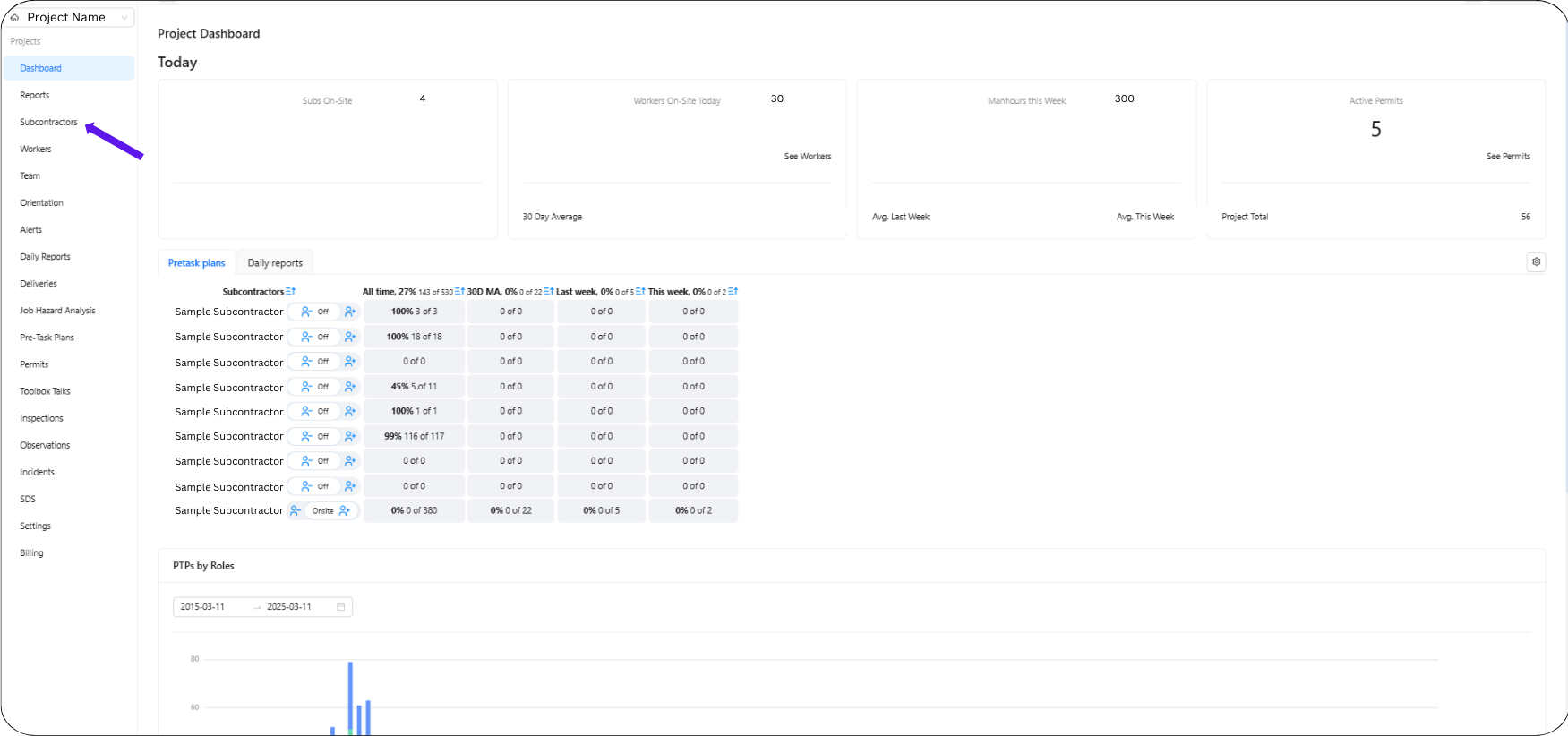
1. Click Subcontractors
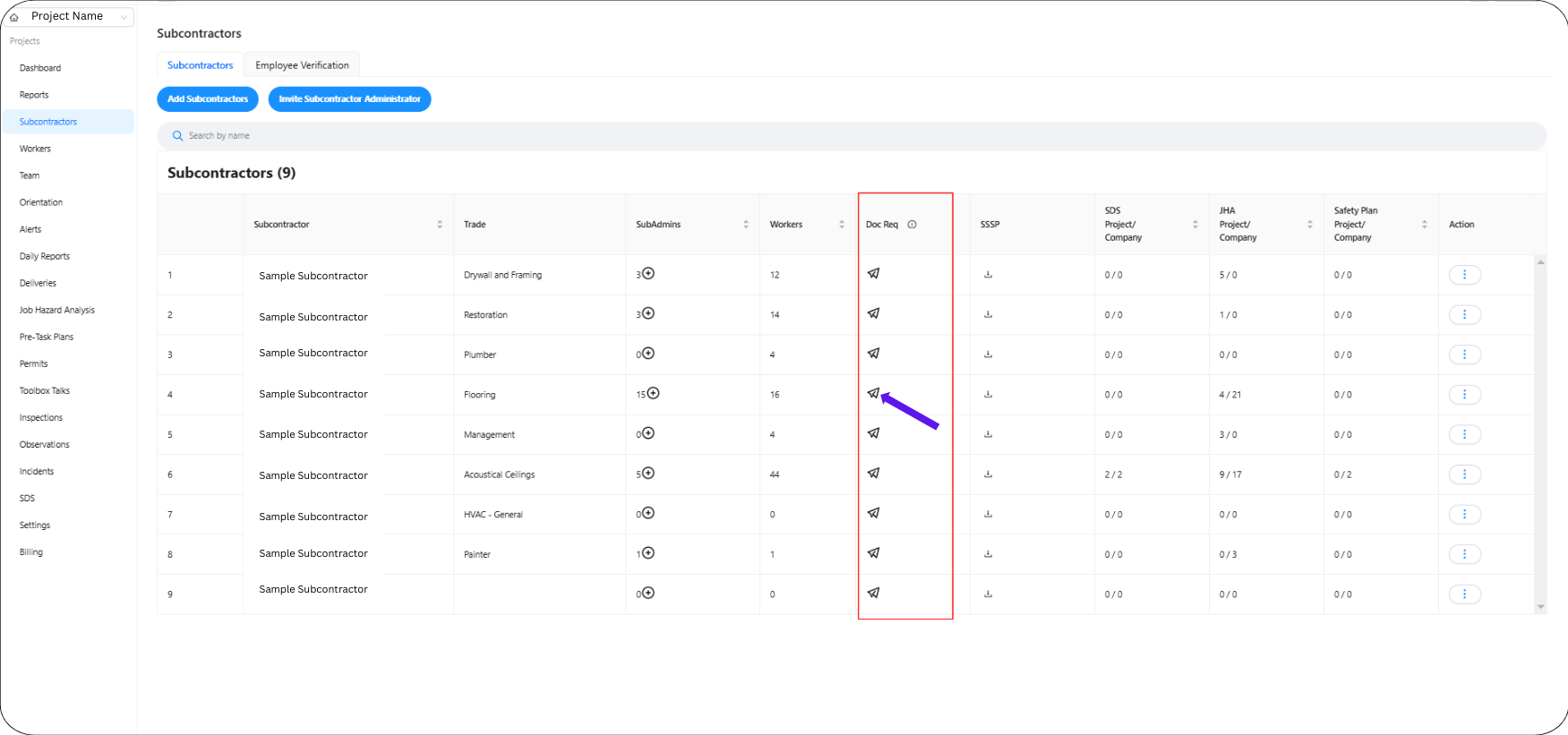
2. Find the subcontractor from whom you need to request a document.
- Look across their name, and you will find the Doc Request option.
- Click the paper plane icon (as shown in the image) to send the document request.
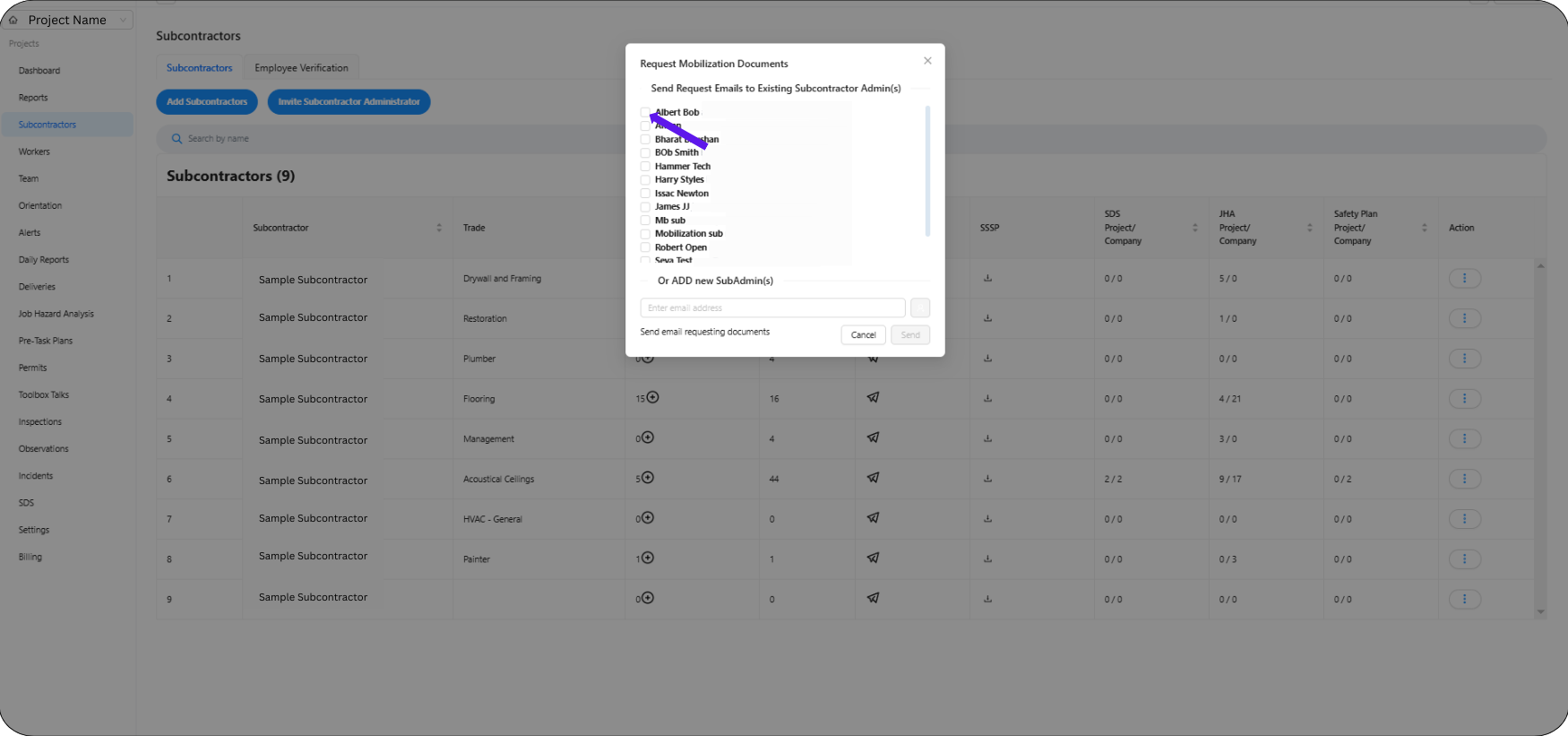
3. Check the box next to the subcontractor admin’s name. Alternatively, manually enter the email of the subcontractor admin you want to receive the request.
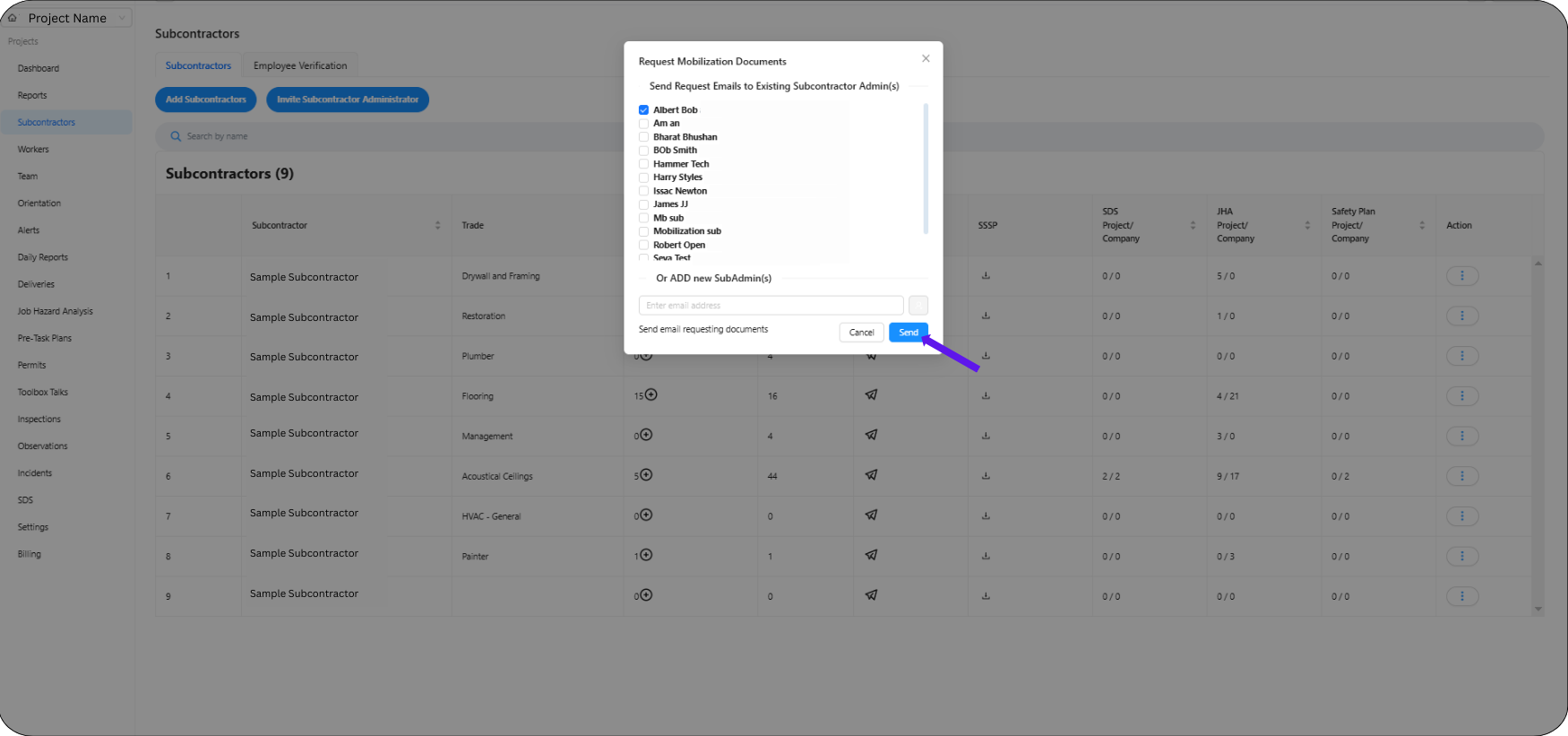
4. Click the Send button to complete the process.
The admin will receive the email and can begin uploading or tracking the required documents.
Was this article helpful?
That’s Great!
Thank you for your feedback
Sorry! We couldn't be helpful
Thank you for your feedback
Feedback sent
We appreciate your effort and will try to fix the article