Introduction
As a General Contractor, ensuring your crews and subcontractors are informed and compliant with safety practices is essential. Toolbox Talks play a key role in reinforcing safety protocols on site. With the SiteForm Web App, adding and managing Toolbox Talks is quick and easy.
Here’s a step-by-step guide to help you add a Toolbox Talk and assign it to your teams.
Step-by-Step Guide
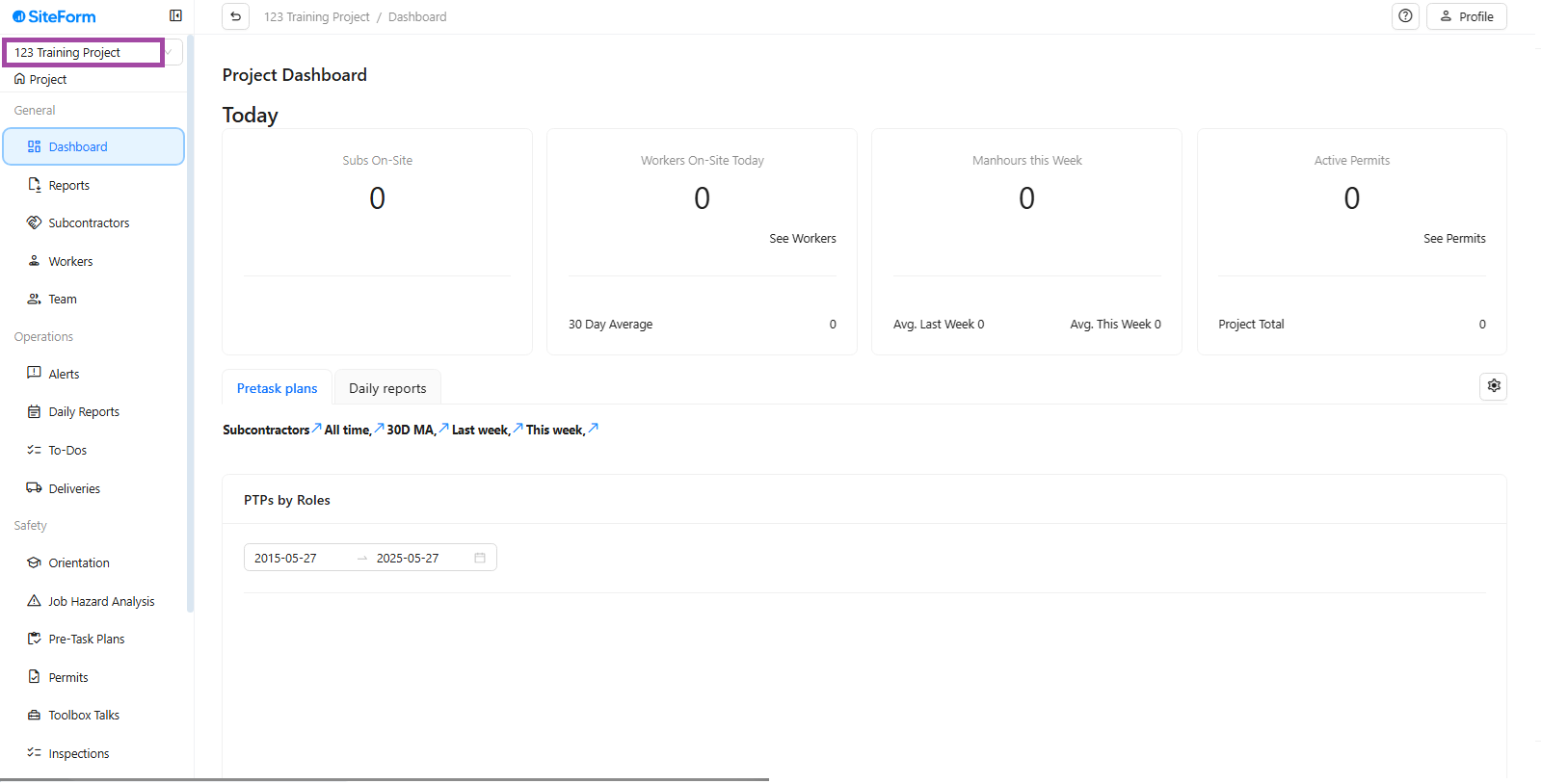
Step 1: Select the Project
On the left menu bar, select Project to open the project where you want to add the Toolbox Talk.
Step 2: Select Toolbox Talks
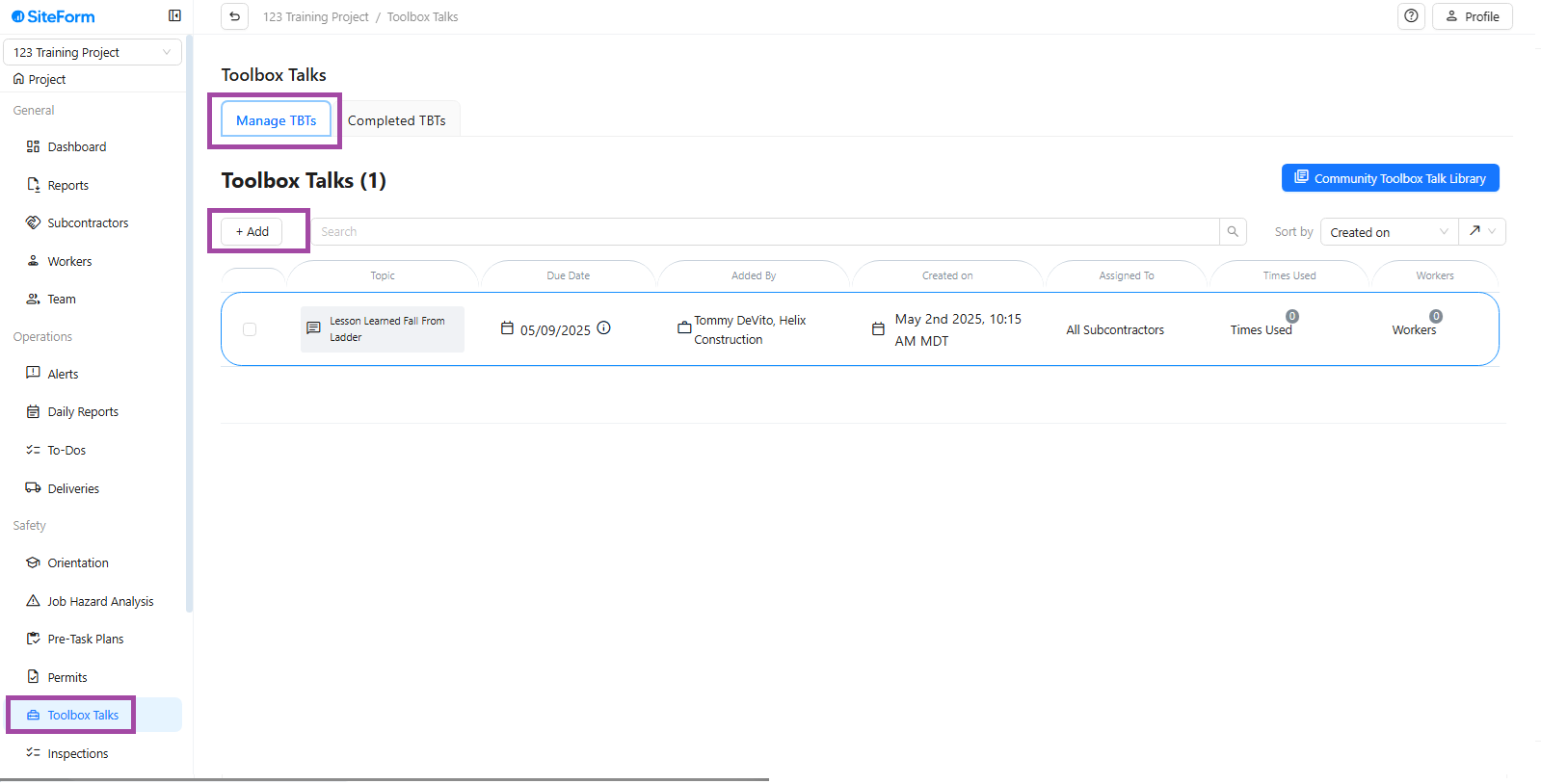
On the left menu bar, click on Toolbox Talks.
Select Manage TBT Tab and then click the Add button to start adding your Toolbox Talk.
Step 3: Upload the Toolbox Talk File
You’ll be taken to the upload screen.
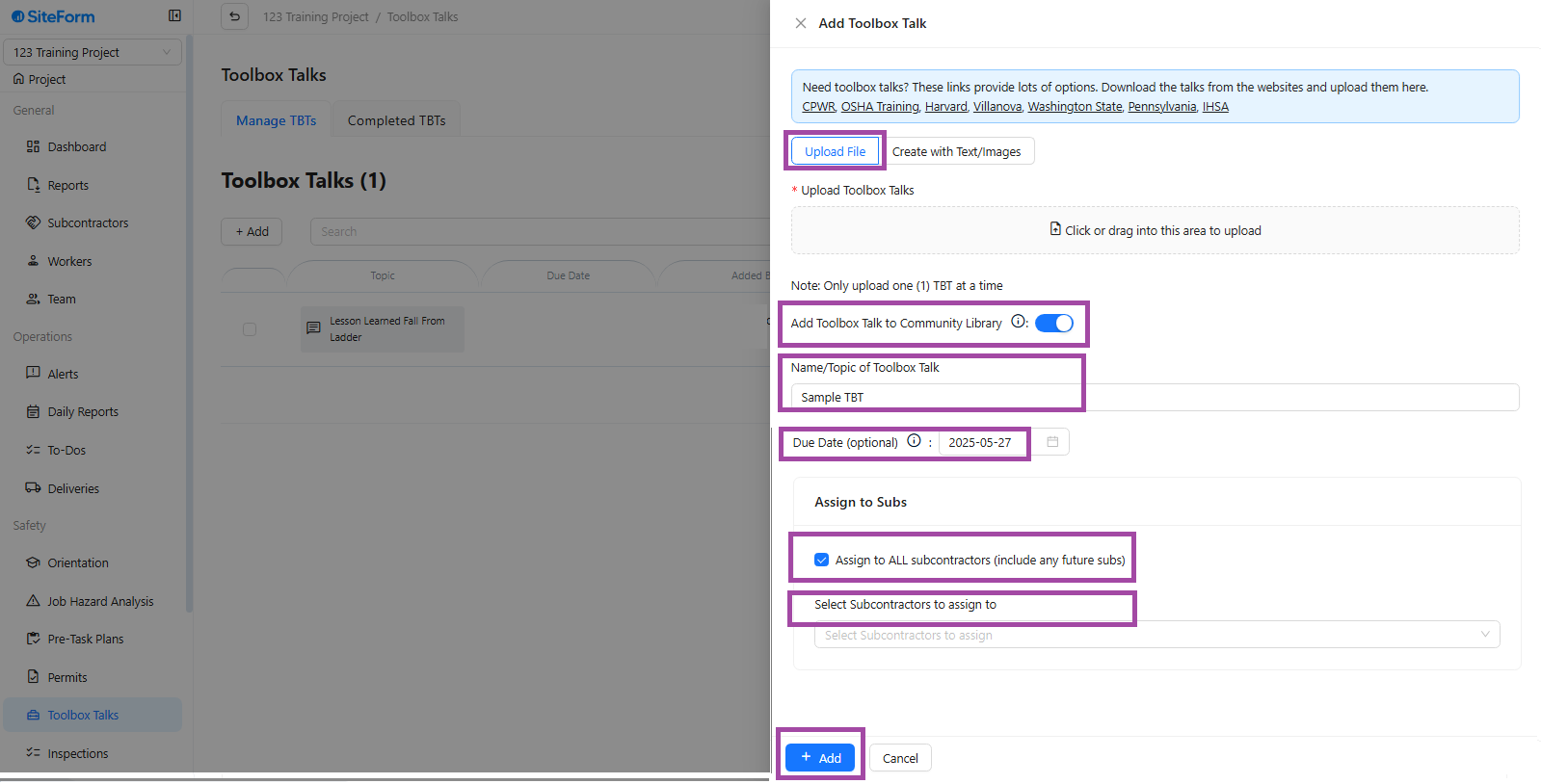
Click Upload File or drag and drop your Toolbox Talk file into the upload area.
If you want to share this Toolbox Talk with the Community Library, click the swiitch ON/OFF button.
Name/Topic of Toolbox Talk: Enter the name or title of your Toolbox Talk.
Due Date (Optional): If you want, add a due date for when the Toolbox Talk should be completed.
To assign the Toolbox Talk to all subcontractors (including future subs), click the small checkbox.
To assign it to specific subcontractors, use the search bar to select the subcontractors you want to assign.
Once all information is filled in and assignments are selected, click the Add button.
Done!
Your Toolbox Talk is now successfully added and assigned to the selected subcontractors.
By adding Toolbox Talks in the SiteForm Web App, you’re reinforcing a culture of safety, ensuring compliance, and keeping the entire team informed. Digital documentation makes it easy to track, assign, and manage Toolbox Talks anytime, anywhere.
Safety starts here—one Toolbox Talk at a time!
Was this article helpful?
That’s Great!
Thank you for your feedback
Sorry! We couldn't be helpful
Thank you for your feedback
Feedback sent
We appreciate your effort and will try to fix the article